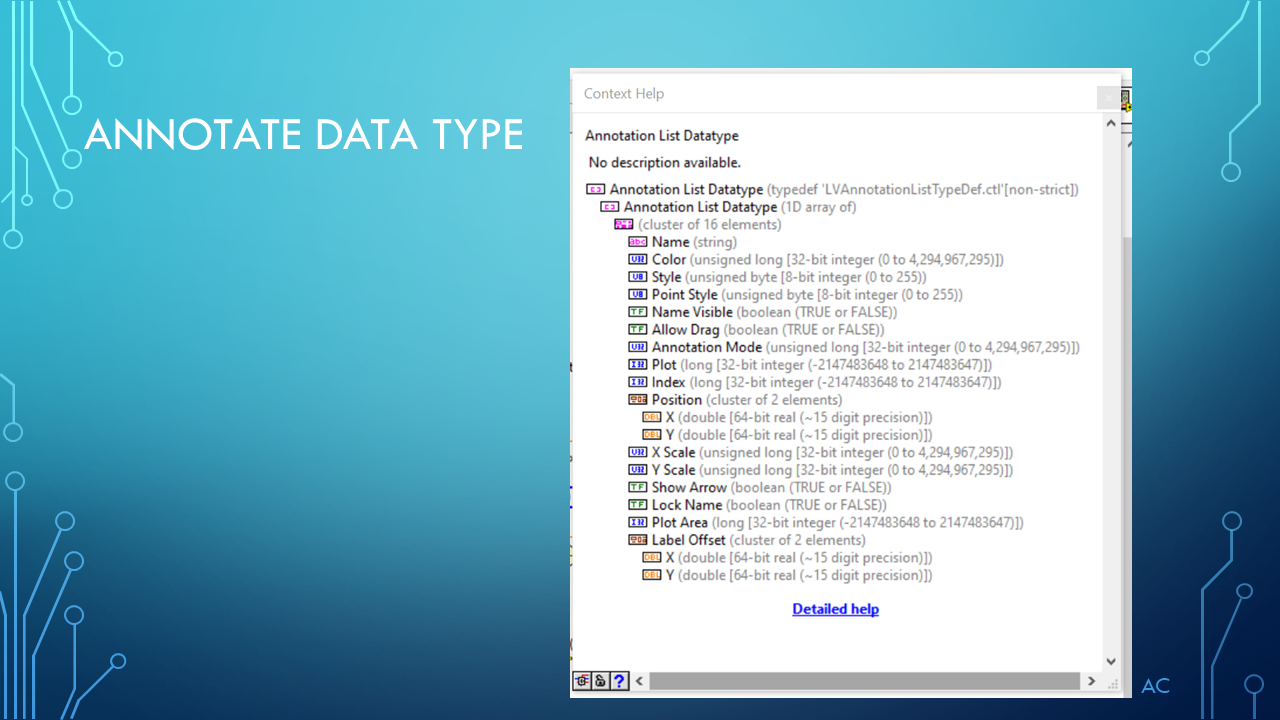
LV Enum and String

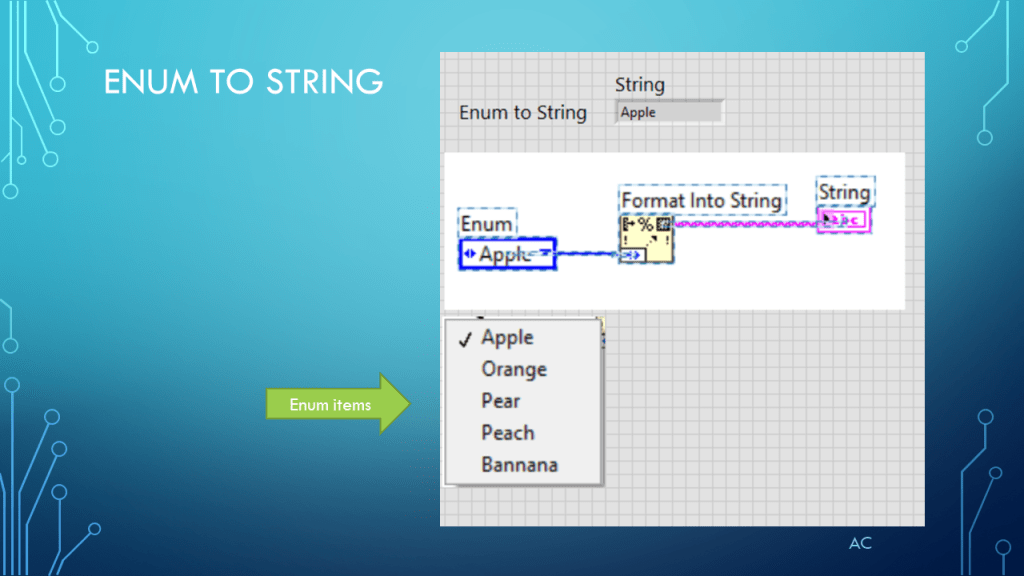
Presentation on Enum to String and String to Enum

Notes

•Presentation on Enum to string and String to Enum

•Programming Language used: LabVIEW® 2019 Base version

•LabVIEW is a NI (formally National Instruments) product

•Presentation app: Microsoft’s PowerPoint

•Presentation shown to spark ideas of use.

•This presentation is not connected to or endorsed by any company.

•Use at your own risk.

Tags:  LabVIEW®, Format to String, Scan From String, Compound (AND) operation, String to Enum Checking, Testing that a string matches elements in enum.

Posted in Enum, LabVIEW(r), Test Sector | Tagged , , | Leave a comment

Python Example Testing Functions , Running Test List, Mini Test Report (not Gui version), Only Console result.

Showing use of functions and running sequence via list, with a mini Test report function

List had Test function to run. Example Tests_seq=[component,electrical,optical,OE,EO]

The OE test result in this example has a random result output which helps develope code for different result outputs. Example Result=[“Pass”,”Fail*”,”Error”] .

Python 3.7 using Spyder

# -*- coding: utf-8 -*-
"""
Created on Sun Oct 20 12:48:27 2019

@author: aleja
"""
import random

def component():
    print("Running Component Test")
    return ("Pass")
    
def electrical():
    print("Running Electical Test")    
    return ("Pass")

def optical():
    print("Running Optical Test")
    return ("Pass")  
  
def OE():
    print("Running OE Test")
    return (random.choice(Result)) #random result

def EO():
    print("Running EO Test")
    return ("Pass")     


def Test_report(TestN,TestR):
    CSPs=["15","30"]
    CSPF = "{:<"+CSPs[0]+"} {:<"+CSPs[1]+"}"
    print("\n==========================")
    print("===== Test Report ========")
    print("==========================")
    Test_Header=["TestName","TestResult"]
    Test_HeaBar=["********","**********"]
    print (CSPF.format(Test_Header[0],Test_Header[1]))
    print (CSPF.format(Test_HeaBar[0],Test_HeaBar[1]))       
    for i in range(len(TestN)):
        print (CSPF.format(TestN[i],TestR[i]))


Tests_seq=[component,electrical,optical,OE,EO]
Test_enables=[1,1,1,1,1]
Result=["Pass","Fail*","Error"]

Test_Results=[]
Test_Names=[]
for Test in Tests_seq:
    Test_result=Test()
    Test_Name=Test.__name__
    print(Test_Name +"  TestResult:         " + Test_result)
    Test_Results.append(Test_result)
    Test_Names.append(Test_Name)
    
print(Test_Names)
print(Test_Results)

FailedList=["Fail*","Error"]


if ("Fail*") in Test_Results:
    print ("\n*Overall Result: Failed")
elif("Error") in Test_Results:
    print ("\n***Overall Result: Incomplete")
else:
    print ("\nOverall Result: Passed")    


Failure_detected=any(x in Test_Results for x in FailedList)
if (Failure_detected):
    print ("Check for Failure or Imcomplete")
else:
    print ("Test Passed")
    
Test_report(Test_Names,Test_Results)    

results from Ipython console in spyder

runfile('C:/python/TestsSeq/Test Seq by function.py', wdir='C:/python/TestsSeq')
Running Component Test
component  TestResult:         Pass
Running Electical Test
electrical  TestResult:         Pass
Running Optical Test
optical  TestResult:         Pass
Running OE Test
OE  TestResult:         Fail*
Running EO Test
EO  TestResult:         Pass
['component', 'electrical', 'optical', 'OE', 'EO']
['Pass', 'Pass', 'Pass', 'Fail*', 'Pass']

*Overall Result: Failed
Check for Failure or Imcomplete

==========================
===== Test Report ========
==========================
TestName        TestResult                    
********        **********                    
component       Pass                          
electrical      Pass                          
optical         Pass                          
OE              Fail*                         
EO              Pass                          

Notes:

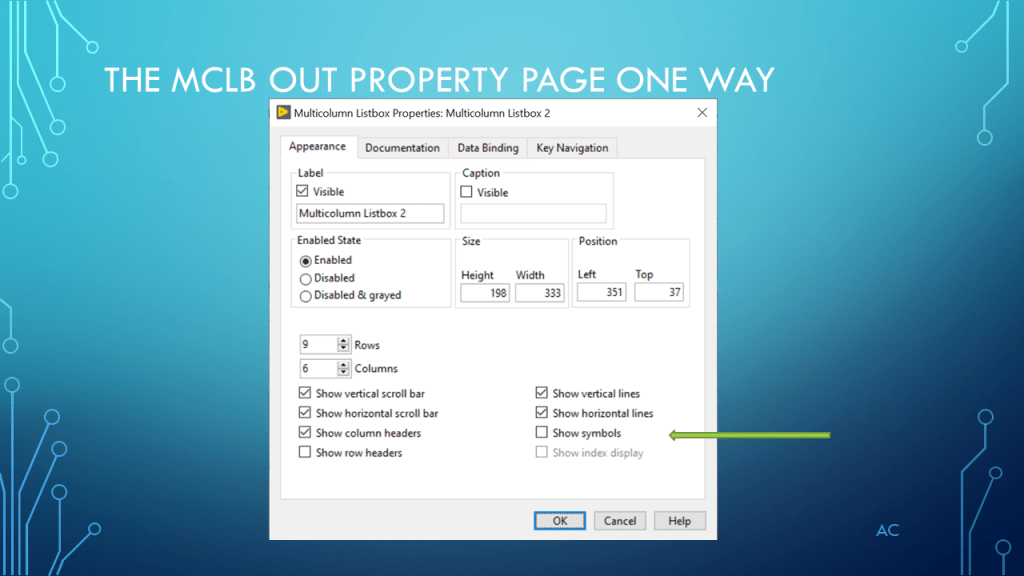
  • This presentation is to show a possible starting point for python Testing using functions and calling functions via a function list.
  • This post is not connected or endorsed by any company.
  • All company names are trademark of respective company.
  • Created to spark ideas on the subject.
  • Use at your own risk.
Posted in Test Sector | Tagged , , , , | Leave a comment

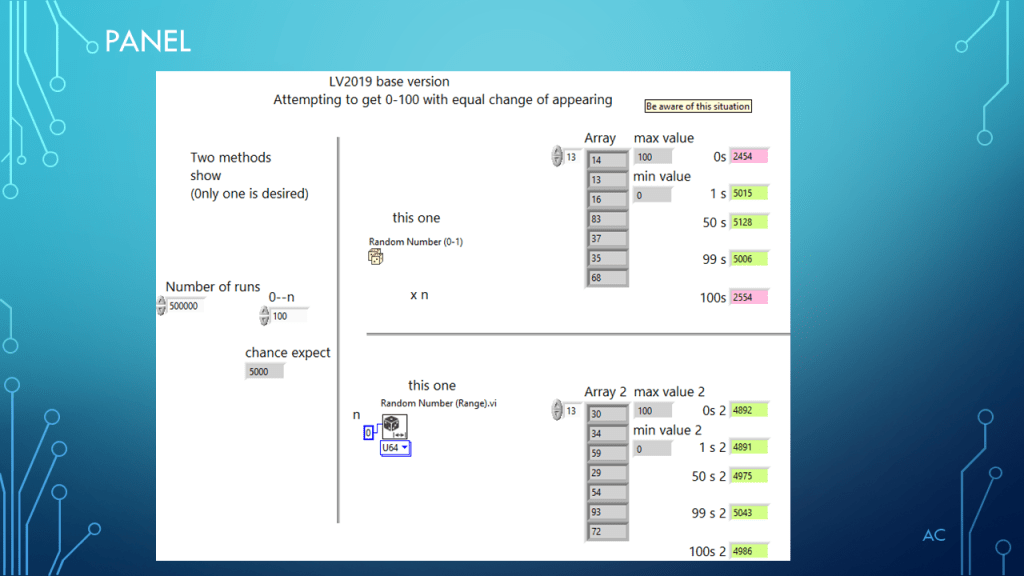
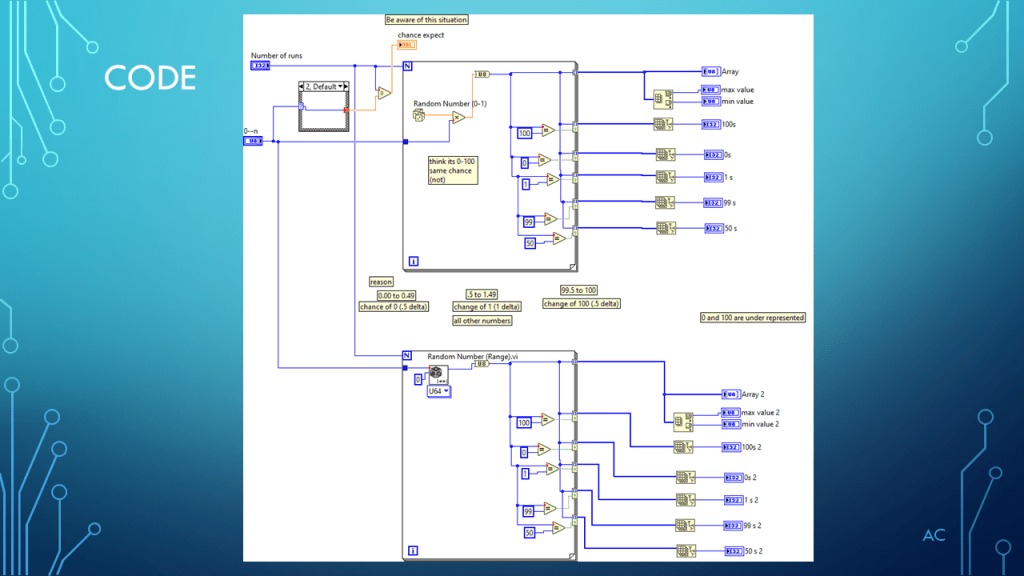
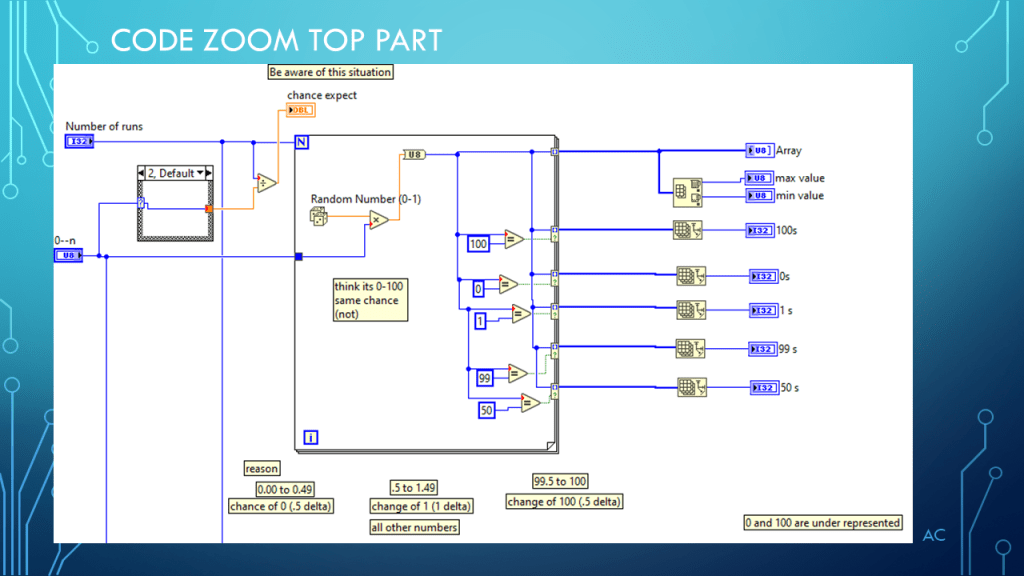
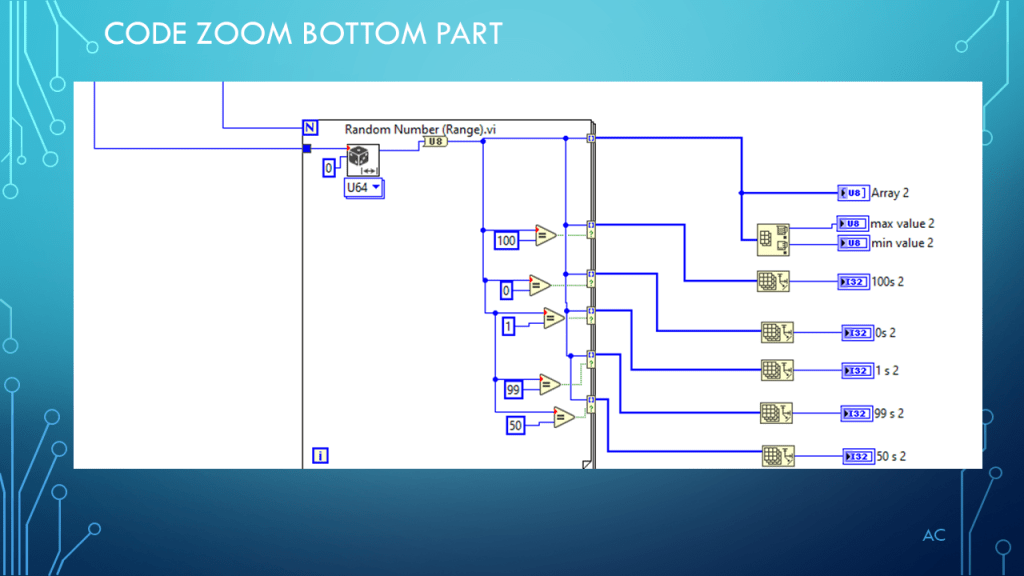
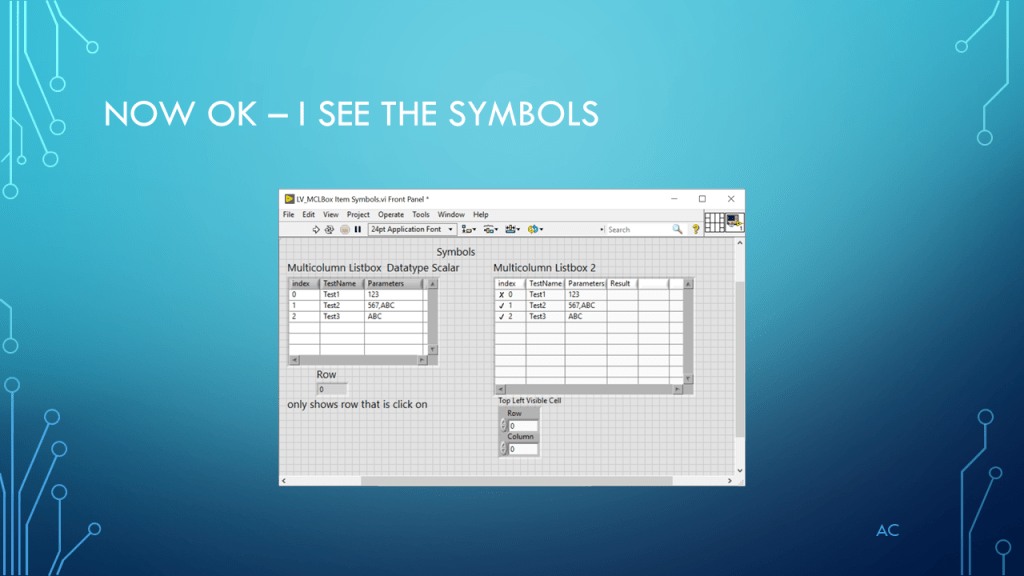
LV Random number tools (two shown) (0-100)

Two tools are used to create random number (0-100) but only one is what I wanted.

Notes

•Presentation to show two different random tools using LabVIEW®

•Programming Language used: LabVIEW® 2019 Base version

•LabVIEW is a NI (National Instruments) product

•Presentation app: Microsoft’s PowerPoint

•Image app used Microsoft’s “Paint” and Microsoft’s “Paint 3D”

•Presentation shown to spark ideas of use.

•This presentation is not connected to or endorsed by any company.

•Use at your own risk.
•Tags:  LabVIEW®, Random, Randomize

•There are many ways to do things for the desired outcome.

Posted in Test Sector | Tagged , , | Leave a comment

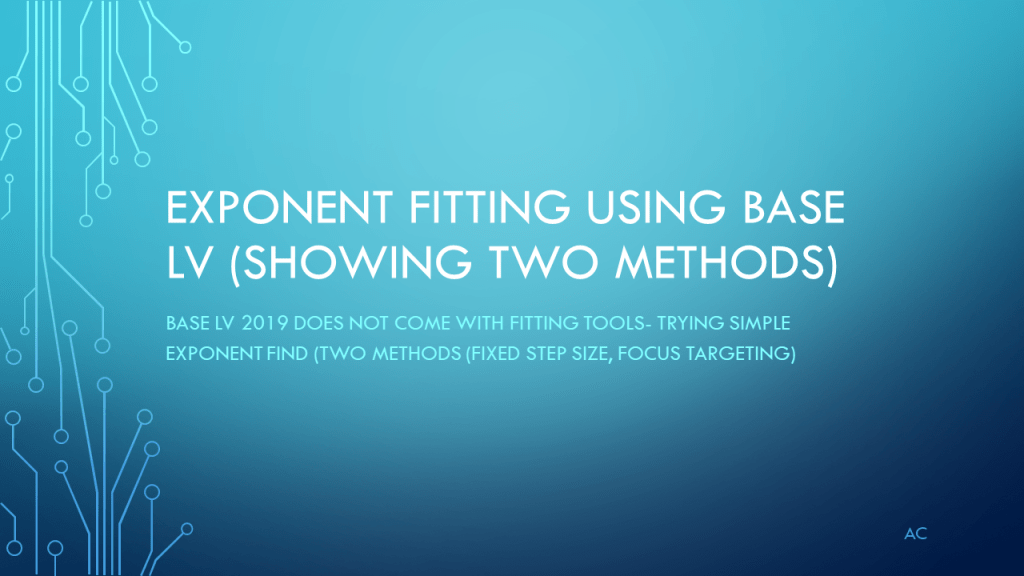
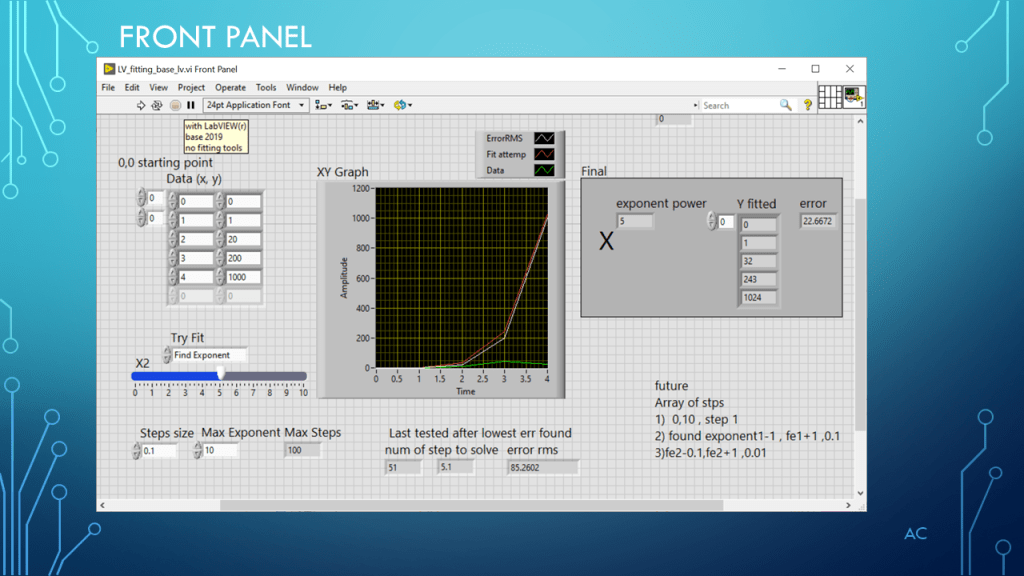
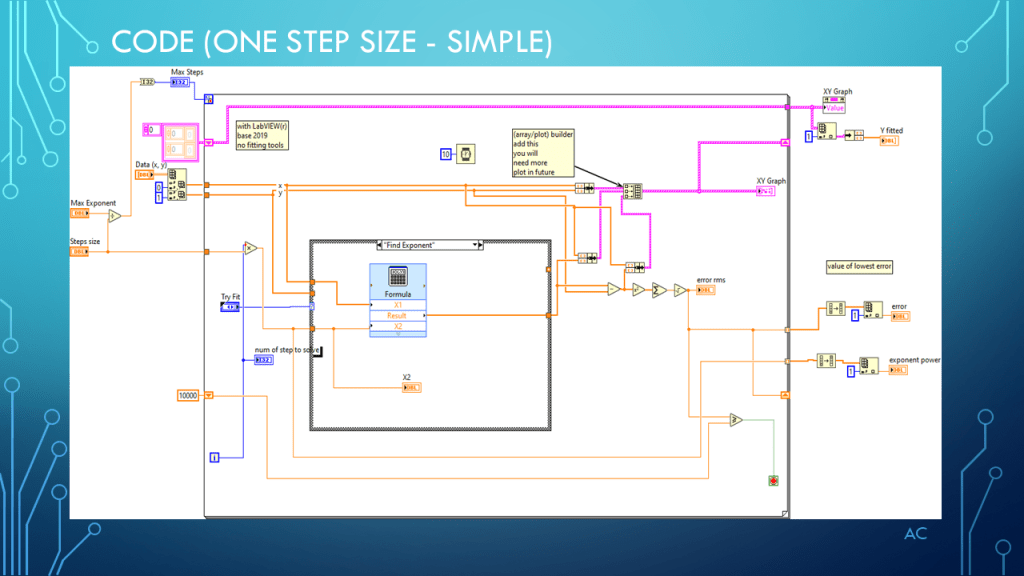
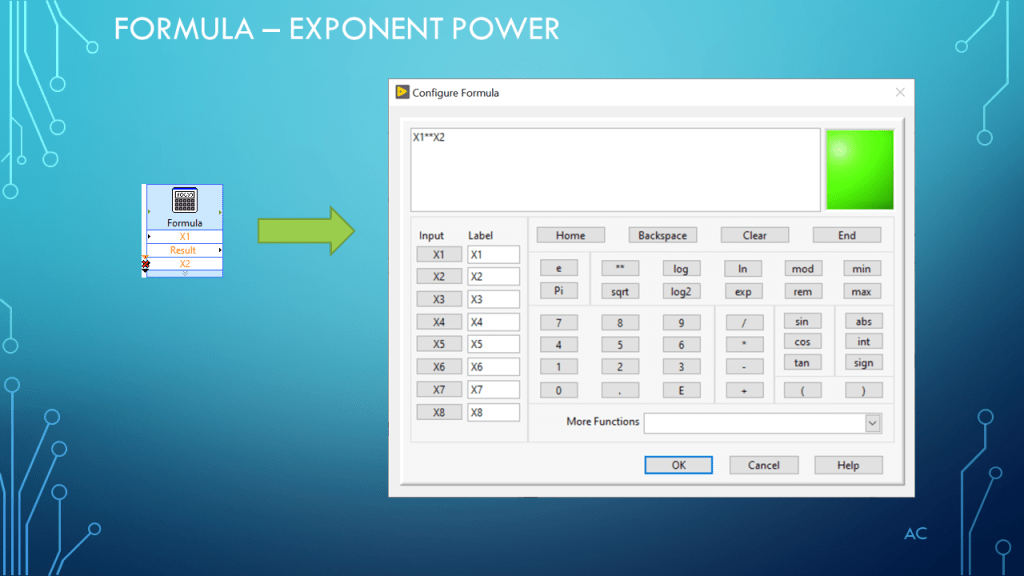
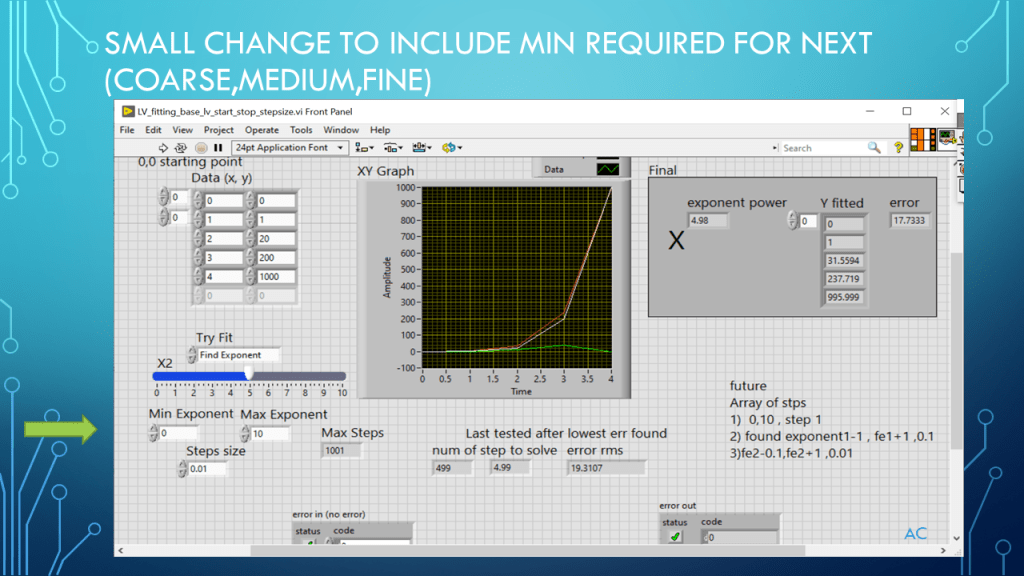
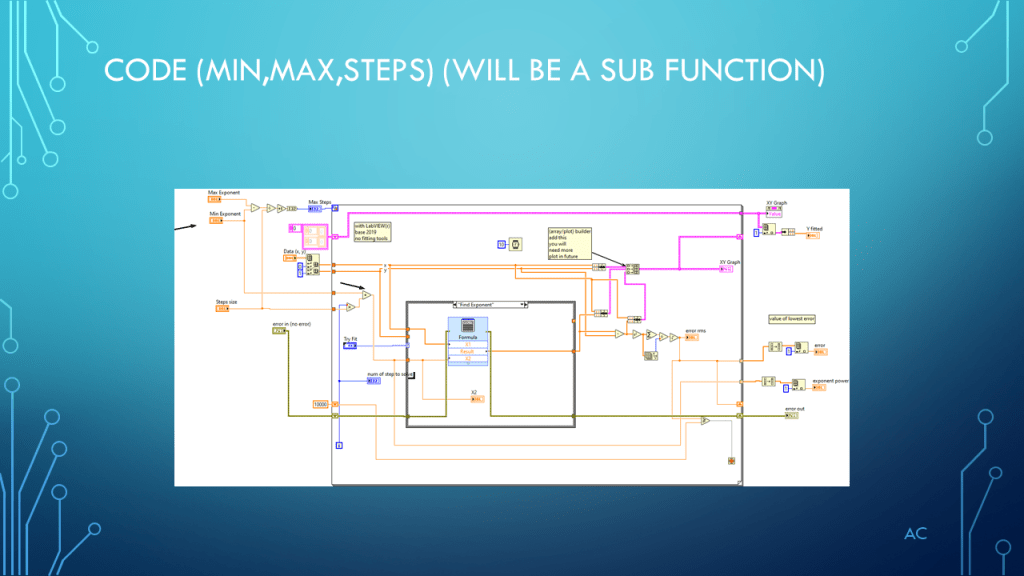
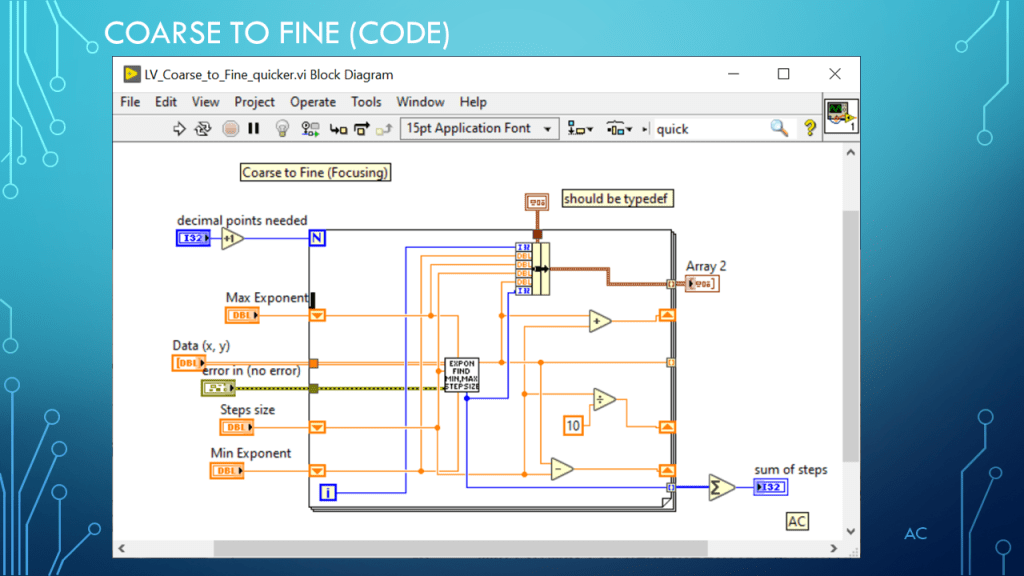
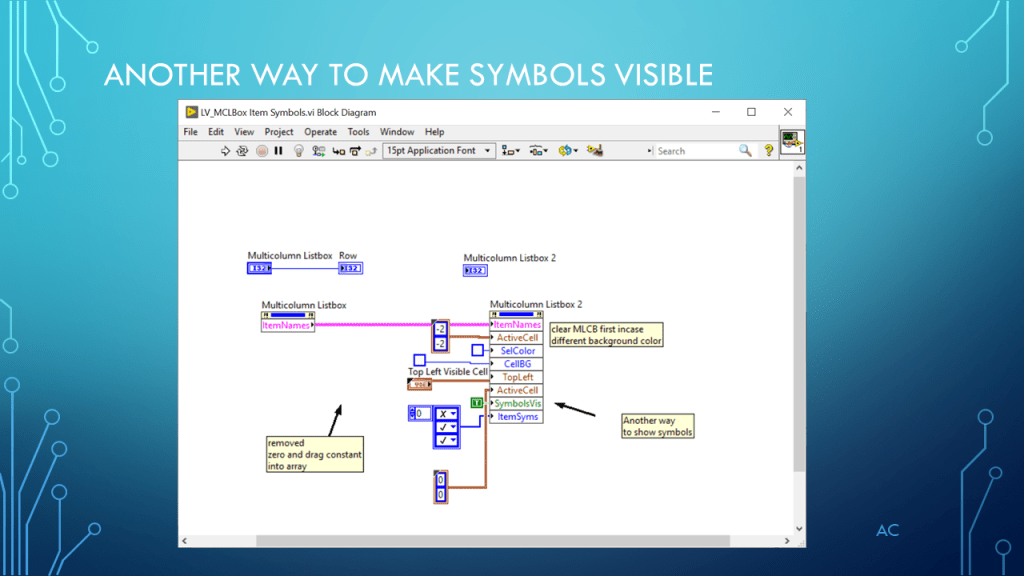
Finding Exponent that best matches a exponent type data set in LV base version – two methods – (one setup , Focus Targeting- Coarse-Fine).

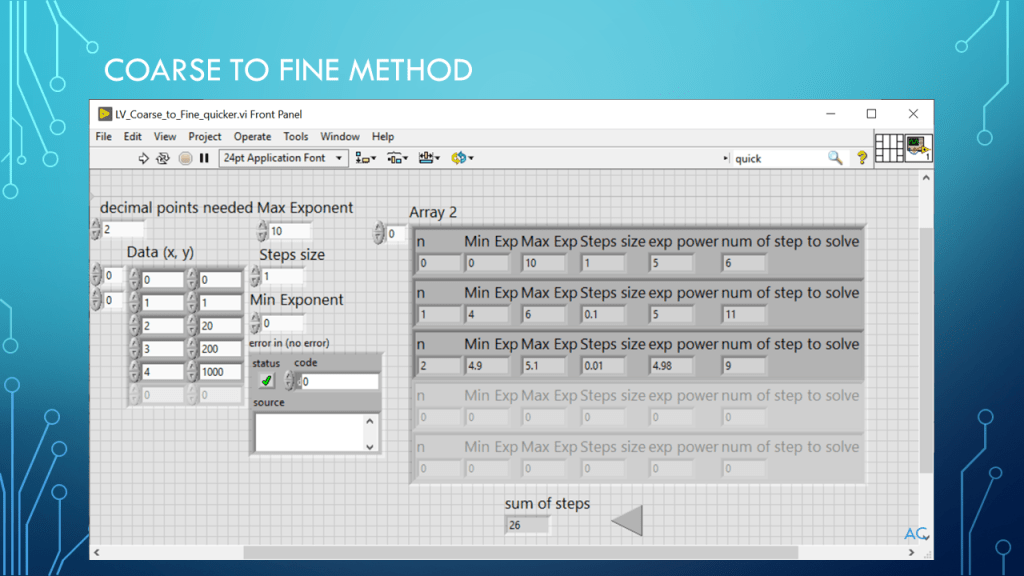
Labview(r) base version does not have fitting functions so using this time to show two methods (one setup , Focus Targeting- Coarse-Fine).

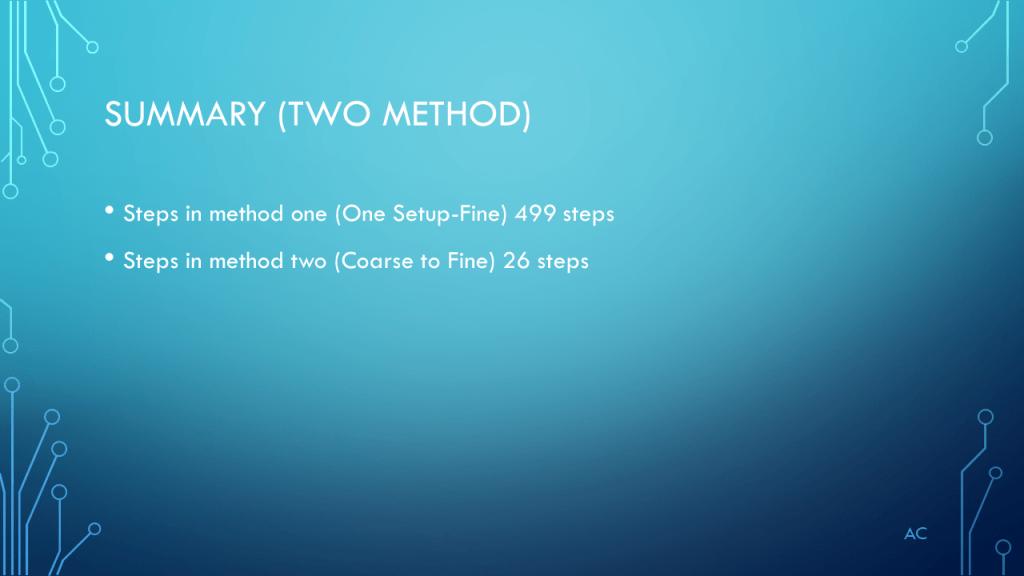
The 2nd method will result in reduce steps counts

One setup for the required resolution (499 steps)

Focus Targeting- Coarse fine (26 steps)

Notes

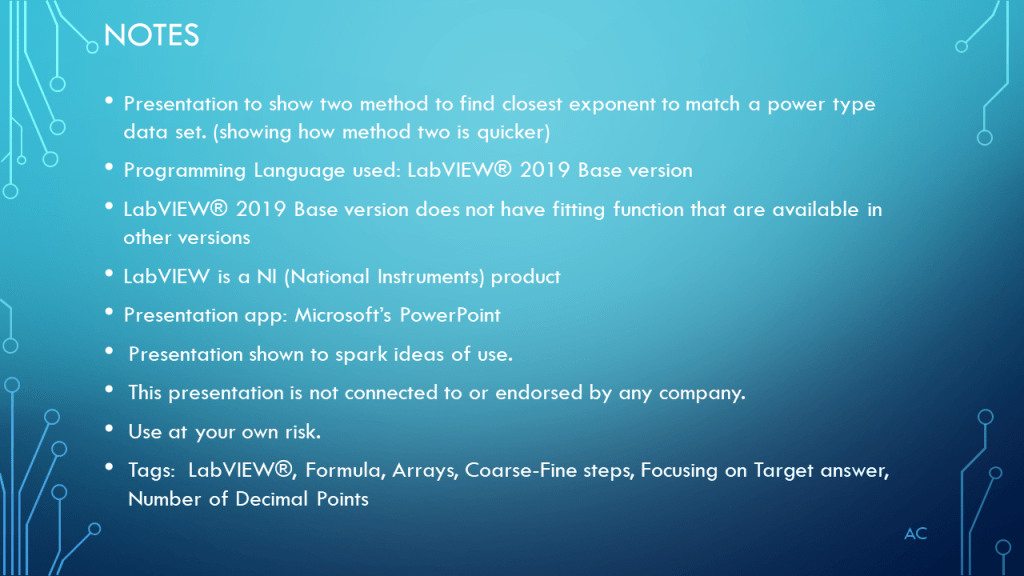
•Presentation to show two method to find closest exponent to match a power type data set. (showing how method two is quicker)

•Programming Language used: LabVIEW® 2019 Base version

•LabVIEW® 2019 Base version does not have fitting function that are available in other versions

•LabVIEW is a NI (National Instruments) product

•Presentation app: Microsoft’s PowerPoint

•Presentation shown to spark ideas of use.

•This presentation is not connected to or endorsed by any company.

•Use at your own risk.
Tags:  LabVIEW®, Formula, Arrays, Coarse-Fine steps, Focusing on Target answer, Number of Decimal Points

Posted in Test Sector | Tagged , , , , , | Leave a comment

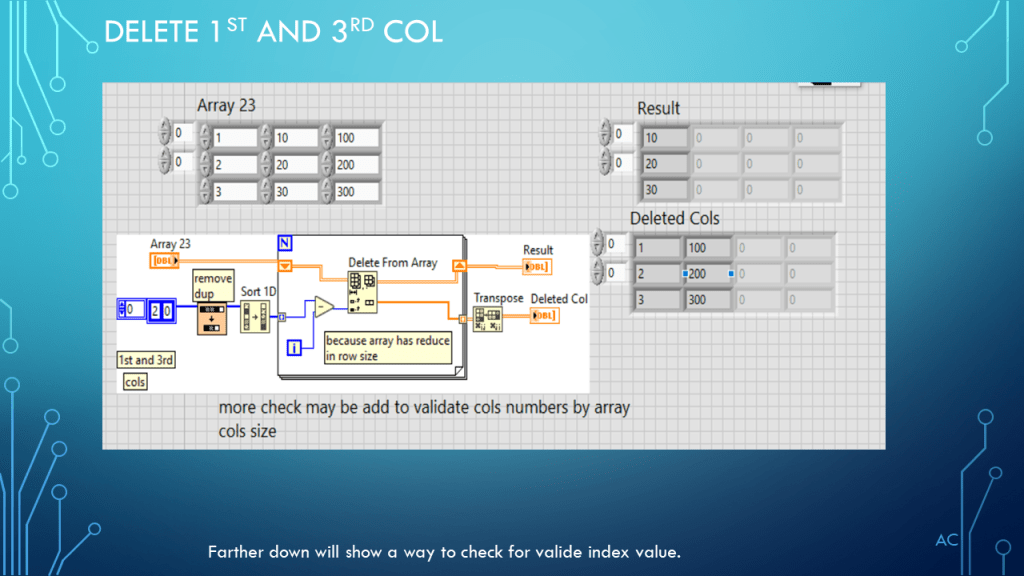
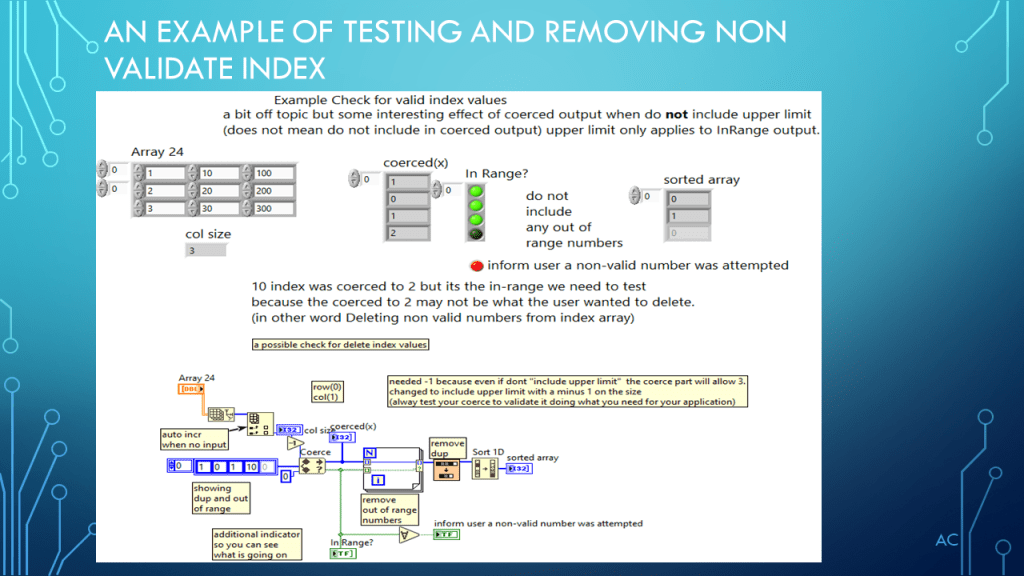
LV 2D Array ( Add, Insert, Delete)

Showing some common 2D Array Operations) in LabVIEW(R)

Notes

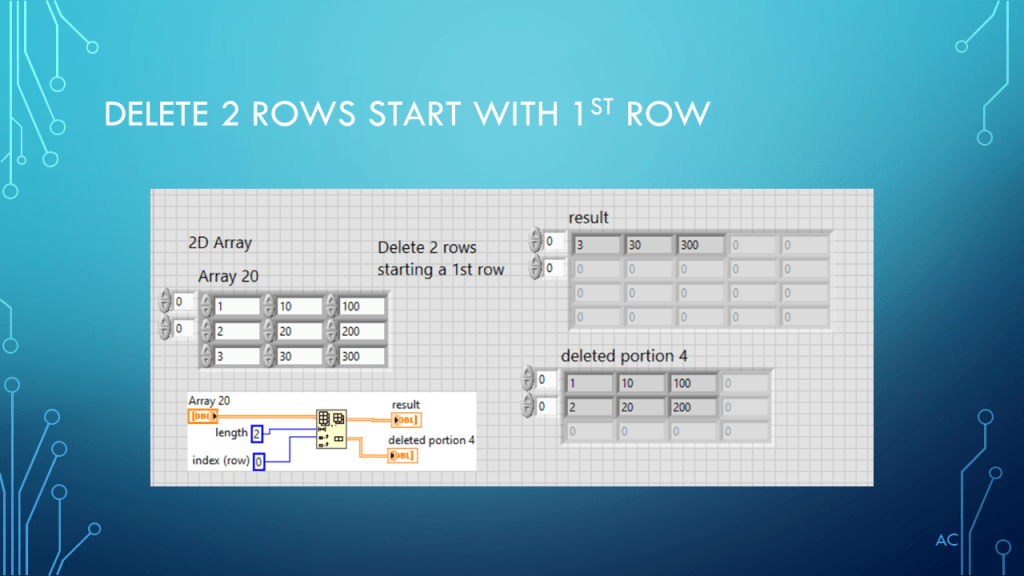
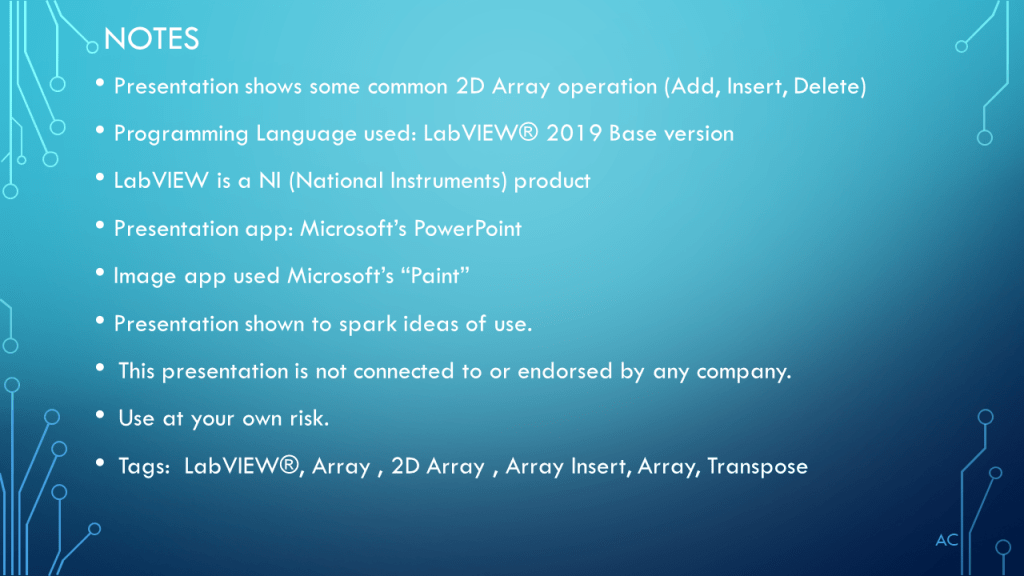
•Presentation shows some common 2D Array operation (Add, Insert, Delete)

•Programming Language used: LabVIEW® 2019 Base version

•LabVIEW is a NI (National Instruments) product

•Presentation app: Microsoft’s PowerPoint

•Image app used Microsoft’s “Paint”

•Presentation shown to spark ideas of use.

•This presentation is not connected to or endorsed by any company.

•Use at your own risk.
Tags:  LabVIEW®, Array , 2D Array , Array Insert, Array, Transpose

Posted in Array-2D, LabVIEW(r), Test Sector | Tagged , , , , , , , , | Leave a comment

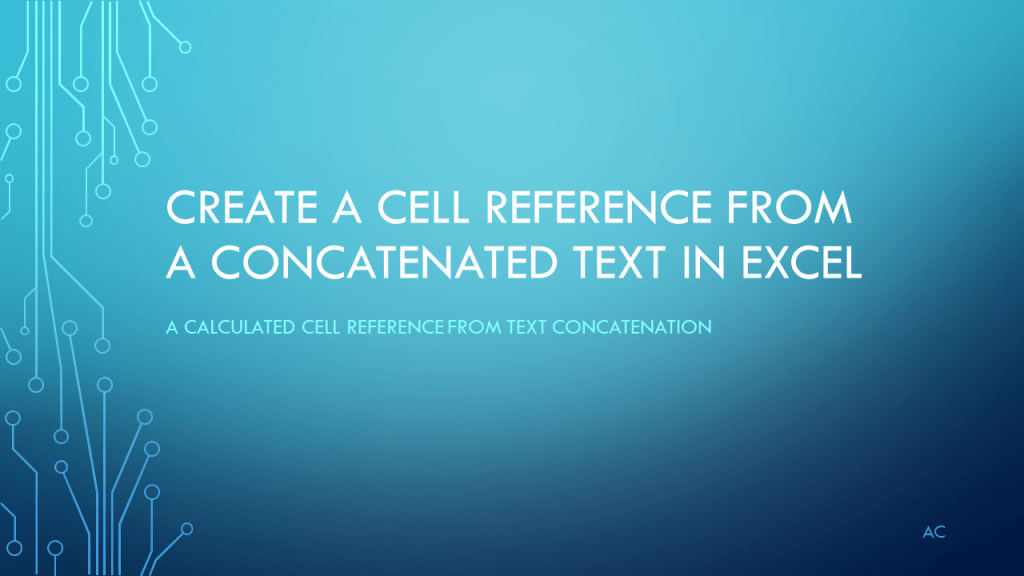
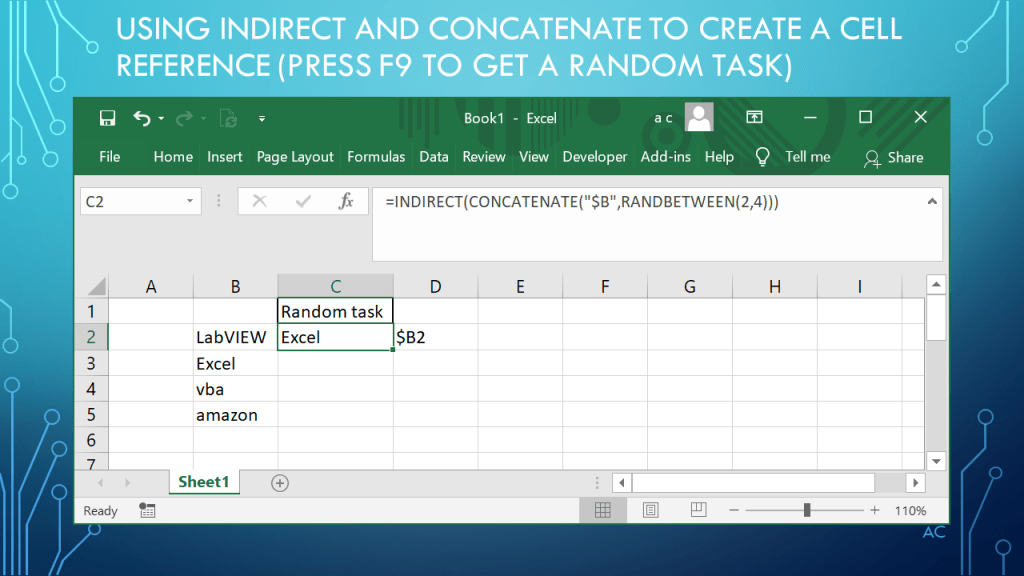
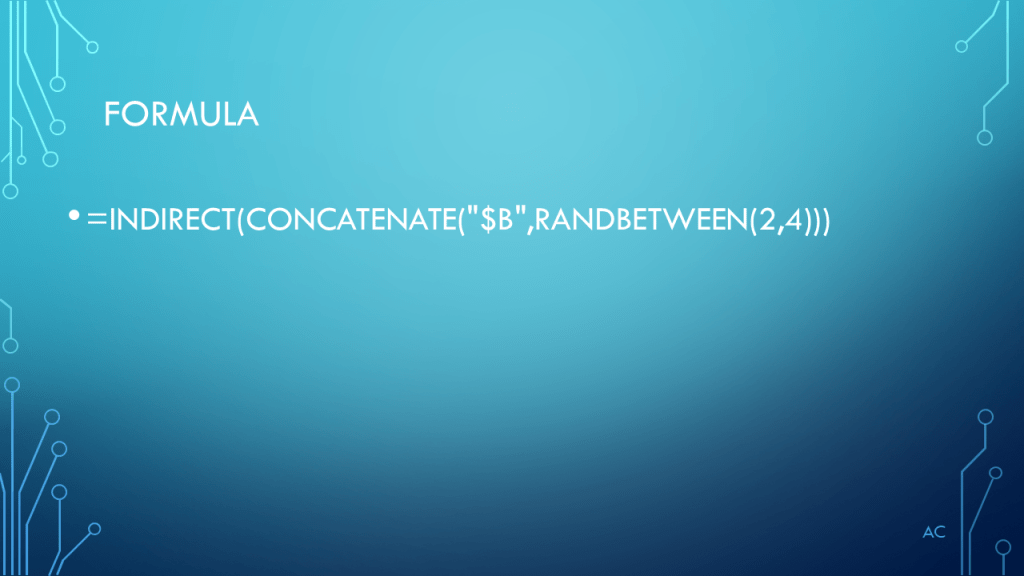
Excel(r) create cell reference from Concatenated Text

Turning a Concatenated Text to a cell reference.

Notes

•Presentation of Creating a cell reference from a created Text

•Excel ® used is a Microsoft product

•Presentation app: Microsoft’s PowerPoint

•Presentation shown to spark ideas of use.

•This presentation is not connected to or endorsed by any company.

•Use at your own risk.
• Tags: Excel, RANDBETWEEN, CONCATENATE, INDIRECT

Posted in Excel, Test Sector | Tagged , , , , , | Leave a comment

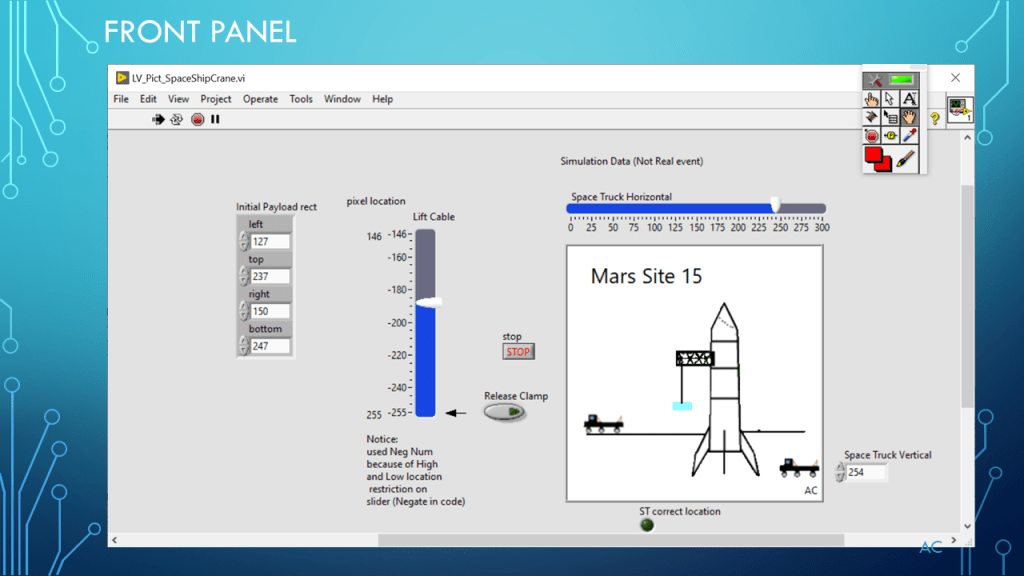
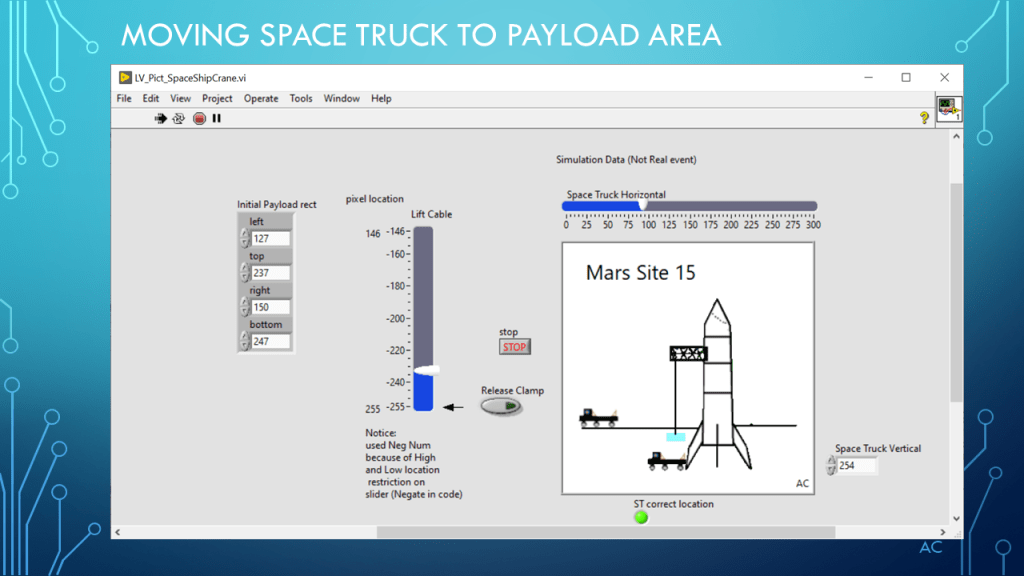
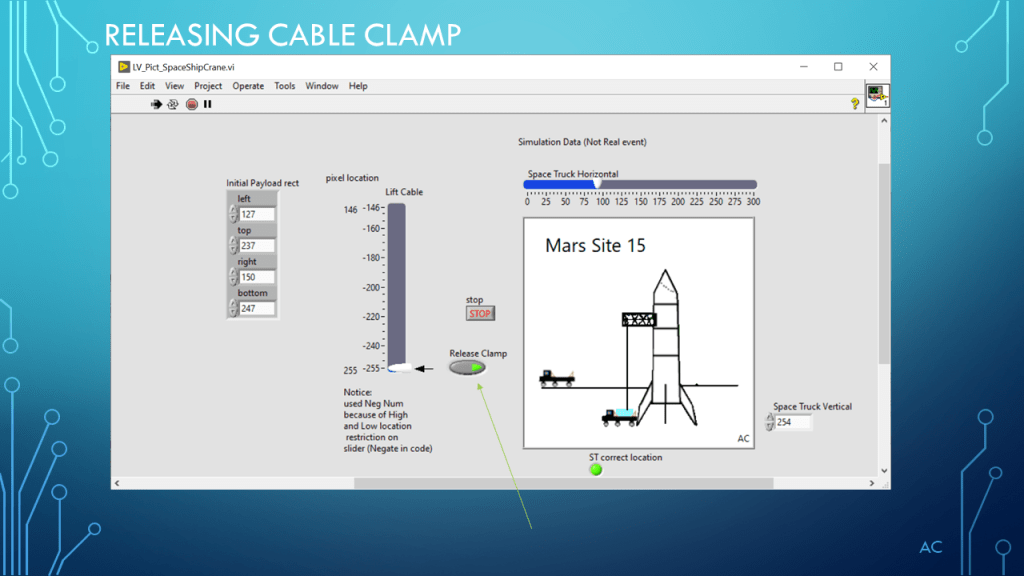
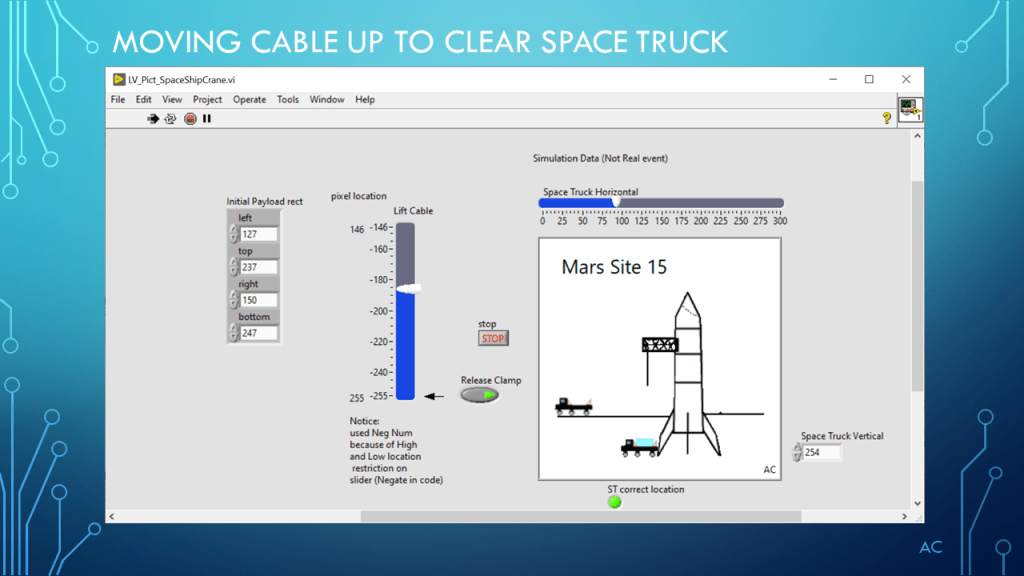
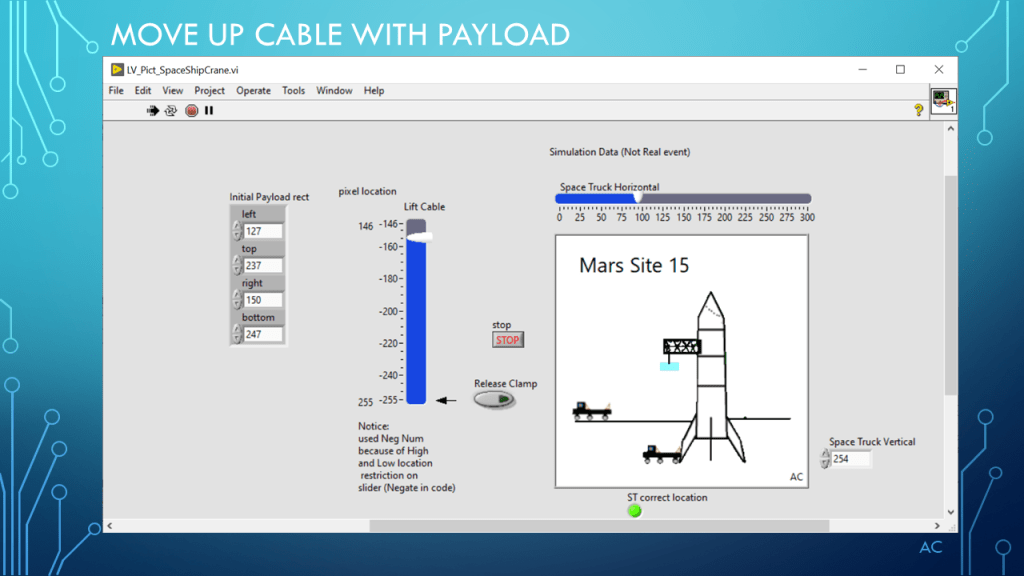
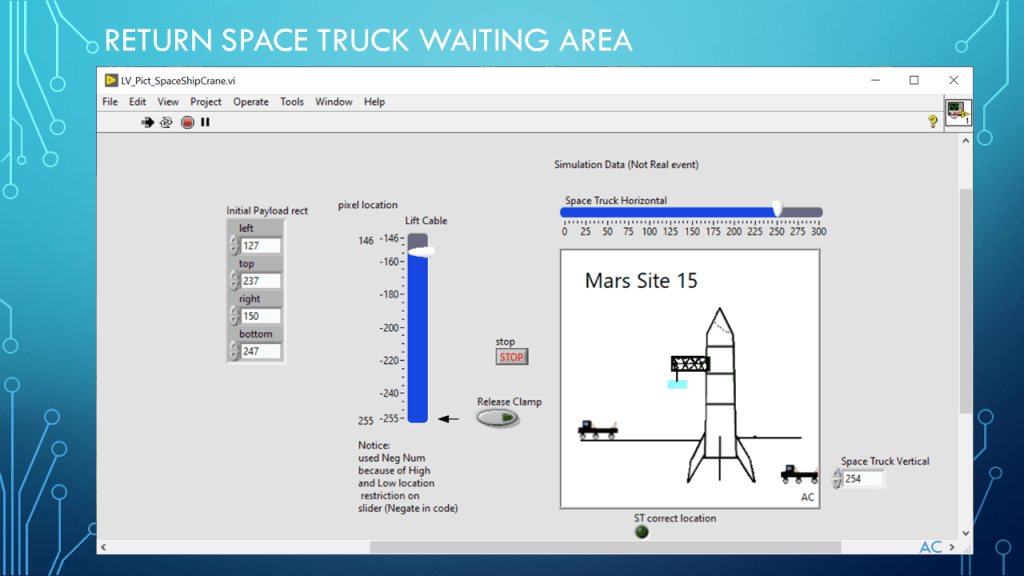
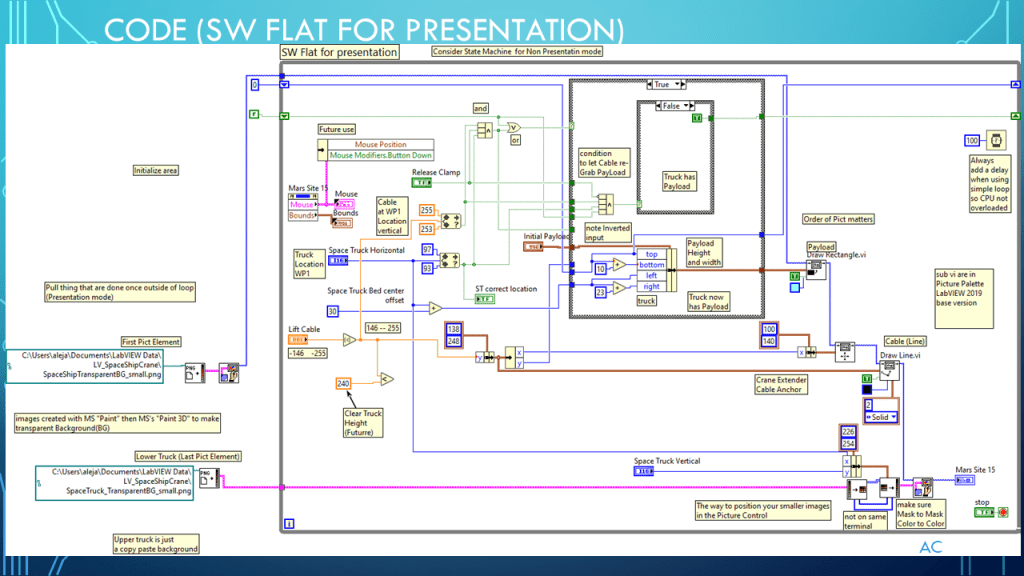
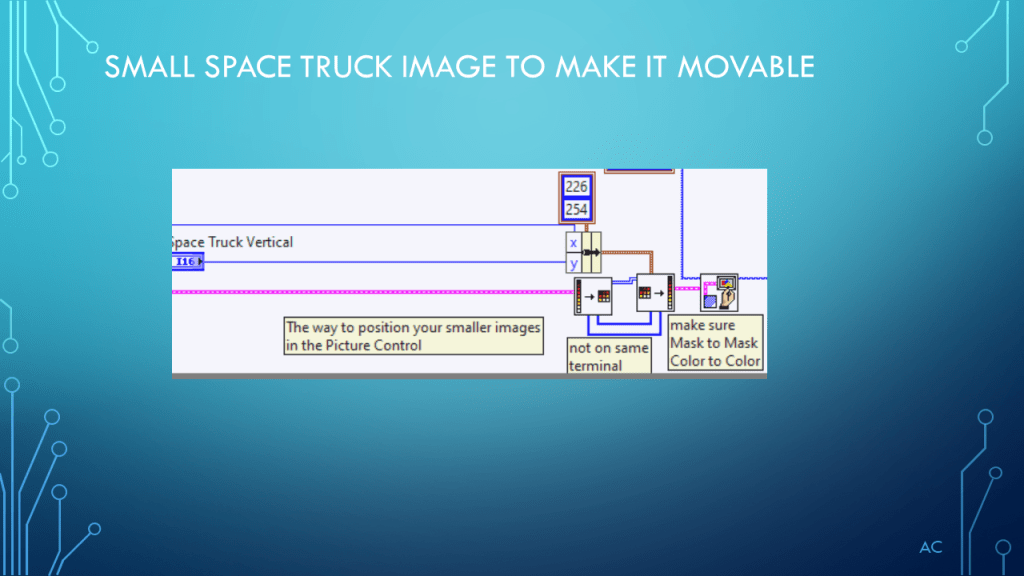
LV Picture functions – Space ship payload control example

Using a combination of images and picture functions to create a simulation of a space ship putting payload on a space truck

update summary: added short video and zip code

Short Video

sorry mouse point is offset in video (something to do with screen resolution)

code zip LV2019

Notes

Notes

•Presentation to show use of Picture function using LabVIEW®

•Programming Language used: LabVIEW® 2019 Base version

•LabVIEW is a NI (National Instruments) product

•Presentation app: Microsoft’s PowerPoint

•Image app used Microsoft’s “Paint” and Microsoft’s “Paint 3D”

•Presentation shown to spark ideas of use.

•This presentation is not connected to or endorsed by any company.

•Use at your own risk.
•Tags:  LabVIEW®, Picture functions, Read Image ,Space ship, space truck, transparent images

•Possible improvement needed : Protect for space truck if cable to to low before arriving to payload area

Simulation shown as example, Not a real event.

Posted in LabVIEW(r), Picture-Paict, Test Sector | Tagged , , , , , | Leave a comment

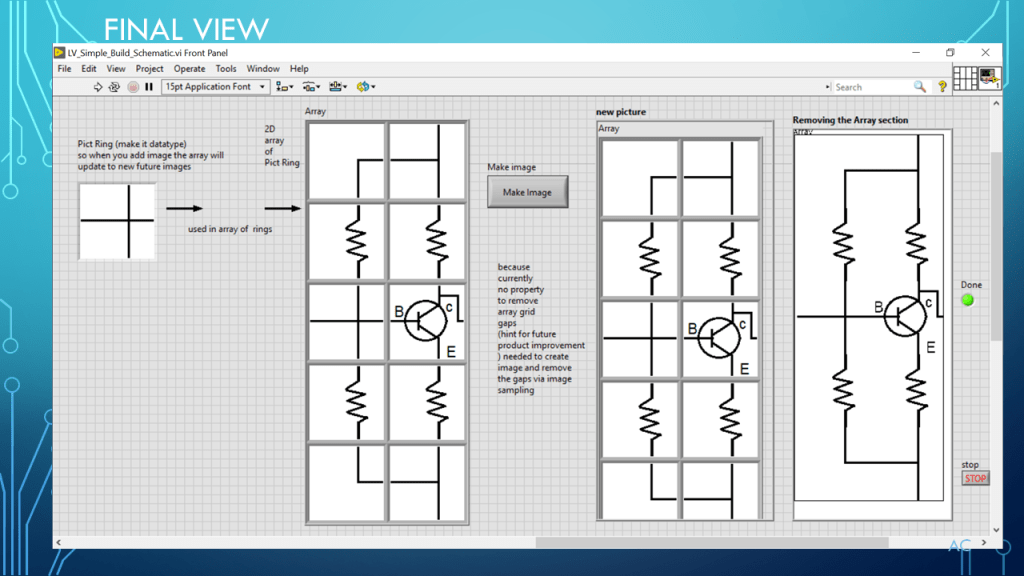
LV Simple Schematic Builder

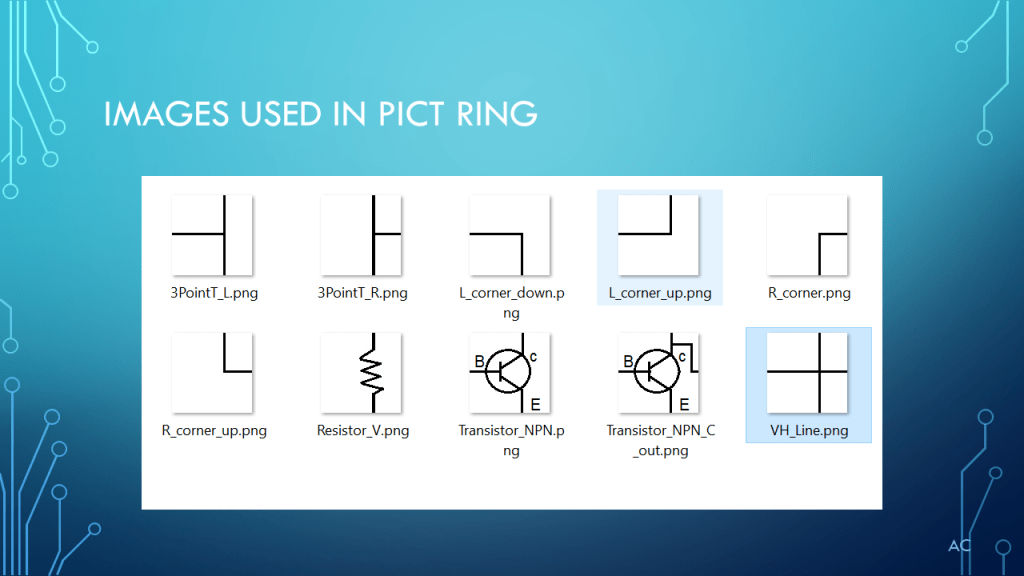
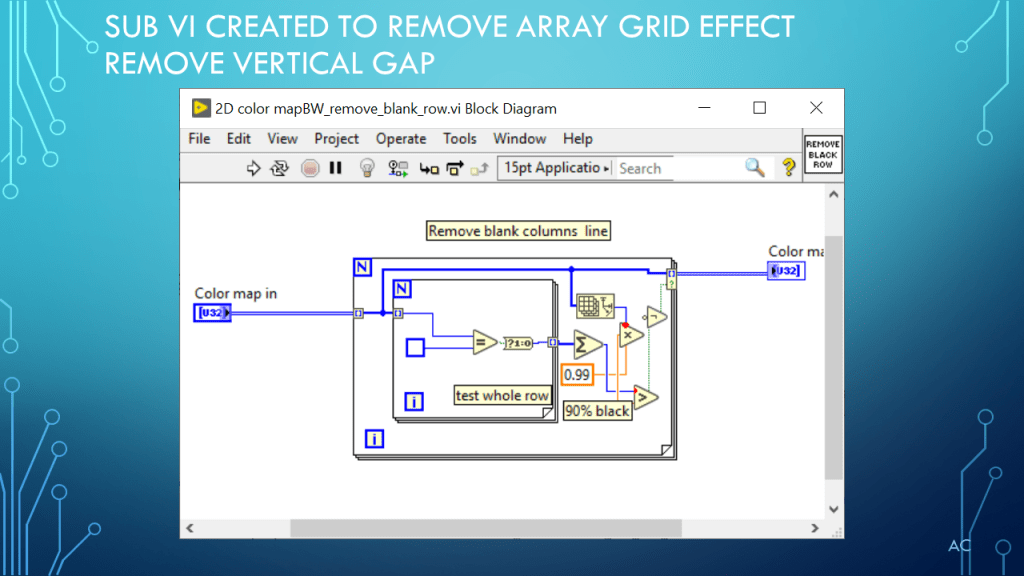
Show Pict Ring control in array to create a simple Schematic Builder

Notes

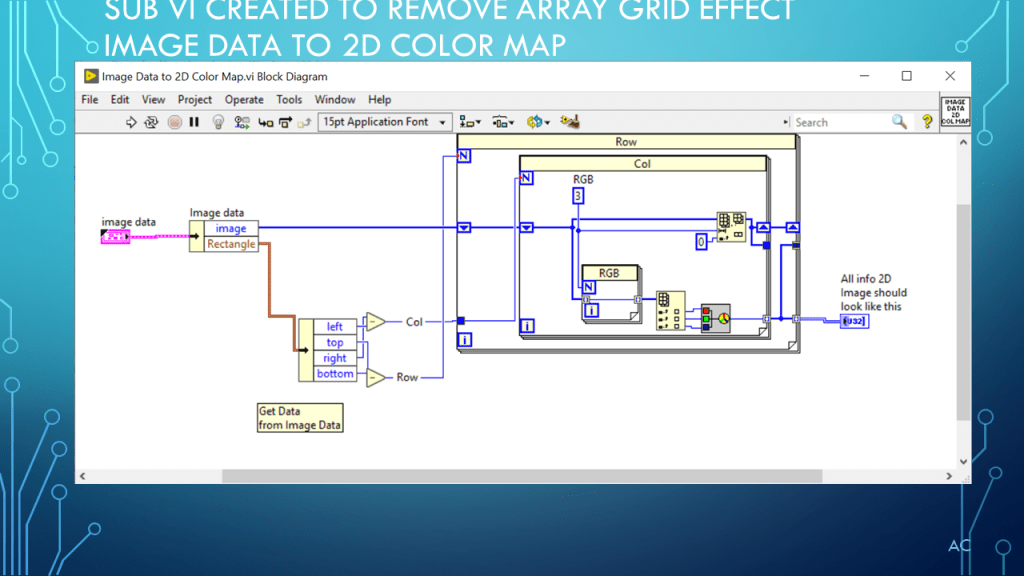
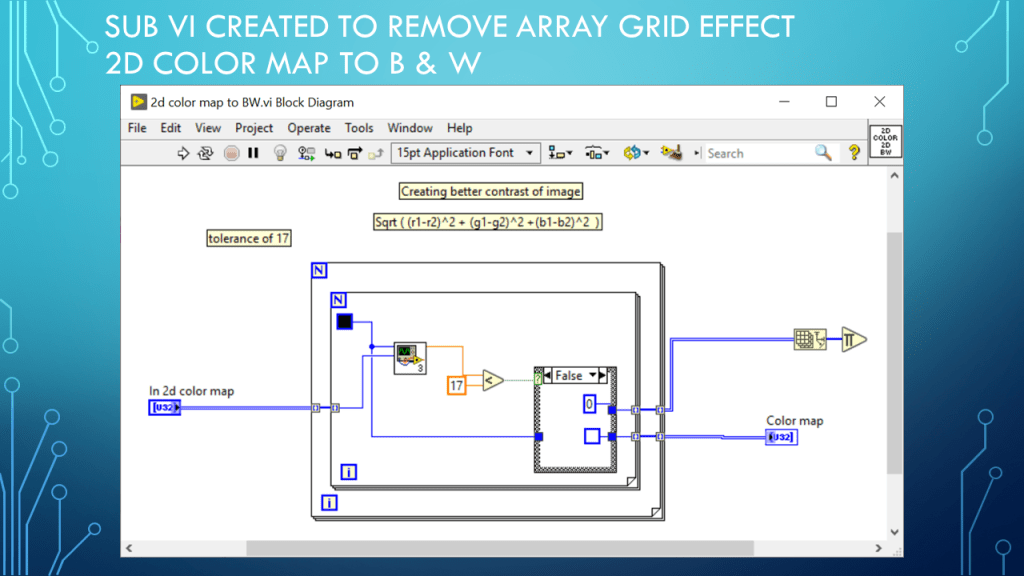
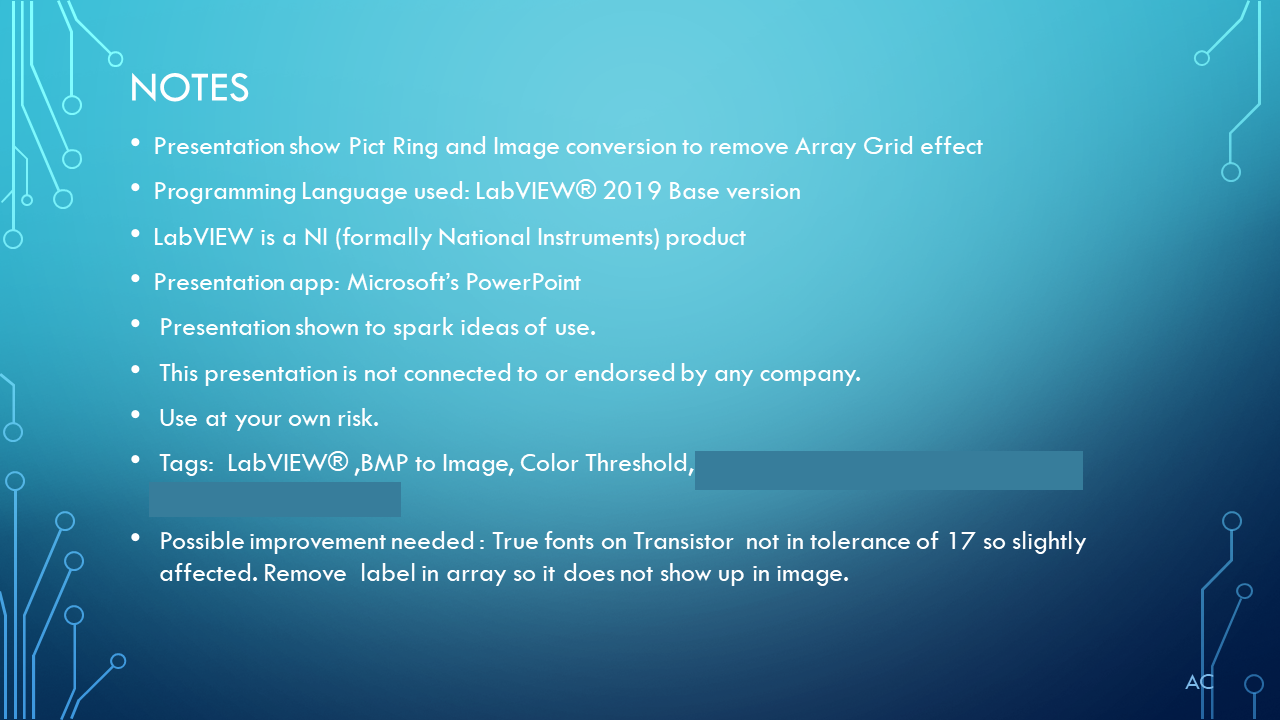
•Presentation show Pict Ring and Image conversion to remove Array Grid effect

•Programming Language used: LabVIEW® 2019 Base version

•LabVIEW is a NI (formally National Instruments) product

•Presentation app: Microsoft’s PowerPoint •Presentation shown to spark ideas of use.

•This presentation is not connected to or endorsed by any company.

•Use at your own risk.
•Tags:  LabVIEW® ,BMP to Image, Color Threshold, Pict Ring, Arrays

•Possible improvement needed : True fonts on Transistor  not in tolerance of 17 so slightly affected. Remove  label in array so it does not show up in image.

Posted in Test Sector | Tagged , , , , , | Leave a comment

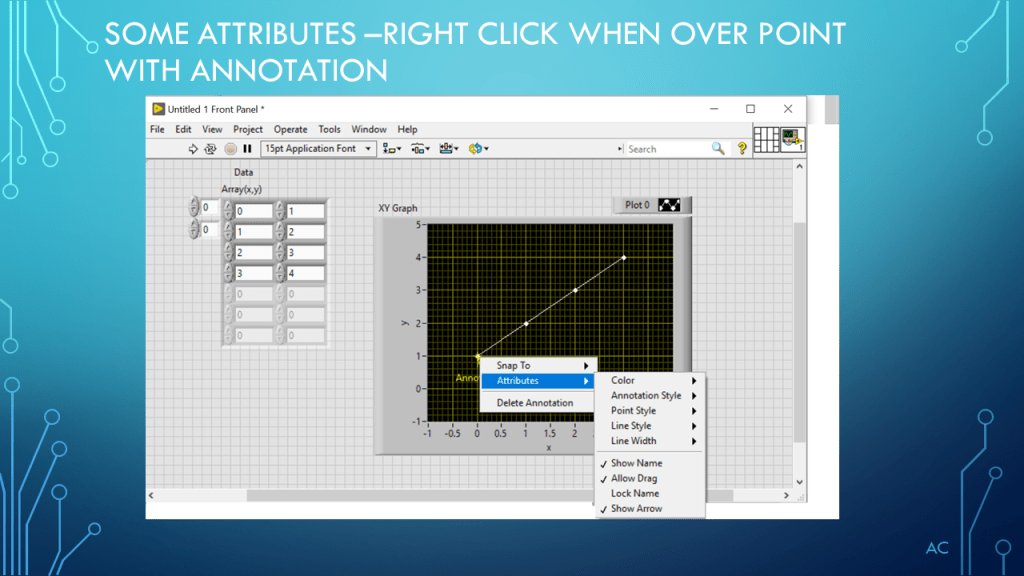
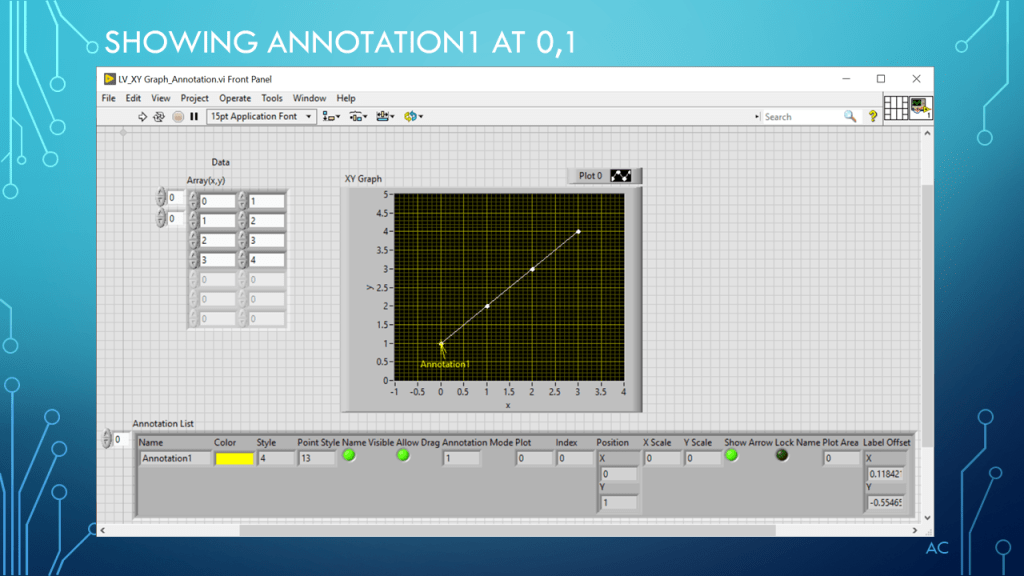
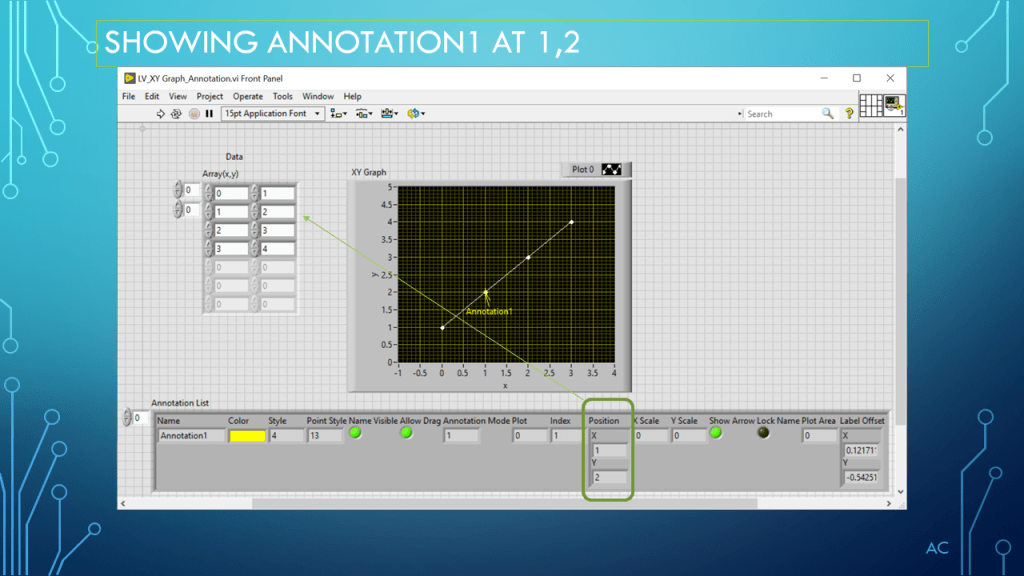
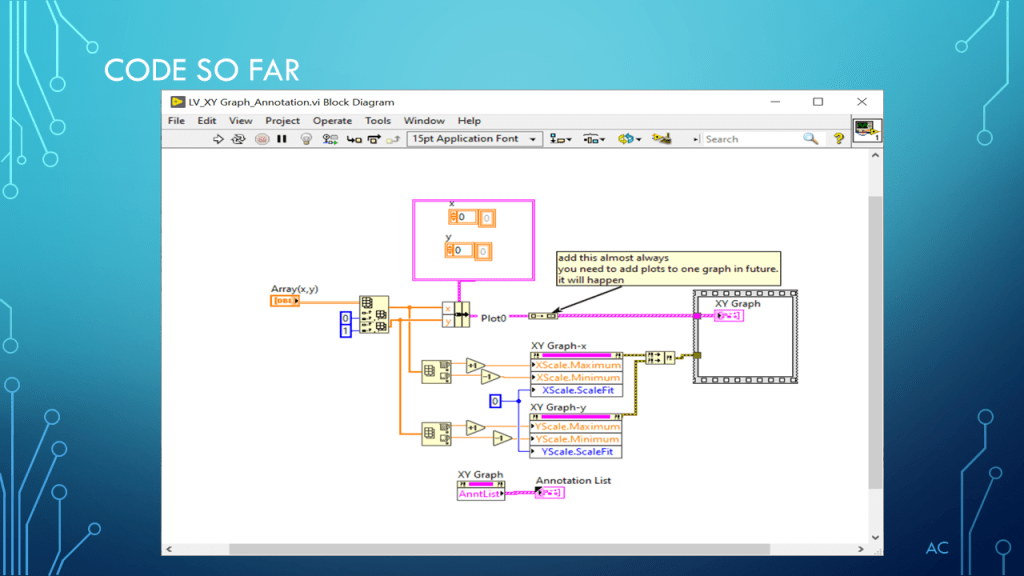
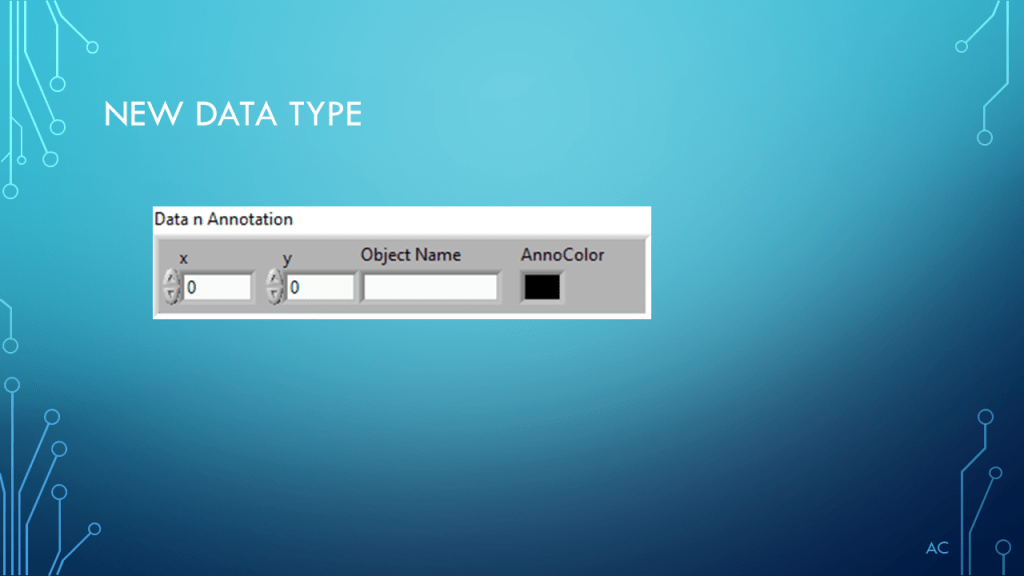
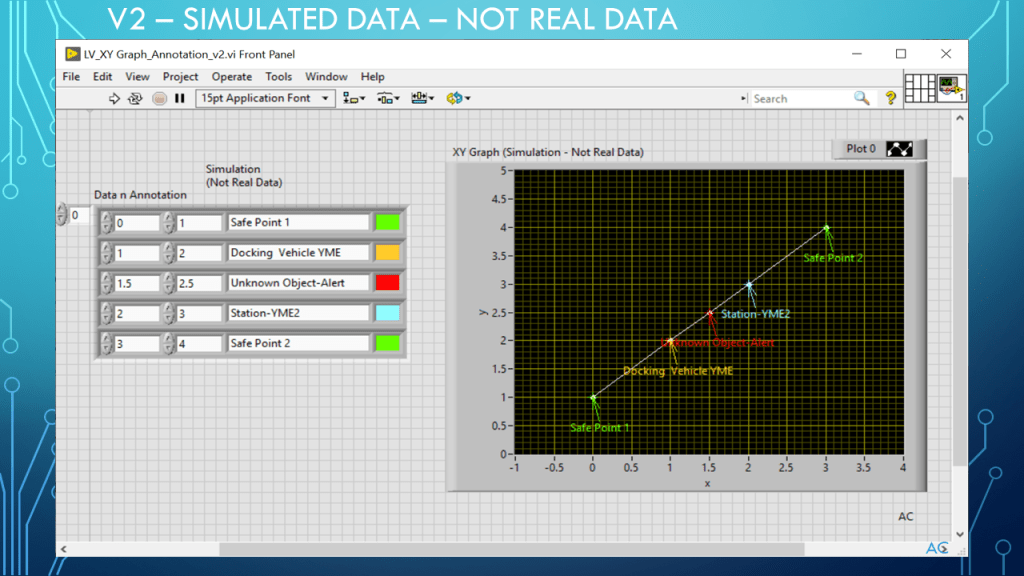
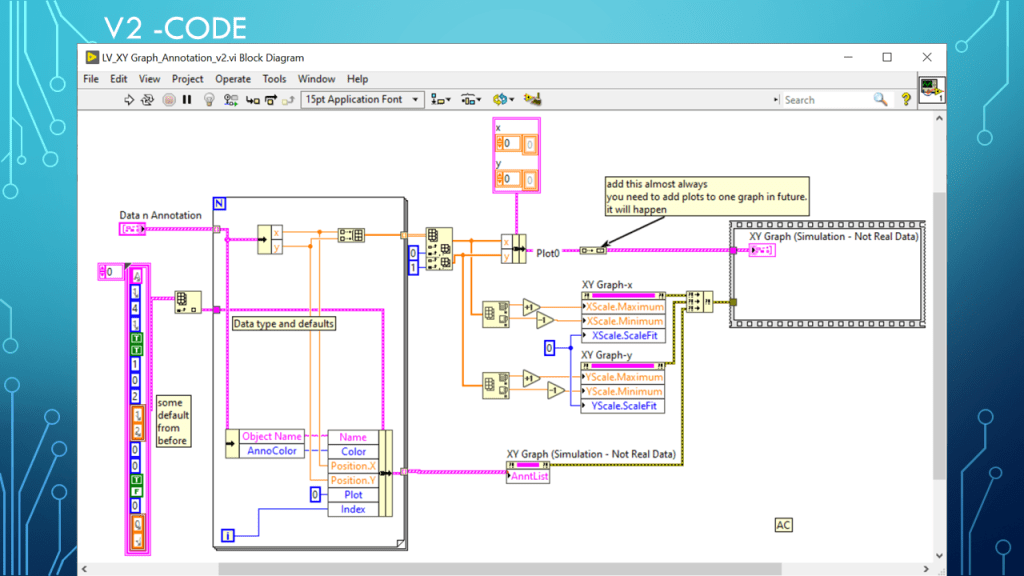
LV XY Graph and Annotation

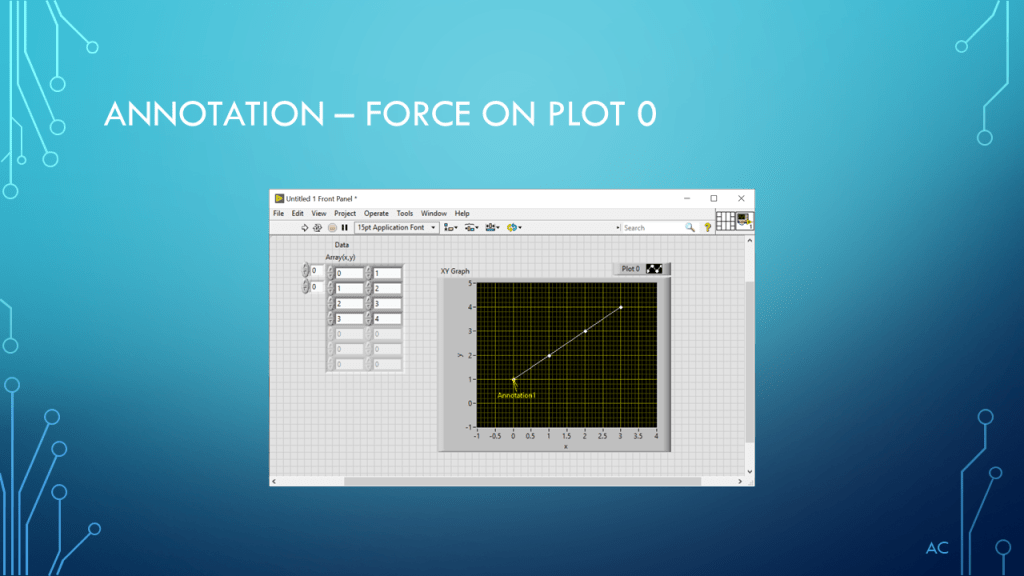
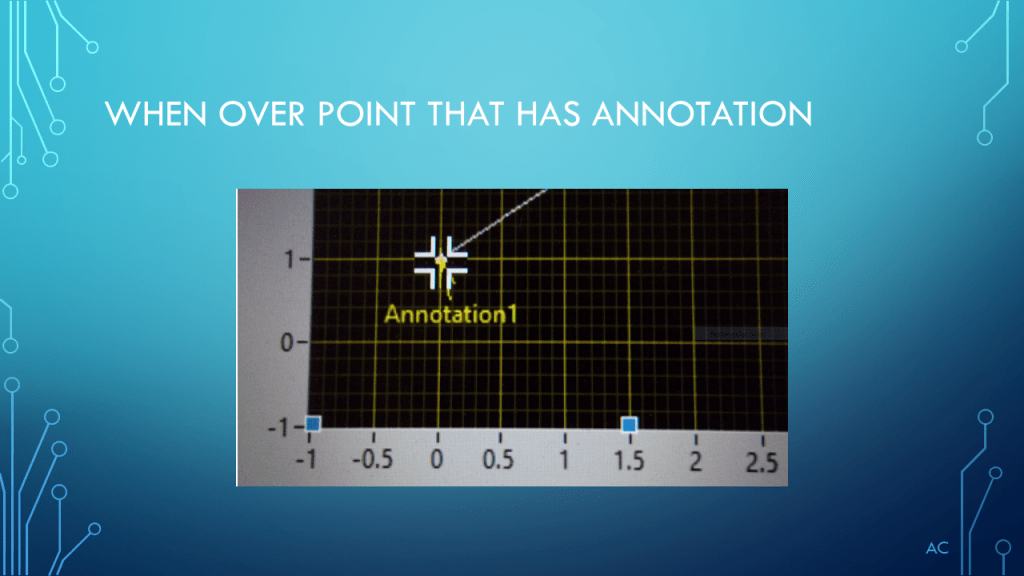
Presentation show example use of Annotation in XY Graph

Presentation

Added Oct 21 2023

LV Zip Code

Notes

Notes

•Presentation showing use of annotation on XY Graph (Simulation, Not Real Data)

•Programming Language used: LabVIEW® 2019 Base version

•LabVIEW® is a NI (National Instruments) product

•Presentation app: Microsoft’s PowerPoint

•Presentation shown to spark ideas of use.

•This presentation is not connected to or endorsed by any company.

•Use at your own risk.
•Tags:  LabVIEW® , XY Graph, Annotation, Color

Posted in Test Sector | Tagged , , , , , | Leave a comment

Barcode BMP image to Number

Taking a Barcode BMP image to convert to Numbers

Notes

•Presentation showing processing of Barcode BMP image to covert to Barcode numbers •Programming Language used: LabVIEW® 2019 Base version

•LabVIEW is a NI (formally National Instruments) product

•Presentation app: Microsoft’s PowerPoint •Presentation shown to spark ideas of use. •This presentation is not connected to or endorsed by any company.

•Use at your own risk.

•Tags:  LabVIEW® , BMP to Image, Color Threshold, Barcode, UPC, Pixels Group to Bits, Barcode check value

•Possible improvement needed : Find Pixel Grouping number automatically

Posted in Uncategorized | Tagged , , , , , | Leave a comment