Initialize of Equipment and GUI

When you are  Initializing the Equipments and setting values to default it may take sometime.
Provide the operator  of your application with a GUI presenting  the success of the initialization process.
Provide a Pass/Fail or Green/Red indicator as the initialization process proceeds.
If the initialization process failed notify the operator that an Issue occurred which must be resolved and some suggestion.
If a failure occurred don’t forget to return instrument to a “Safe Default” which may be all Stimulus to off/disable/zero amplitude.
Also “Close instruments handle(reference used to each instrument).
It could be helpful to create a log file of the initialization process to help the person required to resolve the issue.
Posted in Test Sector | Leave a comment

Barcode Input, Output

Some customers or in-house procedures will required that a barcode be decoded or outputted.
Products that need to get tested have a traveler (document which contain the history of the product) and related to the UUT serial number and or part number.
When a project requests that serial number or UUT identification be tie in to the testing consider a Barcode scanner (one that can read Linear and 2D type barcodes)
A barcode scanner can be tied in to the keyboard via a special cable or be USB device.
With a properly configured barcode scanner the data can be accepted as text which can be parsed with string functions to extract the needed information.
Use the parsed information you can then related the Testing of the UUT to the UUT’s identification information and create Text,spreadsheet(MS Excel), or a database(ex MS Access(small projects), MS SQL server(bigger projects).
At time the output document requires a barcode of it own or your testing must create document and labels for placing on a passed UUT.
Other departments can used the barcode for shipping or quality purpose, or returns for upgrade or reconditioning.
Some Barcode companies provide ActiveX barcode products which may simplify the tasks
Also dont forget about a barcode printer and label paper( for labels to be place on UUT and/or Documents.
Posted in Test Sector | Leave a comment

Providing Status to Manager and Supervisor

You will be ask to provide status on the project you are working on by your supervisor and Manager.
One way to make it easier and accurate status as possible is to itemize the different task that must be accomplished to get to the final goal.
MS Excel is an excellent tool and is normally available in my companies as a standard application.
In MS Excel list all the task in the order it needs to be performed.
Provide Major (just for heading)  and Minor task columns.
Make a column that indicates Status
Then make an excel equation that count a  1(TaskDone) if the “Status” for a particular row is Done or 0 if not.
Also make a (hidden or not) column with give a column a count of 1 if its a row that has a minor task(the task that must be completed) otherwise no number(part of Task Total).
Then in a last row provide a “Percent complete=”     (TaskDone/Task Total) x 100percent
Also use color in the Status column so Done=Green, CurrentTask=Yellow, Something other then you is preventing completion=RED
In you email status the Manager want to know “percent completed” and any issue that my be preventing you from completing your task ON Time.
Attach a copy of your excel (image) incase the Manager or Supervisor need to see where you are in your task.
Another column should be dated started , dated completed. Manager can use this info for the next project.
If you make your task to coarse then it looks as if you are not completing tasks when in fact you have completed many sub task.
Prerequiste: Know how to make formula in MS Excel
“MS Excel” mentioned is a Microsoft product.
Don’t forget to include:
  • Kick off meeting
  • Spec (input document)
  • PDR (Preliminary Design Review
  • CDR (Critical Design Review)
  • Driver
  • Hardware section FPGA, DAQ, PLC, MAX detection(NI)
  • Major section (File handling, Data Acquisition, Limit Detection, GUIs,event loop, processing loops)
  • Input Specs and date you are given this documents
  • Place SW in Software Configuration.
  • Software Document released
  • Hardware Document released
  • Peer review
  • Test Station Review
  • Calibration
  • Quality Department Review.
  • Released to Production (Completed)
Use the different sheet tabs for “Issue that come up during the project”, Charge Number, Contacts for that project. etc.
This will make it easier on you and  future upgrades to the same project.
This information should be kept in the company’s network drive. The reason is, the IT department Normally schedule backups of networked drives.
(make a backup  also just incase).
Prerequisite: Know how to make formulas in MS Excel
“MS Excel” mentioned is a Microsoft product.
Posted in Test Sector | Tagged , | Leave a comment

MathCad,MatLab,OrCAD,AutoCAD tutorials sites

Some sites of interest  relating to MathCad, OrCAD, AutoCAD tutorial
OrCAD  — Cadence
LabVIEW — National Instruments
AutoCAD — Autodesk
MathCAD — MathSoft — Parametric Technology Corp
MatLab –MathWorks Inc
Posted in Test Sector | Leave a comment

USB solutions for R and D or production testing

Agilent has a complete USB module rack (cage) system for a large range of USB module.
The USB modules can be used as stand alone or  used as part of a USB module rack solution.
This setup can be used for R and D lab or even production testing if it meets your  requirements.
Here are some link to the Agilent’s related documents.
The Modular Rack (Cage) can even be rack mounted.
Its  USB!!!  NO GPIB, NO Enet, NO RS232
Several  software development package are supported. Check it out.
Agilent is a key play in the test and measurement sector.
Posted in Test Sector | Leave a comment

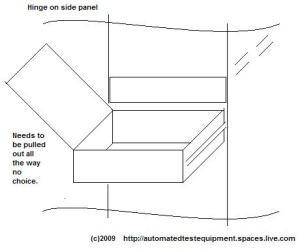
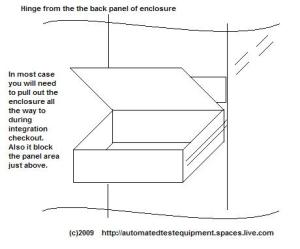
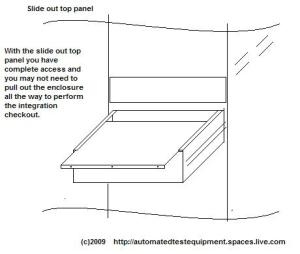
Enclosures Top Panel and integration checkout.

Selection of top panel mounting configuration can help the test engineers in charge of checkout and integration.
Look at the following images  and see how the slide out top panel will make the minimum pain in checkout and reinstalling.

Images are not to scale.


Posted in Test Sector | Leave a comment

Bandwidth and Rise/Fall Time concerns

To be able to have a certain rise/fall time (10/90) perecent  measurement a minimum bandwidth must be meet.
The general rules:   T(second)=0.35/BW(Hz)
T=Rise / Fall Time
BW=Bandwidth
 BW           T       
MHz          ns
10             35.000
20             17.500
30             11.667
40             8.750
50             7.000
60             5.833
70             5.000
80             4.375
90             3.889
100           3.500
200           1.750
300           1.167
400           0.875
500           0.700
600           0.583
700           0.500
800           0.438
900           0.389

GHz        psec
1            350.00
2            175.00
3            116.67
4            87.50
5            70.00
6            58.33
7            50.00
8            43.75
9            38.89
10          35.000
20          17.500
30          11.667
40          8.750
50          7.000
60          5.833
70          5.000
80          4.375
90          3.889
100        3.500

Posted in Test Sector | Leave a comment

Design Team effort will give you a leg up on your project.

Many time when you are assign a task in test equipment as the Test Engineer while the Design Team is working on the product that you will need to automate.
This is a great time to find out what instruments they are using and which instruments are not up to the task
Observe as they make measurement to see which section you can greatly improve when i comes time to create the production test Stations or test setup.
Additional:
  • Ask question.
  • Get any presentation of the setup used for design verification during the Design phase.
  • Often you will see that the Design Engineer has to change cables to another instrument for a different test. (This may be an area you can using Switching Matrix.)
  • Discoversetting that must be adjusted and automate them.
  • Discover wiring layout or interface issues and work on a solution.
  • If they are using multiple DMM for monitor parameters it possible a ADC can be used to set multiple measured under the same stimulus (check on required accuracy needed).
  • Listenclosely to the design engineer when they say I could do this test better if………  .
  • The product Design Engineer is a critical player in the success of  your automated test solution.
  • Often the Design engineer has documents you may not get anywhere. For example the sequence of a command string required to cause an effect on a Command Module.

Question,Listen,Discover

Posted in Test Sector | Leave a comment

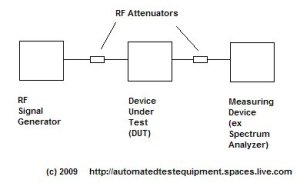
RF Attenuator – Protect DUT and Measuring Device

RF Attenuator reduce RF power.
One purpose is to protect both the DUT and Measuring Device from exceeding input power max.
Exceeding input power can damage expensive DUT and Measuring Device (ex Spectrum Analyzer).
RF Attenuator come as Fixed,Manual (steps), Programmable,Variable.
Selection of RF attenuator
  • Frequency Range
  • Low VSWR
  • Correct Power Rating
  • Low Insertion loss
RF Attenuator Vendor /Manufacturers.
JWF Industries
     Fixed Attenuator  http://www.jfwindustries.com/fixed.html
     Programmable Attenuator   http://www.jfwindustries.com/programmable.html
MECA Electronics
Pasternack Enterprises
Posted in Test Sector | Leave a comment

Spectrum Analyzer — RBW and VBW settings

The effects of changing Resolution Bandwidth (RBW) and Video Bandwidth (VBW) setting on a spectrum analyzer.
Small frequencies for RBW setting will lower noise floor.
Small frequencies for VBW setting will lower noise amplitude.
Small frequencies for RBW and VBW will increase test time (sweep).
Setting may be predetermine by specification or standard for a particular test.
Some standards need a specific RBW and VBW for one part of the frequency sweep range  and a different value for a different frequency sweep range.
These values are change manual or automatically via software application.
 
automatedtestequipment.spaces.live.com   now     testequipmentresources.wordpress.com
Posted in Test Sector | Leave a comment