LV – File sort by Last Mod Date

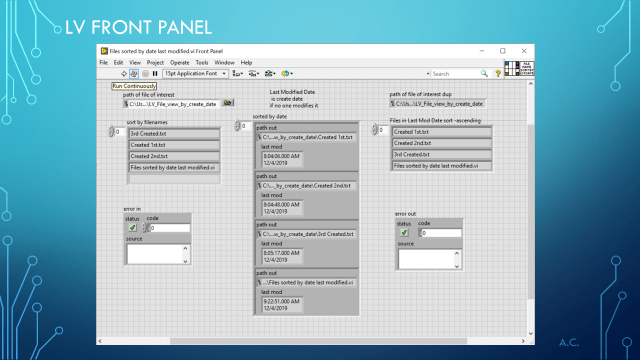
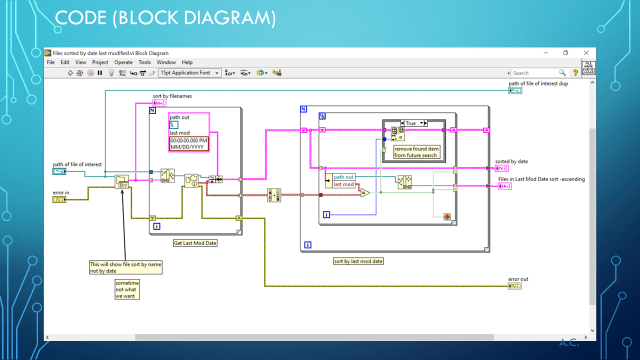
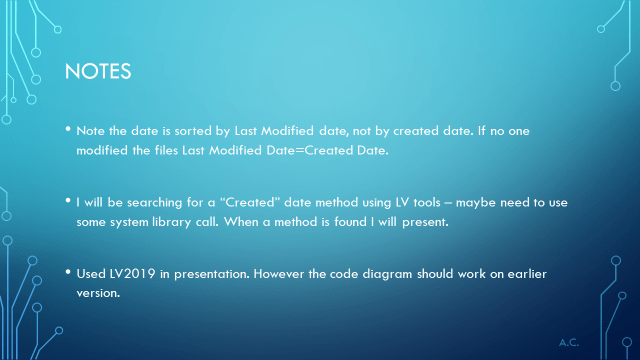
Showing a way to sort files in folder by Last Modified Date. The basic file tool only sorts by filename.

LV_File_Sort_LM_Date_Slide1LV_File_Sort_LM_Date_Slide2LV_File_Sort_LM_Date_Slide3LV_File_Sort_LM_Date_Slide4


LabVIEW® is a National Instrument product
This post is not connected or endorsed by any company.
Created to spark ideas on the subject.
Use at your own risk.

Posted in Test Sector | Tagged , , , , , | Leave a comment

PY3 with TKinter using the Grid-Row-Col method (not place,pack)

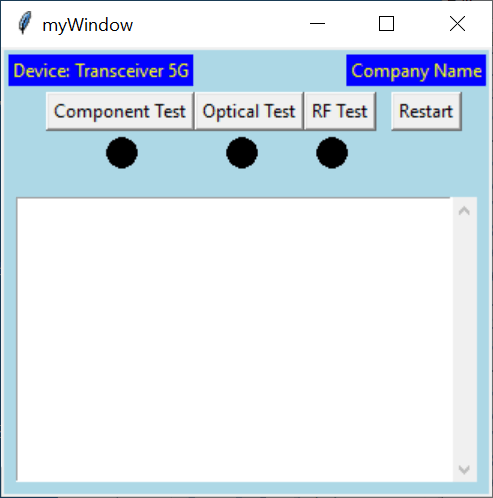
In a previous post I showed similar GUI using place,pack . Now will show similar sample GUI (Graphical User Interface) using Python 3 and Tkinter with Grid,row,col method

Widgets used

  • Window
  • Frame
  • Labels
  • Buttons
  • Canvas
  • Circle
  • Frame
  • Text
  • ScrollBar

Design layout

PK3_TY_grid_Design

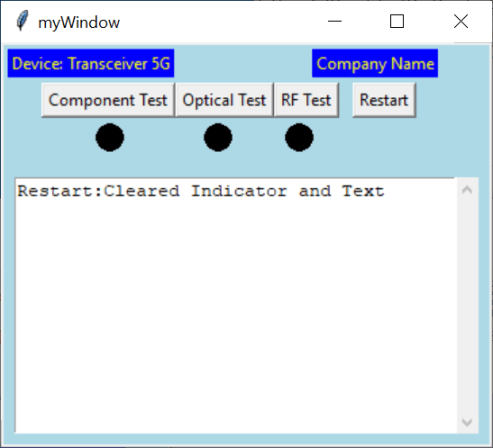
Restart pressed (clears text and indicators – show that is was restarted

PY3_TK_grid_row_col_scrollv restart

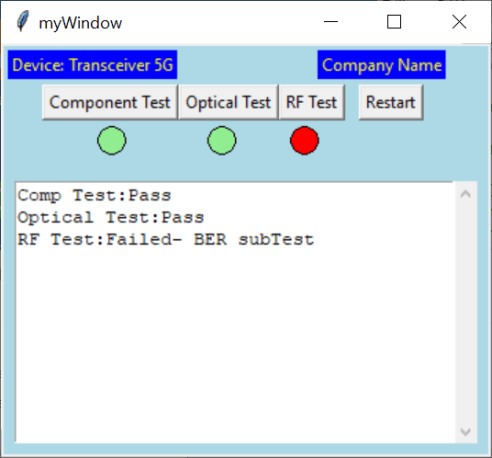
pressing of component,Optical and RF  test (RF test intentional fail in this simulation)

PY3_TK_grid_row_col_scrollv


# -*- coding: utf-8 -*-
"""
Created on Sun Dec  1 16:20:52 2019

@author: aleja

helpful references
https://stackoverflow.com/questions/34276663/tkinter-gui-layout-using-frames-and-grid
https://stackoverflow.com/questions/4310489/how-do-i-remove-the-light-grey-border-around-my-canvas-widget
"""

from tkinter import *
maxLenText=0

#your custom  function(s) for when buttons pressed - run test and report
def printtext(strtext):

    if strtext=="Comp Test":
        #run Comp Test()
        TestResult="Pass"
        if TestResult.find("Fail")>=0:
            canv1.itemconfig(c1, fill='red')
        else:
           canv1.itemconfig(c1, fill='lightgreen')
    elif strtext=="Optical Test":
        #run Optical Test()
        TestResult="Pass"
        if TestResult.find("Fail")>=0:
            canv2.itemconfig(c2, fill='red')
        else:
           canv2.itemconfig(c2, fill='lightgreen')
    elif strtext=="RF Test":
        #run RF Test Test()
        TestResult="Failed- BER subTest"
        if (TestResult.find("Fail")>=0):
            canv3.itemconfig(c3, fill='red')
        else:
           canv3.itemconfig(c3, fill='lightgreen')
    elif strtext=="Restart":
        #run RF Test Test()
        TestResult="Cleared Indicator and Text"
        canv1.itemconfig(c1, fill='black')
        canv2.itemconfig(c2, fill='black')
        canv3.itemconfig(c3, fill='black')
        txt1.delete(1.0,END)
    else:
        TestResult="UNKNOWN TEST contact Engineering"

    print("button press",strtext)
    global maxLenText
    txt1.insert(INSERT,(strtext+":"+TestResult+"\n"))
    txt1.yview(END)

#GUI setup below
myWindow=Tk()
myWindow.title("myWindow")
myWindow.minsize(380,250)
maxLenText=0

# do this or frame in window will not follow window (expanding)
myWindow.grid_rowconfigure(1,weight=1)  #need on row define as 1 for expanding row wise bottomframe
myWindow.grid_columnconfigure(0,weight=1)

frame1=Frame(myWindow,width=50,height=50,bg='lightblue')
frame1.grid(row=0, column=0, sticky='NWES', padx=10, pady=10, columnspan=4)
frame1.rowconfigure(0,weight=1)
frame1.columnconfigure(3,weight=1) #the lastcol goes along with rigth side expanding

L1=Label(frame1, text="Transceiver Test")
L2=Label(frame1, text="YourCompanyName")
L1.grid(row=0, column=0, padx=0, pady=10, columnspan=3) #span 2 so it does not affect component button
L2.grid(row=0, column=3, padx=10, sticky='E') #Keep company label attached to east(right) side

b1=Button(frame1, text='Component Test', command=lambda:printtext("Comp Test"))
b2=Button(frame1, text='Optical Test', command=lambda:printtext("Optical Test"))
b3=Button(frame1, text='RF Test', command=lambda:printtext("RF Test"))
b4=Button(frame1, text='Restart', padx=3, command=lambda:printtext("Restart"))

b1.grid(row=1, column=0,padx=(10,0))
b2.grid(row=1, column=1)
b3.grid(row=1, column=2)
b4.grid(row=1, column=3,padx=10,sticky='E') #keep Reset button on Right side

canv1=Canvas(frame1,width=50, height=30, bg='lightblue', bd=0, highlightthickness=0)
canv2=Canvas(frame1,width=50, height=30, bg='lightblue', bd=0, highlightthickness=0)
canv3=Canvas(frame1,width=50, height=30, bg='lightblue', bd=0, highlightthickness=0)
canv1.grid(row=2, column=0, padx=(10,0), columnspan=1) #padding to match first button
canv2.grid(row=2, column=1, columnspan=1)
canv3.grid(row=2, column=2, columnspan=1)

#========indicator=========
LTRY=5 #light top right Y
LTRX=15 #light top right X
dia=20
c1=canv1.create_oval(LTRX,LTRY,LTRX+dia,LTRY+dia,fill='black')
c2=canv2.create_oval(LTRX,LTRY,LTRX+dia,LTRY+dia, fill='black')
c3=canv3.create_oval(LTRX,LTRY,LTRX+dia,LTRY+dia, fill='black')

#=====bottom frame now the frame will be two col width with txt and scrollbar

frame2=Frame(myWindow,width=200,height=100,bg='lightblue',padx=10,pady=10)
frame2.grid(row=1,column=0,sticky='NWES',columnspan=2)
frame2.rowconfigure(0,weight=1)
frame2.columnconfigure(0,weight=1)

txt1=Text(frame2,width=20,height=10)
txt1.grid(row=0,column=0,sticky='NWES')

#attach a Scrollbar to txt1
vscroll=Scrollbar(frame2,orient=VERTICAL,command=txt1.yview)
txt1['yscroll']=vscroll.set
vscroll.grid(row=0,column=1,sticky='NS')

myWindow.mainloop()<span id="mce_SELREST_start" style="overflow:hidden;line-height:0;">&#65279;</span>


helpful references
https://stackoverflow.com/questions/34276663/tkinter-gui-layout-using-frames-and-grid
https://stackoverflow.com/questions/4310489/how-do-i-remove-the-light-grey-border-around-my-canvas-widget

This post is not connected or endorsed by any company.
Created to spark ideas on the subject.
Use at your own risk.


Posted in Test Sector | Tagged , , , , , , , , , , | Leave a comment

PY3 and TKinter GUI (place and pack)

Example GUI with Python3 and Tkinter

using Place and Pack (grid will be another post)

Widgets used

  • window
  • canvas
  • label
  • button
  • frame
  • circle oval

PY3_TK_StartPY3_TK_Pressed all 3 testPY3_TK_ReStart


# -*- coding: utf-8 -*-
"""
Created on Thu Nov 28 19:30:21 2019

@author: aleja
#Focus is on tkinter as GUI only, using place,and pack method (will show grid in another post)
Helpful Reference used:
    https://www.tutorialspoint.com/python3/tk_button.htm
    https://bytes.com/topic/python/answers/932249-tkinter-button-commands-called-only-startup
    https://stackoverflow.com/questions/41976546/scrollbar-in-tkinter-inside-text-widget
    https://stackoverflow.com/questions/3699104/how-to-add-autoscroll-on-insert-in-tkinter-listbox/3699952#3699952
    https://stackoverflow.com/questions/28151232/vertical-padding-between-buttons-in-a-column
    https://stackoverflow.com/questions/30507986/changing-the-colour-on-click-of-a-tkinter-rectangle-on-click-in-python

"""

from tkinter import *
maxLenText=0

#your custom  function(s) for when buttons pressed
def printtext(strtext):

    if strtext=="Comp Test":
        #run Comp Test()
        TestResult="Pass"
        if TestResult.find("Fail")>=0:
            canv.itemconfig(c1, fill='red')
        else:
           canv.itemconfig(c1, fill='lightgreen')
    elif strtext=="Optical Test":
        #run Optical Test()
        TestResult="Pass"
        if TestResult.find("Fail")>=0:
            canv.itemconfig(c2, fill='red')
        else:
           canv.itemconfig(c2, fill='lightgreen')
    elif strtext=="RF Test":
        #run RF Test Test()
        TestResult="Failed- BER subTest"
        if (TestResult.find("Fail")>=0):
            canv.itemconfig(c3, fill='red')
        else:
           canv.itemconfig(c3, fill='lightgreen')
    elif strtext=="Restart":
        #run RF Test Test()
        TestResult="Cleared Indicator and Text"
        canv.itemconfig(c1, fill='black')
        canv.itemconfig(c2, fill='black')
        canv.itemconfig(c3, fill='black')
        txt1.delete(1.0,END)
    else:
        TestResult="UNKNOWN TEST contact Engineering"

    print("button press",strtext)
    global maxLenText
    txt1.insert(INSERT,(strtext+":"+TestResult+"\n"))
    txt1.yview(END)
    LenText=len(strtext+":"+TestResult+"\n")
    print(maxLenText)
    if LenText>maxLenText:
        maxLenText=LenText+1
        myWmin=b3x+b3w+b4w+edgegap+maxLenText
        myWindow.minsize(myWmin,300)
        txt1frame.winfo_width=myWmin

#GUI setup below
myWindow=Tk()
myWindow.title("myWindow")
maxLenText=0

canv=Canvas(myWindow, bd=2, bg= "lightblue")
canv.pack(fill=BOTH,expand=YES)

edgegap=30
#note the lambda function if you have arg in the funciton ie using (),
#remember to add this or printtext("your string") will run once on run
# or if there was no arg use printtext WITHOUT the ()
# the command will be issued on mouse up when over button

b1=Button(canv,text="Component Test",command=lambda:printtext("Comp Test"))
b1.place(x=edgegap,y=30)
canv.update() # can only button true size get after place on canvas
b1w=b1.winfo_width()
print(b1w)

label1=Label(canv,text="Device: Transceiver 5G",fg='yellow',bg='blue')
label1.place(x=5,y=5)
label2=Label(canv,text="Company Name",fg='yellow',bg='blue')
label2.place(x=230,y=5)

btnrow=30
b2x=edgegap+b1w
b2=Button(canv,text="Optical Test",command=lambda:printtext("Optical Test"))
b2.place(x=b2x,y=btnrow)
canv.update()
b2w=b2.winfo_width()

b3x=edgegap+b1w+b2w
b3=Button(canv,text="RF Test",command=lambda: printtext("RF Test"))
b3.place(x=b3x,y=btnrow)
canv.update()
b3w=b3.winfo_width()

b4x=edgegap+b1w+b2w+b3w
b4=Button(canv,text="Restart",command=lambda: printtext("Restart"))
b4.place(x=(b4x+10),y=btnrow)
canv.update()
b4w=b4.winfo_width()

#========indicator=========
LTRY=60
dia=20
c1=canv.create_oval(70,LTRY,70+dia,LTRY+dia,fill='black')
c2=canv.create_oval(150,LTRY,150+dia,LTRY+dia, fill='black')
c3=canv.create_oval(210,LTRY,210+dia,LTRY+dia, fill='black')

#===Text ===
txt1frame=Frame(canv,width=50 ,height=20)
txt1frame.place(x=30,y=70)
txt1frame.pack(side=LEFT,expand=YES,fill=BOTH,pady=(100,10),padx=10)

txt1=Text(txt1frame,width=20,height=10)
txt1.place(x=0,y=0)

#attach a Scrollbar to txt1
vscroll=Scrollbar(txt1frame,orient=VERTICAL,command=txt1.yview)
txt1['yscroll']=vscroll.set
txt1.pack(side=LEFT,expand=YES,fill=BOTH)
vscroll.pack(side=RIGHT,fill=Y)

#attempt to autosize window min
myWmin=b3x+b3w+b4w+edgegap
myWindow.minsize(myWmin,300)

myWindow.mainloop()


Posted in Python, Test Sector, tkinter | Tagged , , , , , , , | Leave a comment

Some Basic SQLITE 3 Tables operations

Working at the database level with SQLITE3 in Python 3.7

Using :Memory: as a way to tryout interaction with the SQL command in SQLITE3

Two Tables

  • TESTSTATION
  • TS_LOCATION

Key SQL used

  • Create TABLE
  • INSERT INTO
  • SELECT  and with INNER JOIN(so data from two tables can be seen)
  • DELETE FROM
  • UPDATE

# -*- coding: utf-8 -*-
"""
Created on Mon Nov 25 16:53:17 2019

@author: aleja
"""

#Useful reference
#https://www.tutorialspoint.com/sqlite/sqlite_python.htm
#sqlite3 is already included (did not have to pip )

#https://stackoverflow.com/questions/26862809/operational-error-database-is-locked

import sqlite3

#conn=sqlite3.connect('teststation3.db')
#for testing in memory, note result of output may be different when working with a file
conn=sqlite3.connect(':memory:')

#if db file will now be in the same folder as this script

#create a table this should only be done one
try:
    conn.execute('''CREATE TABLE TESTSTATION
             (ID INT PRIMARY KEY NOT NULL,
              TS_NAME TEXT NOT NULL,
              TS_TYPE NOT NULL,
              TS_LOC_ID NOT NULL,
              TS_PN NOT NULL,
              TS_SN NOT NULL,
              TS_STATUS NOT NULL);''')
except sqlite3.OperationalError:
    print('\n***SORRY Table in this db already exist cannot create again\n but you can use it')

try:
    conn.execute('''CREATE TABLE TS_LOCATION
             (TS_LOC_ID INT PRIMARY KEY NOT NULL,
              TS_LOC_COUNTRY NOT NULL,
              TS_LOC_STATE NOT NULL,
              TS_LOC_CITY NOT NULL,
              TS_LOC_ADDR1 NOT NULL,
              TS_LOC_ADDR2 NOT NULL,
              TS_COMPANY NOT NULL);''')
except sqlite3.OperationalError:
    print('\n***SORRY Table in this db already exist cannot create again\n but you can use it')

#Locations

#check for IntegrityError: UNIQUE constraint failed: TESTSTATION.ID
try:
    conn.execute("INSERT INTO TS_LOCATION (TS_LOC_ID,TS_LOC_COUNTRY,TS_LOC_STATE,TS_LOC_CITY,TS_LOC_ADDR1,TS_LOC_ADDR2,TS_COMPANY) VALUES (1, 'Country1', 'State1', 'City1', 'Addr11', 'Addrs12', 'Company1')");
    conn.execute("INSERT INTO TS_LOCATION (TS_LOC_ID,TS_LOC_COUNTRY,TS_LOC_STATE,TS_LOC_CITY,TS_LOC_ADDR1,TS_LOC_ADDR2,TS_COMPANY) VALUES (2, 'Country1', 'State2', 'City2', 'Addr21', 'Addrs22', 'Company1')");
except sqlite3.IntegrityError:
    print('\n*** SORRY You cannot use the same primary key that is already in a database, but you can get info.')

cursor=conn.execute("SELECT TS_LOC_ID,TS_COMPANY,TS_LOC_STATE,TS_LOC_CITY from TS_LOCATION")
print("TS_LOC_ID,TS_COMPANY,TS_LOC_STATE,TS_LOC_CITY")
for row in cursor:
    print(row)

#check for IntegrityError: UNIQUE constraint failed: TESTSTATION.ID
try:
    conn.execute("INSERT INTO TESTSTATION (ID,TS_NAME,TS_TYPE,TS_LOC_ID,TS_PN,TS_SN,TS_STATUS) VALUES (1, 'OpticalTS', 'RnD', 1, '5R347', 'A01001','Active')");
    conn.execute("INSERT INTO TESTSTATION (ID,TS_NAME,TS_TYPE,TS_LOC_ID,TS_PN,TS_SN,TS_STATUS) VALUES (2, 'OpticalTS', 'Production', 2, '5R348', 'A01002','Active')");
    conn.execute("INSERT INTO TESTSTATION (ID,TS_NAME,TS_TYPE,TS_LOC_ID,TS_PN,TS_SN,TS_STATUS) VALUES (3, 'OpticalTS', 'Production', 2, '5R348', 'A01003','Active')");
except sqlite3.IntegrityError:
    print('\n*** SORRY You cannot use the same primary key that is already in a database, but you can get info.')

cursor=conn.execute("SELECT ID,TS_NAME,TS_PN,TS_SN from TESTSTATION")
print("ID,TS_NAME,TS_PN,TS_SN")
for row in cursor:
    print(row)

sqlfunc="DELETE from "
sqltbl="TESTSTATION where "
sqlcols="TS_PN='5R348' and TS_SN='A01002';"
sqldel=sqlfunc+sqltbl+sqlcols
print ("\n",sqldel)

cursor=conn.execute(sqldel)
Num_deleted=cursor.rowcount
print("Number of Deleted Row",Num_deleted)

print("\nLook at TESTSTATION Table")
cursor=conn.execute("SELECT ID,TS_NAME,TS_PN,TS_SN from TESTSTATION")
print("ID,TS_NAME,TS_PN,TS_SN")
for row in cursor:
    print(row)

print("\nLook at both TESTSTATION and TS_LOCATION Table")
cursor=conn.execute("SELECT ID,TS_NAME,TS_PN,TS_SN,TS_STATUS,TS_COMPANY,TS_LOC_STATE from TESTSTATION INNER JOIN TS_LOCATION ON TS_LOCATION.TS_LOC_ID=TESTSTATION.TS_LOC_ID")
print("ID,TS_NAME,TS_PN,TS_SN,TS_STATUS,TS_COMPAY,TS_LOC_STATE")
for row in cursor:
    print(row)

sqlfunc="UPDATE "
sqltbl="TESTSTATION "
sqlsetcols="SET TS_STATUS='OFFLINE' "
sqlwhere="WHERE TS_PN='5R348' and TS_SN='A01003';"
sqlupdate=sqlfunc+sqltbl+sqlsetcols+sqlwhere
print ("\n",sqlupdate)

cursor=conn.execute(sqlupdate)
Num_updates=cursor.rowcount
print("Number of Updated Row",Num_deleted)

print("\nLook at TESTSTATION Table")
cursor=conn.execute("SELECT ID,TS_NAME,TS_PN,TS_SN,TS_STATUS from TESTSTATION")
print("ID,TS_NAME,TS_PN,TS_SN,TS_STATUS")
for row in cursor:
    print(row)   

conn.commit()
conn.close()

Output from above (remember this is in :memory: mode database (output will be different with dbname.db because of rows being in table after 2nd run of code.

In memory mode it is like start new all the time but its great for checking syntax before loading database file.


TS_LOC_ID,TS_COMPANY,TS_LOC_STATE,TS_LOC_CITY
(1, 'Company1', 'State1', 'City1')
(2, 'Company1', 'State2', 'City2')
ID,TS_NAME,TS_PN,TS_SN
(1, 'OpticalTS', '5R347', 'A01001')
(2, 'OpticalTS', '5R348', 'A01002')
(3, 'OpticalTS', '5R348', 'A01003')

 DELETE from TESTSTATION where TS_PN='5R348' and TS_SN='A01002';
Number of Deleted Row 1

Look at TESTSTATION Table
ID,TS_NAME,TS_PN,TS_SN
(1, 'OpticalTS', '5R347', 'A01001')
(3, 'OpticalTS', '5R348', 'A01003')

Look at both TESTSTATION and TS_LOCATION Table
ID,TS_NAME,TS_PN,TS_SN,TS_STATUS,TS_COMPAY,TS_LOC_STATE
(1, 'OpticalTS', '5R347', 'A01001', 'Active', 'Company1', 'State1')
(3, 'OpticalTS', '5R348', 'A01003', 'Active', 'Company1', 'State2')

 UPDATE TESTSTATION SET TS_STATUS='OFFLINE' WHERE TS_PN='5R348' and TS_SN='A01003';
Number of Updated Row 1

Look at TESTSTATION Table
ID,TS_NAME,TS_PN,TS_SN,TS_STATUS
(1, 'OpticalTS', '5R347', 'A01001', 'Active')
(3, 'OpticalTS', '5R348', 'A01003', 'OFFLINE')


 

Posted in Test Sector | Leave a comment

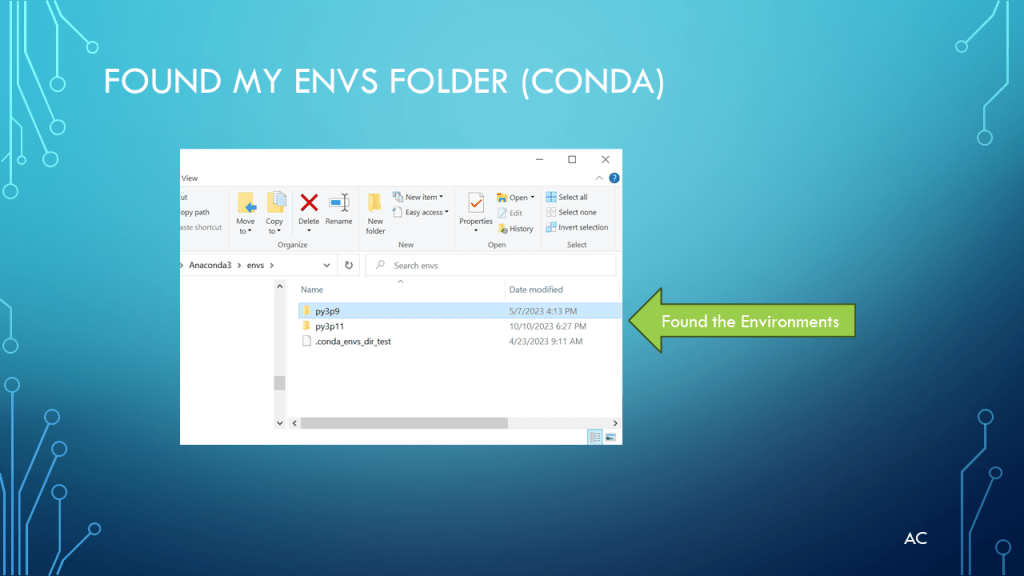
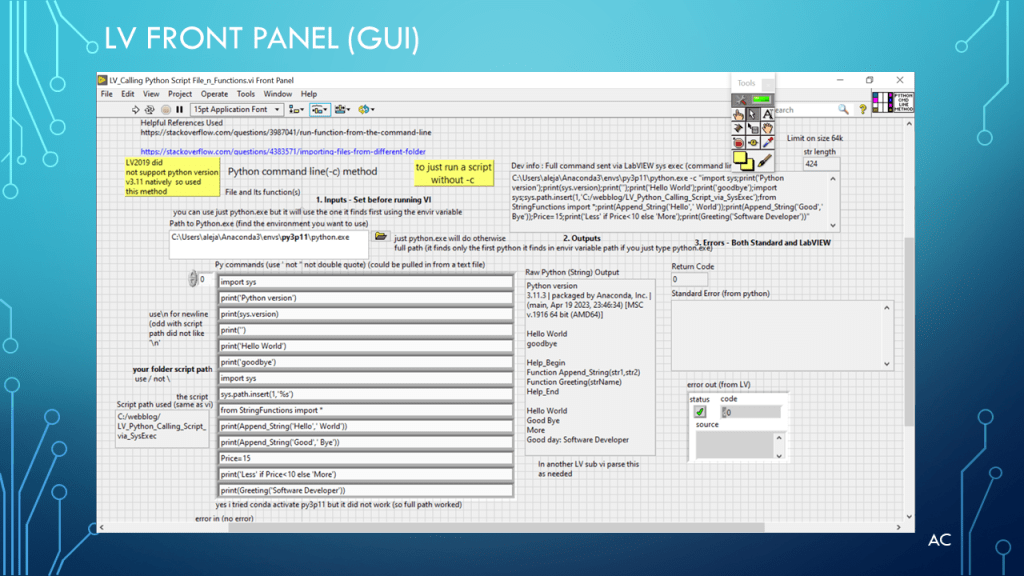
LV calling Python via -c command line method

Presentation on how a LabVIEW developer can access a Python developers module(file) and functions using the -c command line mode

LV_PY3_CLSlide1LV_PY3_CLSlide2LV_PY3_CLSlide3LV_PY3_CLSlide4LV_PY3_CLSlide5LV_PY3_CLSlide6

Helpful links


Updated: Nov 02 2023

Updated Presentation

Presentation

Zip Code

Notes

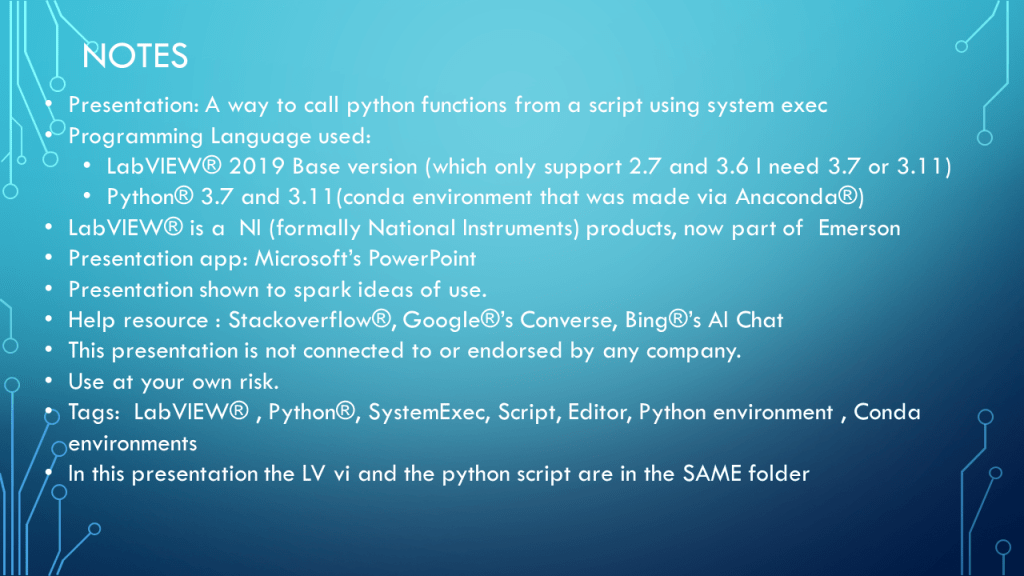
  • Presentation: A way to call python functions from a script using system exec
  • Programming Language used:
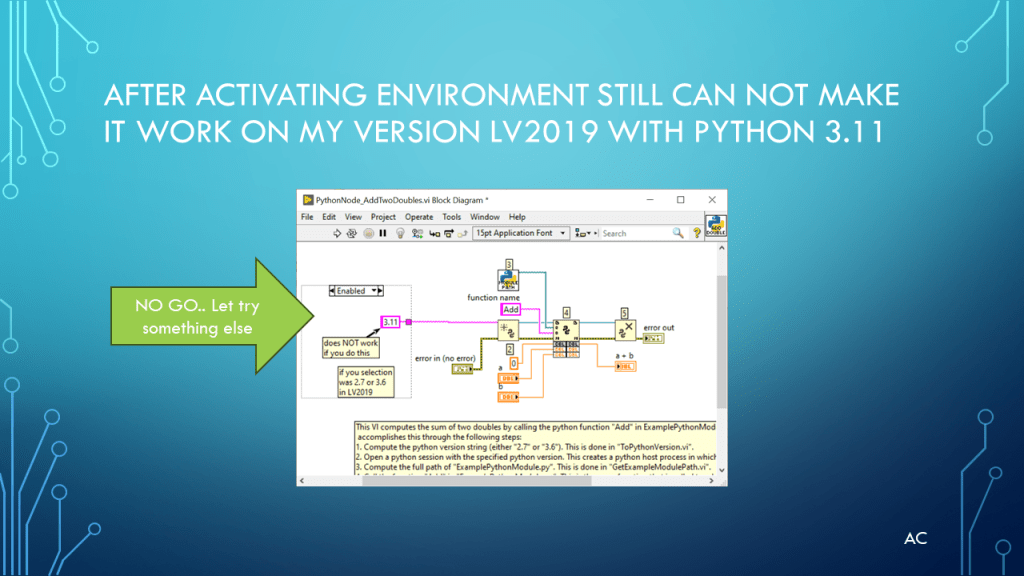
    • LabVIEW® 2019 Base version (which only supports 2.7 and 3.6, but I need 3.7 or 3.11)
    • Python® 3.7 and 3.11 (conda environment that was made via Anaconda®)
  • LabVIEW® is a NI (formally National Instruments) product, now part of Emerson
  • Presentation app: Microsoft’s PowerPoint
  • Presentation shown to spark ideas of use.
  • Help resource:
    • Stackoverflow®
      • Google®’s Converse
        • Bing®’s AI Chat
  • This presentation is not connected to or endorsed by any company.
  • Use at your own risk.
  • Tags: LabVIEW®, Python®, SystemExec, Script, Editor, Python environment, Conda environments
  • In this presentation, the LV vi and the python script are in the SAME folder
  • Default for python field is python.exe if you want a different evns use the full path as done in the presentation
    • C:\Users\( )\Anaconda3\envs\py3p11\python.exe (py3p11 is what i name my conda for python version 3.11
Posted in LabVIEW(r), Python, Test Sector | Tagged , , , , , | Leave a comment

LV Queue showing two ways and effects

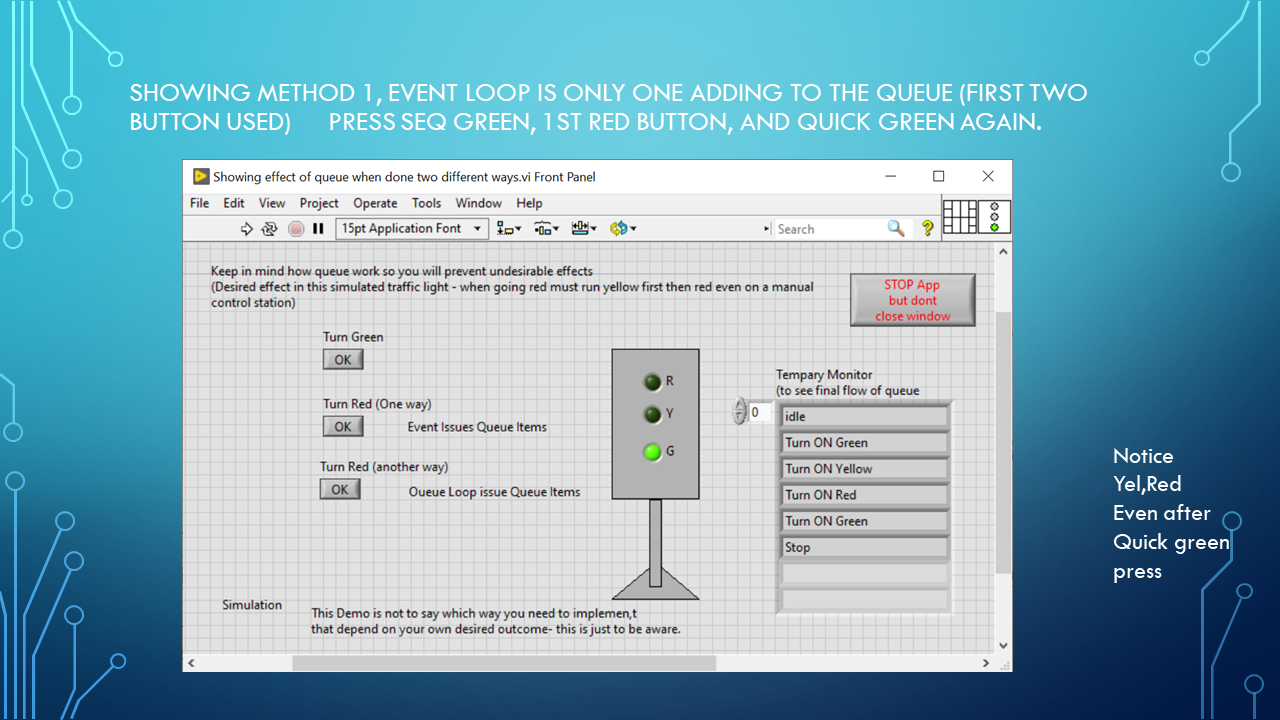
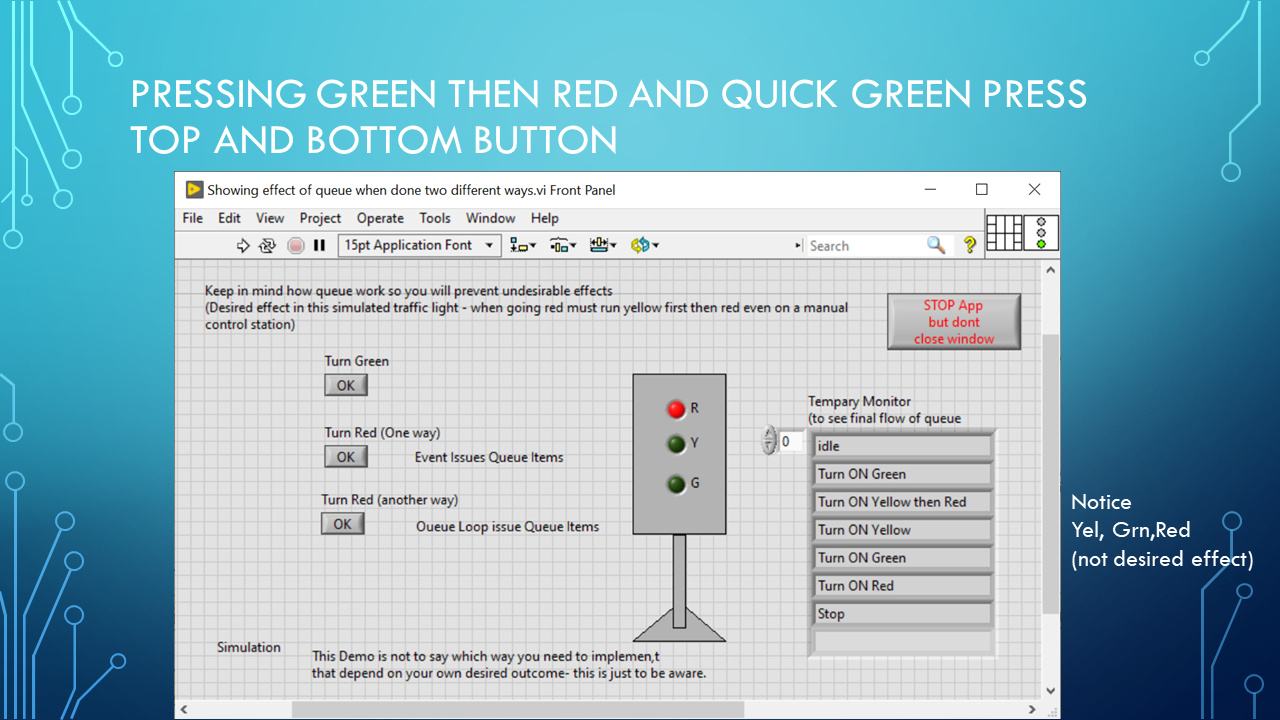
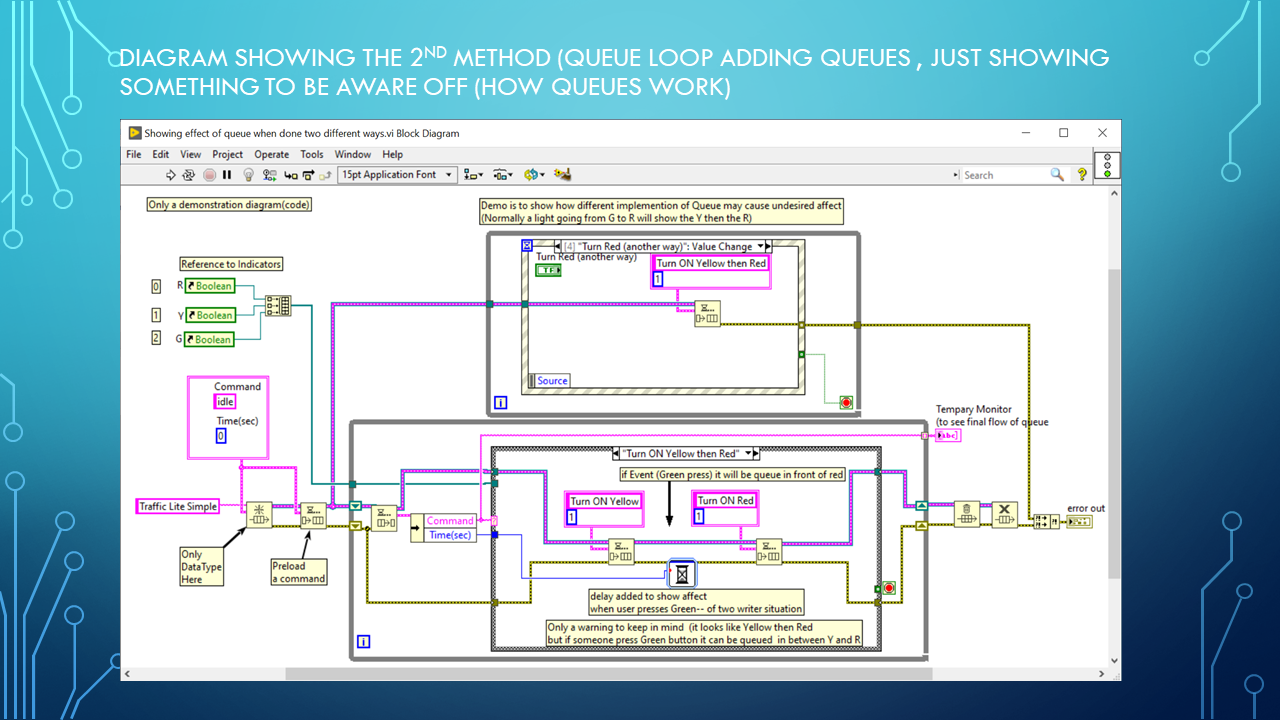
Using a simple simulated traffic light example to show two ways and effects when pressing button. More about seeing how queues work in two situations.

The desired effect is when going from Green to Red it should go Yellow then Red.

One is the Event Loop (which handle events like button pressing) adding to queue

Next is  queue elements added from inside the queue loop.

A delay was added in the second method to amplify the effect I want to show which is the Green button pressing  adding to queue in between  Yellow and Red if press quickly.

I press Green, then then Red button then the Green button again.

Below is the output(front panel) and the code(diagram)

Remember this presentation is not to show which one to use, it just to show different effects which can occur using queues.

LV_Queue_2waysSlide1LV_Queue_2waysSlide2LV_Queue_2waysSlide3LV_Queue_2waysSlide4LV_Queue_2waysSlide5LV_Queue_2waysSlide6


LabVIEW® is a National Instrument product
This post is not connected or endorsed by any company.
Created to spark ideas on the subject.
Use at your own risk.

Posted in LabVIEW(r), Queue, Test Sector | Tagged , , , | Leave a comment

Layouts and Matplotlib for plots and Pyqt5 , focusing on Layouts

Topic on Layout , Matplotlib, and PyQt5

Understand the Layout in one example solution.

The great original example/solution code can be found at this location:

reference:

https://stackoverflow.com/questions/48140576/matplotlib-toolbar-in-a-pyqt5-application

Mostly focusing on how Layout plays a role in GUI use of Graph or Plot

Will also be showing some changes: different plot type, setting change so main window frame can be seen, and moving the Graph/Plot NavToolBar to bottom of Plot.


PQ5_MPL_LayoutSlide1PQ5_MPL_LayoutSlide2PQ5_MPL_LayoutSlide3PQ5_MPL_LayoutSlide4PQ5_MPL_LayoutSlide5PQ5_MPL_LayoutSlide6PQ5_MPL_LayoutSlide7PQ5_MPL_LayoutSlide8PQ5_MPL_LayoutSlide9


The great original example/solution code can be found at this location:

reference:

https://stackoverflow.com/questions/48140576/matplotlib-toolbar-in-a-pyqt5-application

This post is not connected or endorsed by any company.
Created to spark ideas on the subject.
Use at your own risk.

Posted in Test Sector | Tagged , , , , , , | Leave a comment

Python serial write and read to arduino with a K0183 shield and RGB

Showing communication to arduino which used a RGB shield which is setup to be controlled via serial com port

using Python 3.7

Red num,Green num,Blue number   0-255

example 100,0,0  will turn on Red Led of RGB with a 100 intensity

Entering q or Q will quit the running python script.

I already create a similar LabVIEW® to control the arduino with RGB serial controlled code. See other post ( https://testengineerresource.com/2019/11/11/lv-arduino-serial-comm-and-k0183-shield).

Here we are using a python script to show similar control as was done in LabVIEW® post

code below


RGB Shield code

/*
  Reading a serial ASCII-encoded string.

 This sketch demonstrates the Serial parseInt() function.
 It looks for an ASCII string of comma-separated values.
 It parses them into ints, and uses those to fade an RGB LED.

 Circuit: Common-Anode RGB LED wired like so:
 * Red Cathode: digital pin 9
 * Green Cathode: digital pin 10
 * Blue Cathode: digital pin 11
 * Anode : GND
 *
Used  example- communication - ReadASCIIstring code as starting point  (changed for Common Anode)
 created 13 Apr 2012
 by Tom Igoe
  modified 14 Mar 2016
 by Arturo Guadalupi

modified from origianl example for K0183 Keyestudio shield
 by AC 2019
 This example code is public domain.
 */

// pins for the LEDs:
const int redPin = 9;
const int greenPin = 10;
const int bluePin = 11;

void setup() {
  // initialize serial:
  Serial.begin(9600);
  // make the pins outputs:
  pinMode(redPin, OUTPUT);
  pinMode(greenPin, OUTPUT);
  pinMode(bluePin, OUTPUT);
  Serial.write("R,G,B   example type 100,10,10 then press Send\n"); // help line
}

void loop() {
  // if there's any serial available, read it:
 // Serial.write("R,G,B   example 100,10,10");
 // if there's any serial available, read it:
  while (Serial.available() > 0) {

    // look for the next valid integer in the incoming serial stream: n,n,n
    int red = Serial.parseInt();
    // do it again:
    int green = Serial.parseInt();
    // do it again:
    int blue = Serial.parseInt();

    // look for the newline. That's the end of your
    // sentence:
    if (Serial.read() == '\n') {
      // constrain the values to 0 - 255 and invert
      // if you're using a common-cathode LED, just use "constrain(color, 0, 255);"
      red = constrain(red, 0, 255);
      green = constrain(green, 0, 255);
      blue = constrain(blue, 0, 255);

      // fade the red, green, and blue legs of the LED:
      analogWrite(redPin, red);
      analogWrite(greenPin, green);
      analogWrite(bluePin, blue);

      // print the three numbers in one string as decimal:
      Serial.print("Arduino Echo ");   // added 11/19/2019
      Serial.print(red, DEC);
      Serial.print(",");
      Serial.print(green, DEC);
      Serial.print(",");
      Serial.println(blue, DEC);
    } //cr

  }//serial data to read
}//loop

python code script

# -*- coding: utf-8 -*-
"""
Created on Tue Nov 19 13:01:15 2019

@author: aleja
close the Arduino IDE before running since two serial connection may cause issues
An Arduino is connected to Com Port sending out Serial Data.
Since its connects to the PC via the USB cable it is automatically send out data
(as aka COM4 in my case)
Suggest if you get a message about cannot open port ,port already open - try unplug Arduino USB cable and reconnect.
then run this code.
Also the IPython console my need to restarted if a error occured during initial setup or wrong com port
This is a write and read  example when an arduino is connected to the PC via its USB cable(COMn) , you COMn can be different
For Arduino, have some serial.println("Your own message"); may 3 in this example  so you get the /r/n needed by ser.readline()
"""

import serial,time
import serial.tools.list_ports as port_list

#Get all comm ports
print("Please use correct comport from list below\n")
ports = list(port_list.comports())
for p in ports:
    print (p)

ser = serial.Serial('COM4', 9600)
#removed ser.open because when arduino is connect com3 is already open (when you connected the USB cable (you cannot open and opened port)
#arduino is already coded and sending out serial data that was using for debugging in arduino serial monitor
#ser.open()

#clean out serial data buffers
ser.flushInput() #flush input buffer from PCs serial driver
ser.flushOutput()#flush output buffer from PCs serial driver
time.sleep(0.5)  #give the serial port on PC sometime to complete
response = ser.readline() # a new serial instance reset the serial on the arduino so get first read
print(response.decode("utf-8"))
# Only get a sample number of lines(/r/n) of the the data coming out from the ardunio.
numOfLines = 0
#numOfLinesToRead=3
while True:
  commandstr=str(input("Enter R,G,B   0-255  ex 100,0,0 to quit enter Q or Quit\n"))
  commandstr=commandstr+"\n"
  if (commandstr.find("Q")<0 and commandstr.find("q")= numOfLinesToRead):
#        break
  else:
      break
ser.close() # even if you dont use the serial open you still need to close it.
print("Done")

IPython console output


Please use correct comport from list below

COM4 – Arduino Uno (COM4)
R,G,B example type 100,10,10 then press Send
Enter R,G,B 0-255 ex 100,0,0 to quit enter Q or Quit
100,0,0
b’Arduino Echo 100,0,0\r\n’
Arduino Echo 100,0,0
Enter R,G,B 0-255 ex 100,0,0 to quit enter Q or Quit
Q
Done


Arduino Uno used,

Python 3.7

LabVIEW® is a National Instrument product
This post is not connected or endorsed by any company.
Created to spark ideas on the subject.
Use at your own risk.

Posted in Test Sector | Tagged , , , , , , | Leave a comment

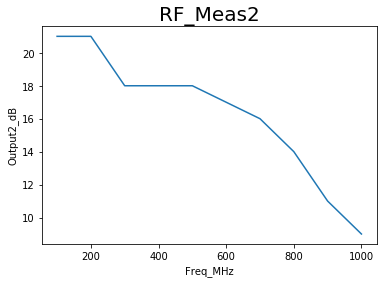
File Data to Graph XY PLOT

Presentation on taking a file with the following format:

  • [Section]
  • Header0, Header1
  • Data1x, Data1y
  • Datanx,Datany
  • ******
# -*- coding: utf-8 -*-
"""
Created on Mon Nov 18 15:36:01 2019
Updated Mar 10 2021 - Added matplotlib import

@author: aleja
"""
from matplotlib.figure import Figure
import matplotlib.pyplot as plt
#=======================================
#read x,y from file columns
#file format
#[Section]
#Header0,Header1
#Data1x,Data1y
#Datanx,Datany
#*******

filerows=[]
sections=[]
x2 = []
y2 = []

#file in same folder as python file
with open ("testreport1.txt") as myfile:
    for line in myfile:
        filerows.append(line)
        print (line)

#Lets find where all the section are located
for i in range(len(filerows)):
    if((filerows[i].find("["))&gt;=0):
        #print (filerows[i])
        sections.append({"section":filerows[i],"sectionindex":i})
        print(sections)

#find RF_Meas2
foundsection=0
SectionToPlot  =   "RF_Meas2"
for i in range(len(sections)):
        if(sections[i]["section"].find(SectionToPlot)&gt;=0):
            print (sections[i]["section"],sections[i]["sectionindex"])
            foundsection=foundsection+1;
            section_index=sections[i]["sectionindex"]

#simple test of file
if foundsection==0:
    print ("I did not find the section please review file or SelectionToPlot")
elif foundsection&gt;1:
    print ("File has multiple sections with the same name - not a correct file format")
else:
#get Sections Header info
    Header=[]
    Header=filerows[section_index+1].split(',')
    print(Header)
    Header[-1]=Header[-1].rstrip() #get rid of \n at end of last element
    print(Header)

#next data
    print(len(filerows))
    section_data_start=section_index+2
    while (filerows[section_data_start].find("****")&lt;0 and section_data_start&lt;=len(filerows)):
        dataxy=filerows[section_data_start].split(",")
        x2.append(float(dataxy[0]))  #remember you need to turn string to number
        y2.append(float(dataxy[1].rstrip())) #remember you need to turn string to number
        section_data_start=section_data_start+1
        print(section_data_start)
    print(x2,y2)
    plt.plot (x2,y2)
    print (Header[0],Header[1])
    plt.xlabel(Header[0])
    plt.ylabel(Header[1])
    plt.title(SectionToPlot,fontsize=20)
    plt.show()

File example (testreport1.txt)

[RF_Meas1]
Freq_MHz,Output1_dB
100,20
200,20
300,19
400,19
500,19
600,18
700,17
800,15
900,12
1000,10
******
[RF_Meas2]
Freq_MHz,Output2_dB
100,21
200,21
300,18
400,18
500,18
600,17
700,16
800,14
900,11
1000,9
******


IPython console output

[RF_Meas1]

Freq_MHz,Output1_dB

100,20

200,20

300,19

400,19

500,19

600,18

700,17

800,15

900,12

1000,10

******

[RF_Meas2]

Freq_MHz,Output2_dB

100,21

200,21

300,18

400,18

500,18

600,17

700,16

800,14

900,11

1000,9

******
[{‘section’: ‘[RF_Meas1]\n’, ‘sectionindex’: 0}]
[{‘section’: ‘[RF_Meas1]\n’, ‘sectionindex’: 0}, {‘section’: ‘[RF_Meas2]\n’, ‘sectionindex’: 13}]
[RF_Meas2]
13
[‘Freq_MHz’, ‘Output2_dB\n’]
[‘Freq_MHz’, ‘Output2_dB’]
26
16
17
18
19
20
21
22
23
24
25
[100.0, 200.0, 300.0, 400.0, 500.0, 600.0, 700.0, 800.0, 900.0, 1000.0] [21.0, 21.0, 18.0, 18.0, 18.0, 17.0, 16.0, 14.0, 11.0, 9.0]
Freq_MHz Output2_dB

GraphXYPlot as shown on Ipython console


Used python 3.7

Create as a starting point for ideas

Use at your own risk.


Posted in Test Sector | Tagged , , , , , , , , , | Leave a comment

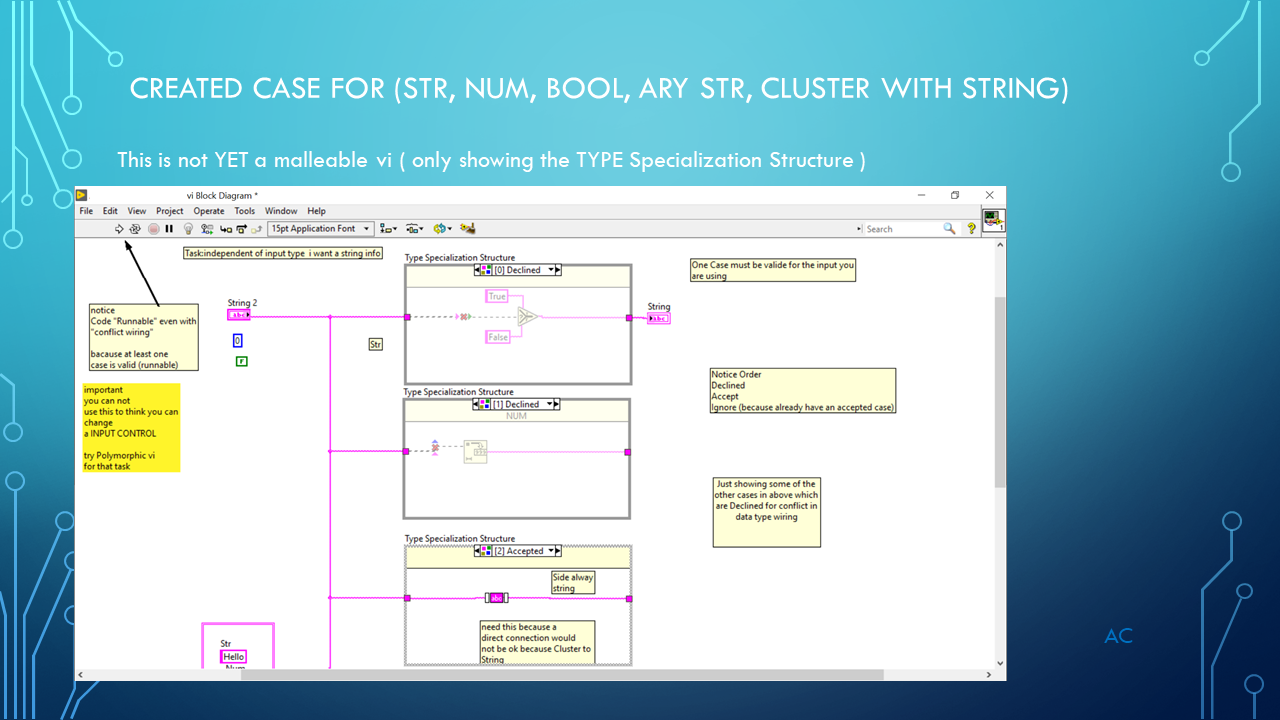
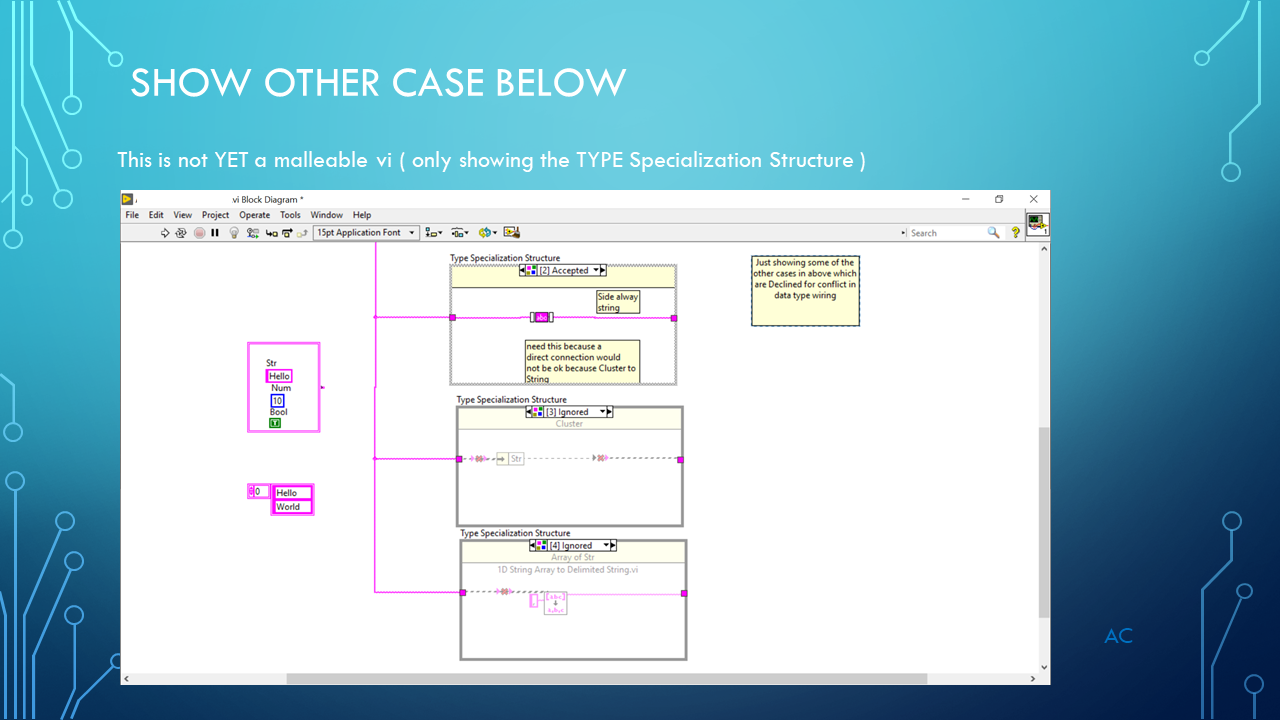
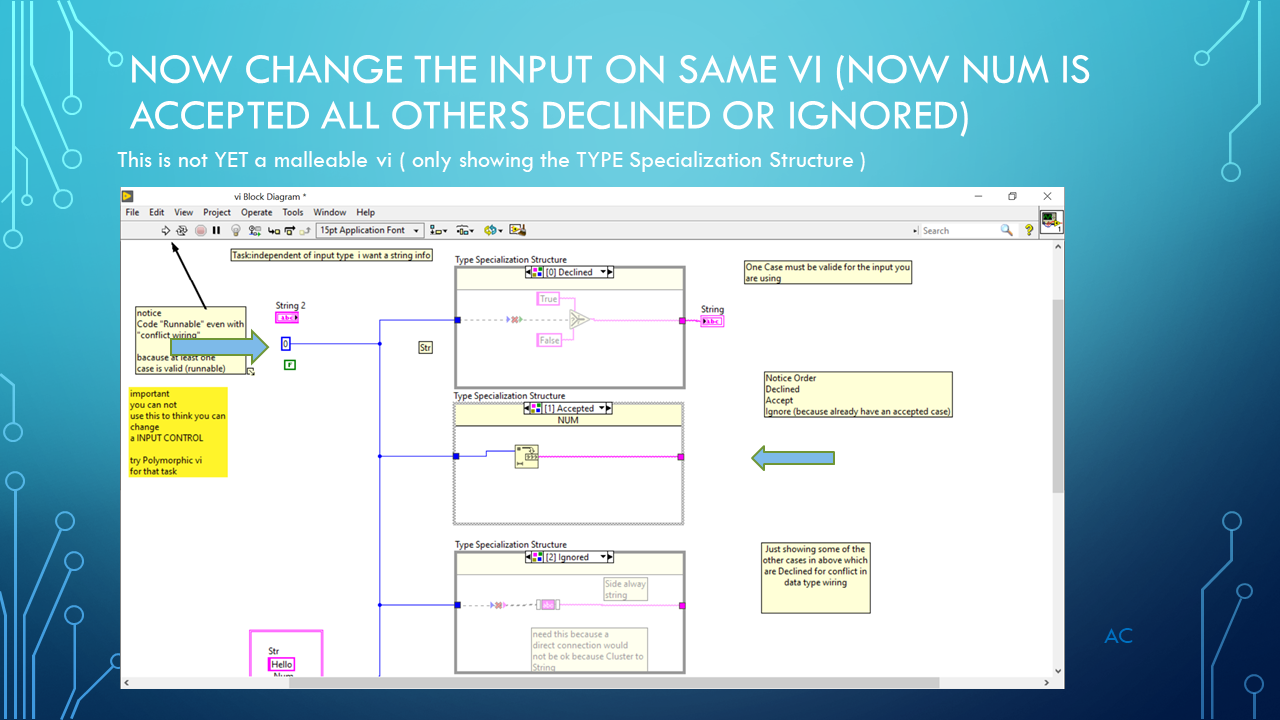
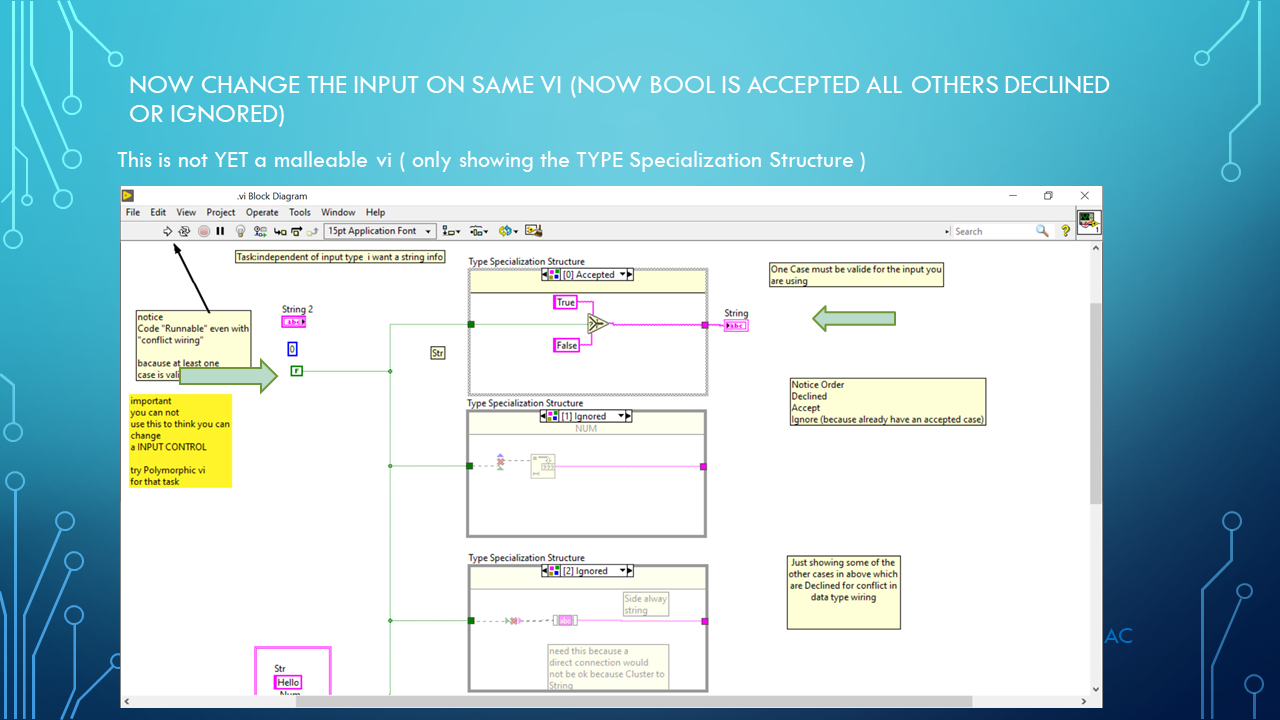
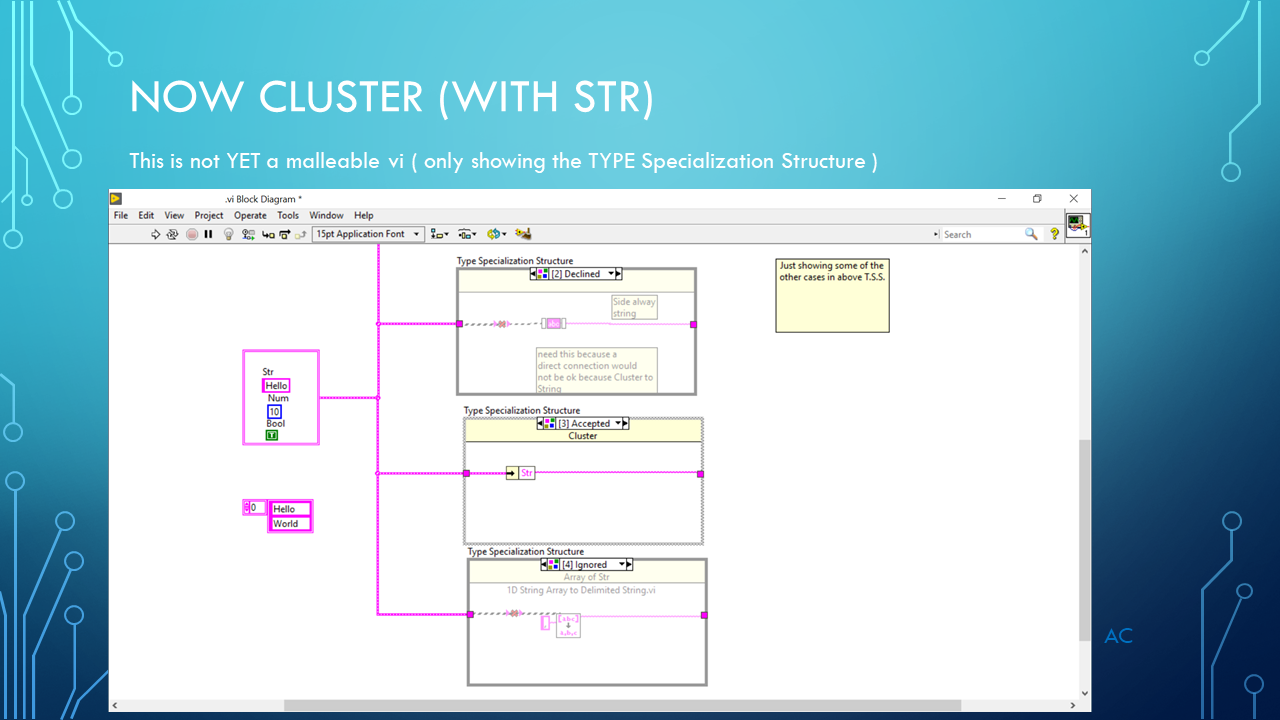
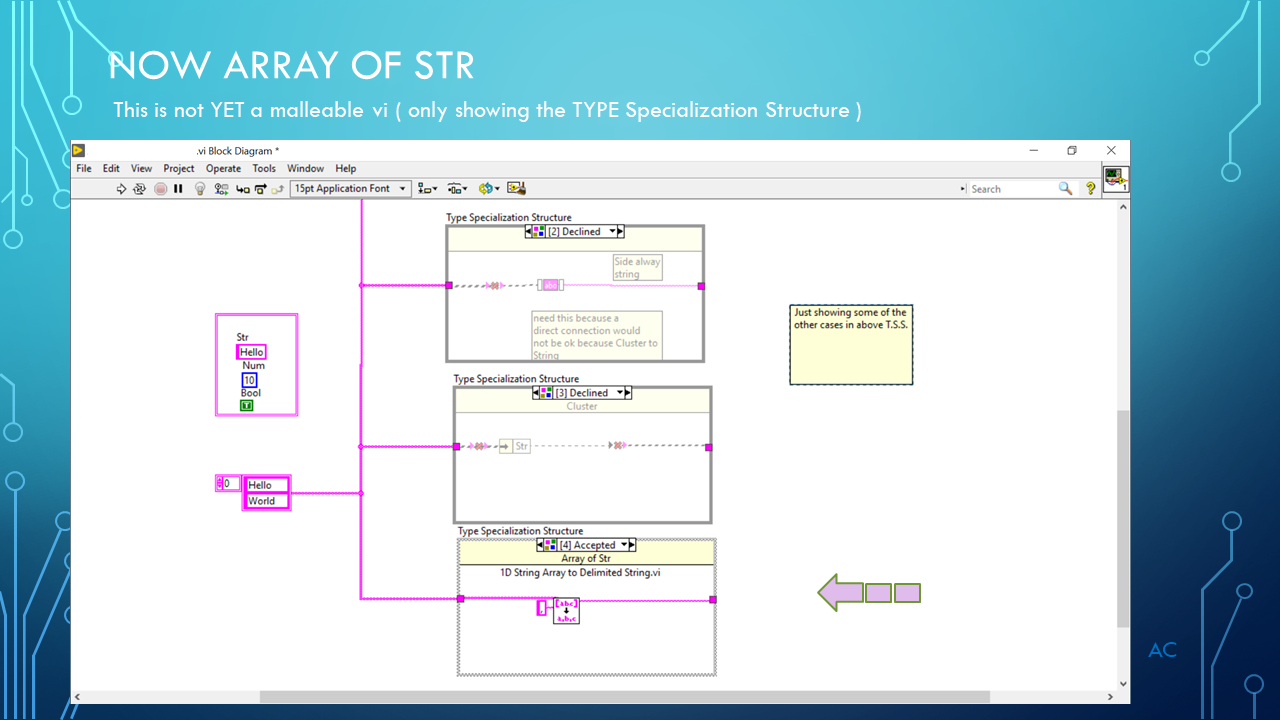
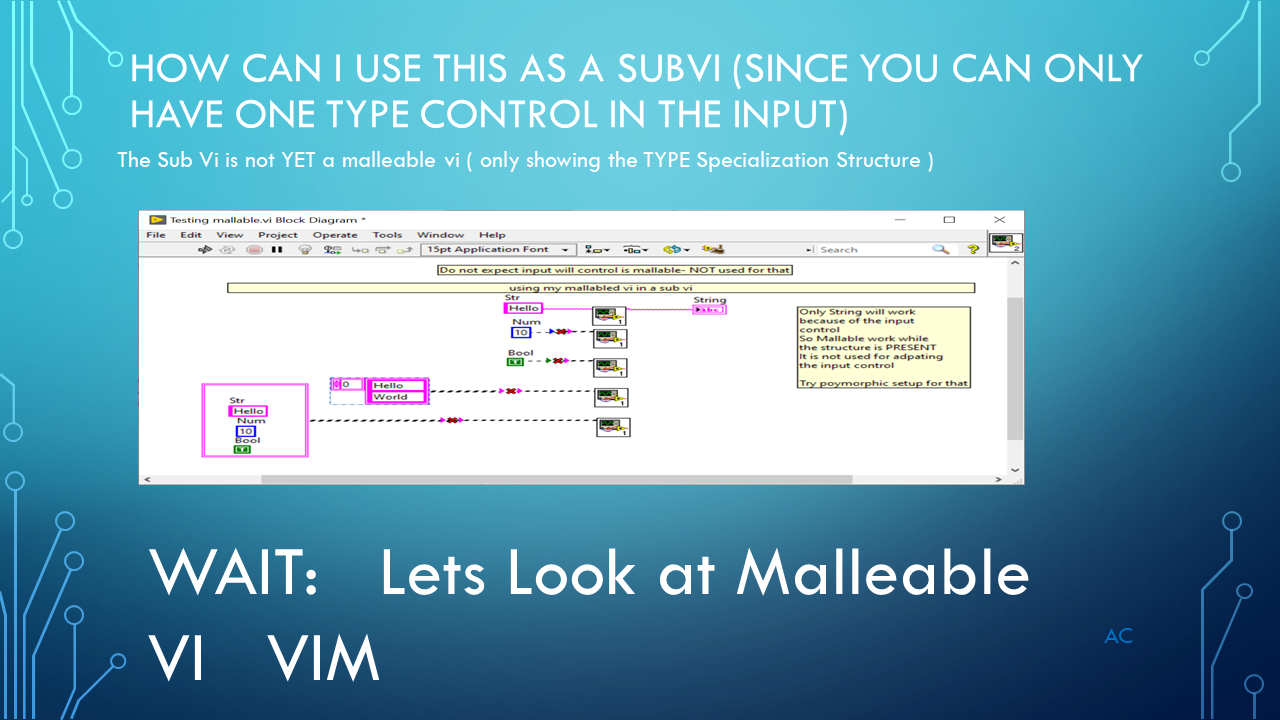
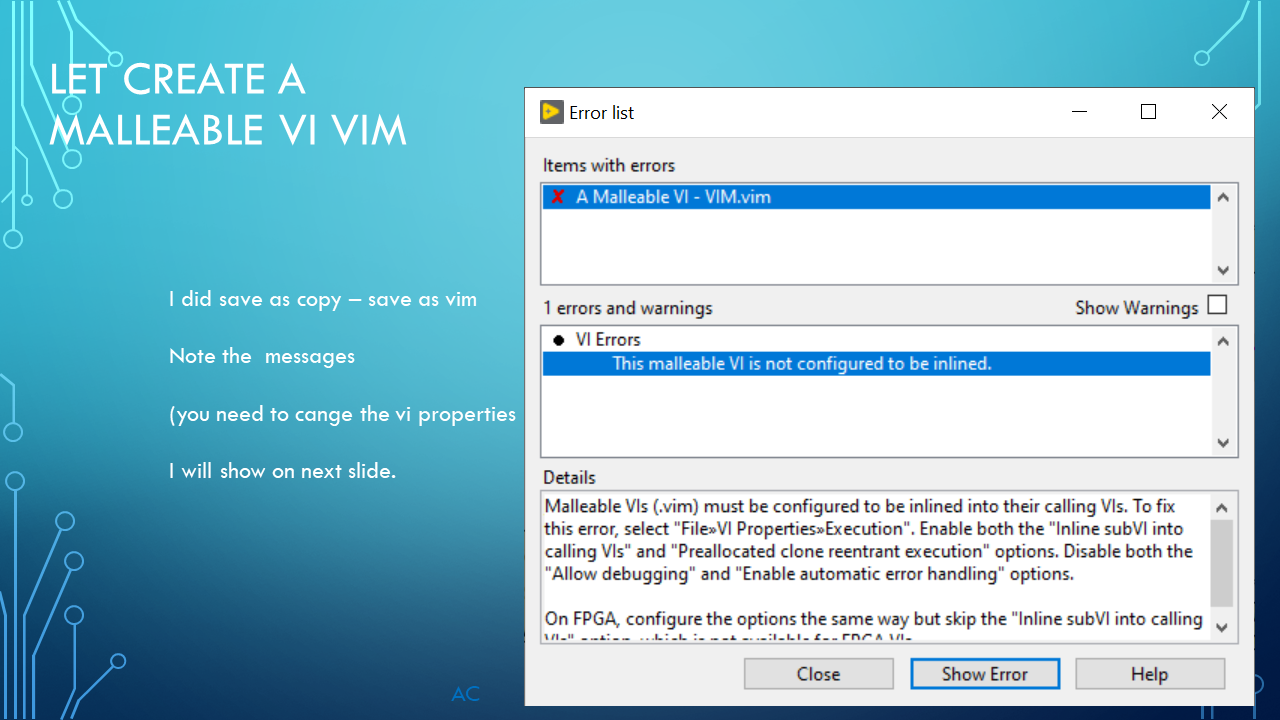
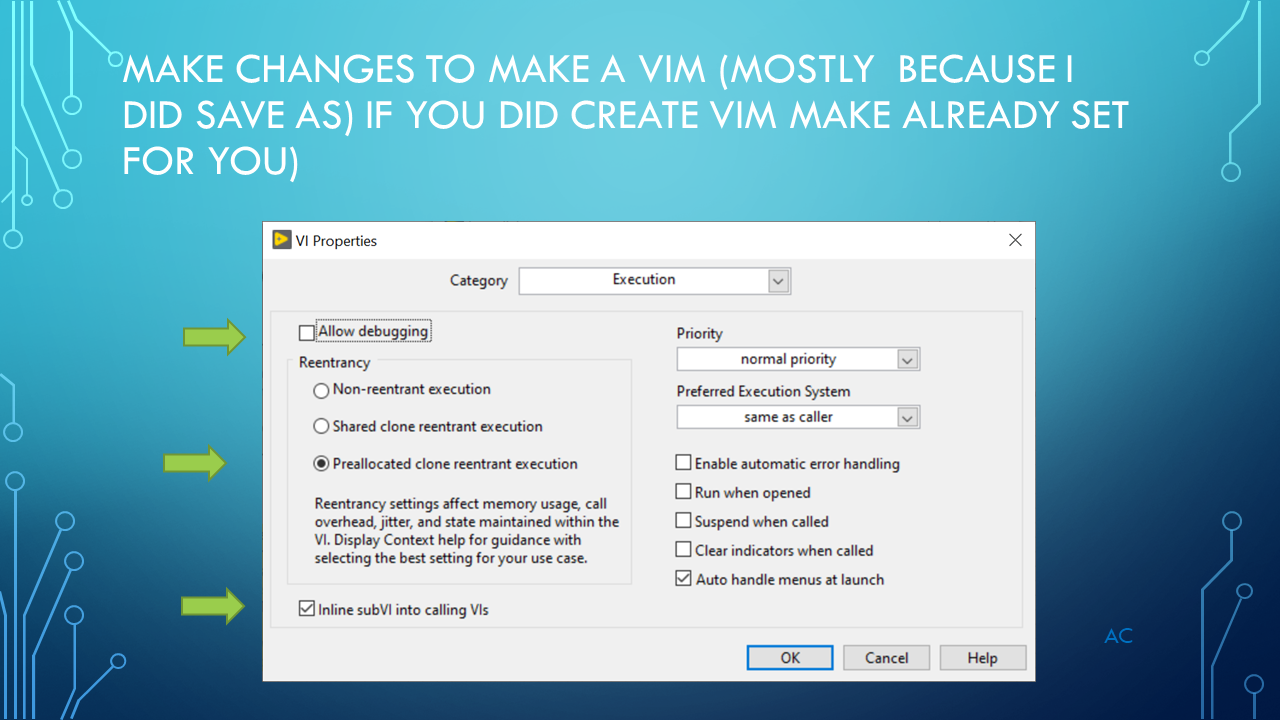
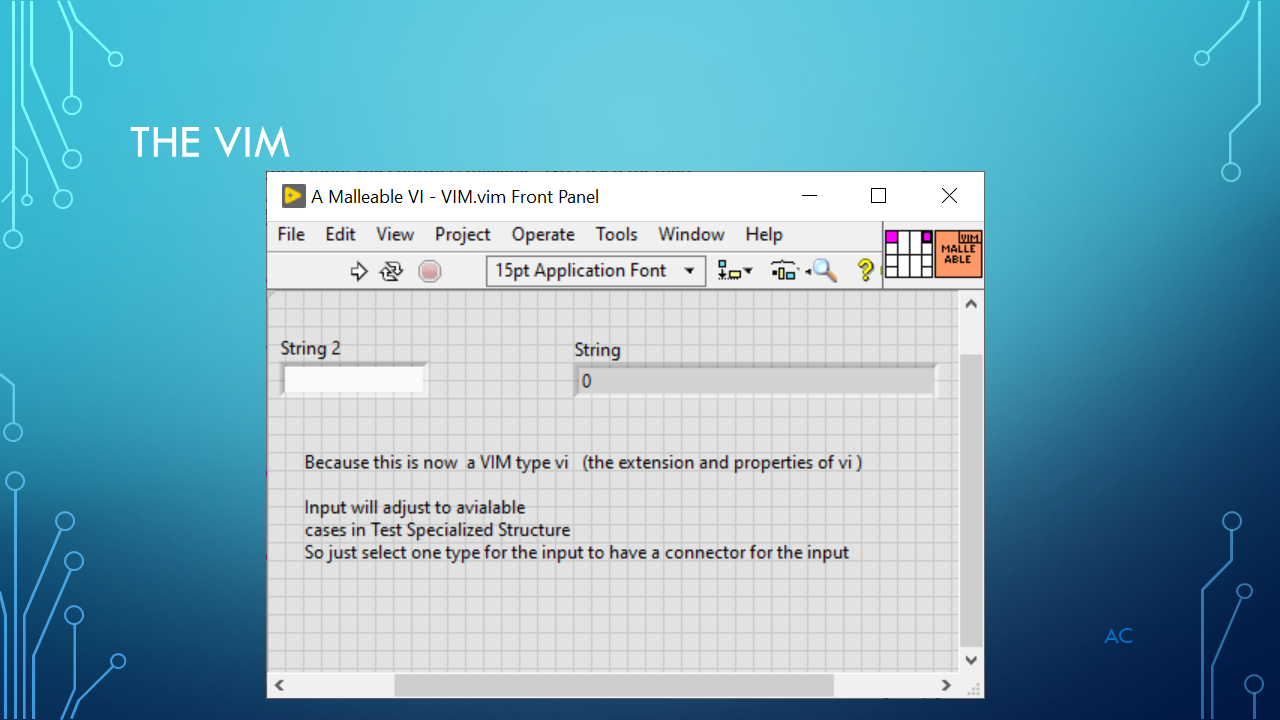
Type Specialization Structure and VIM

Discussion on LabVIEW’s Type Specialization Structure and VIM

Start with Type Specialization structure and how it works then change the vi to VIM which is where Type specialization structure shines.

VIM_TypeSpSt_title.png

VIM_TypeSpStSlide2VIM_TypeSpStSlide3VIM_TypeSpStSlide4VIM_TypeSpStSlide5VIM_TypeSpStSlide6VIM_TypeSpStSlide7VIM_TypeSpStSlide8VIM_TypeSpStSlide9VIM_TypeSpStSlide10VIM_TypeSpStSlide11VIM_TypeSpStSlide12VIM_TypeSpStSlide13


LabVIEW® is a National Instrument product
This post is not connected or endorsed by any company.
Created to spark ideas on the subject.
Use at your own risk.

Posted in Test Sector | Tagged , , , | Leave a comment