Python – Wafer GUI example

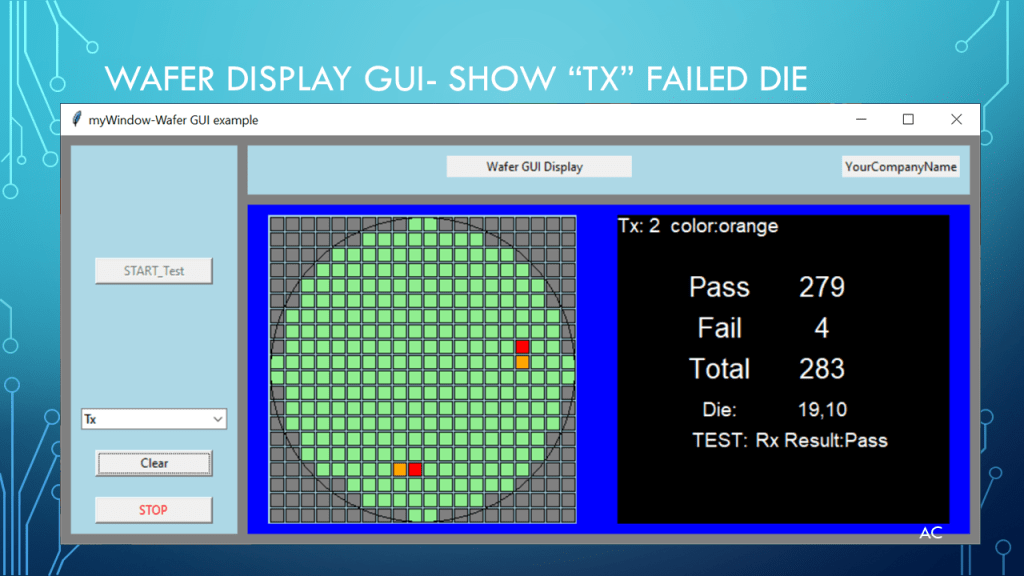
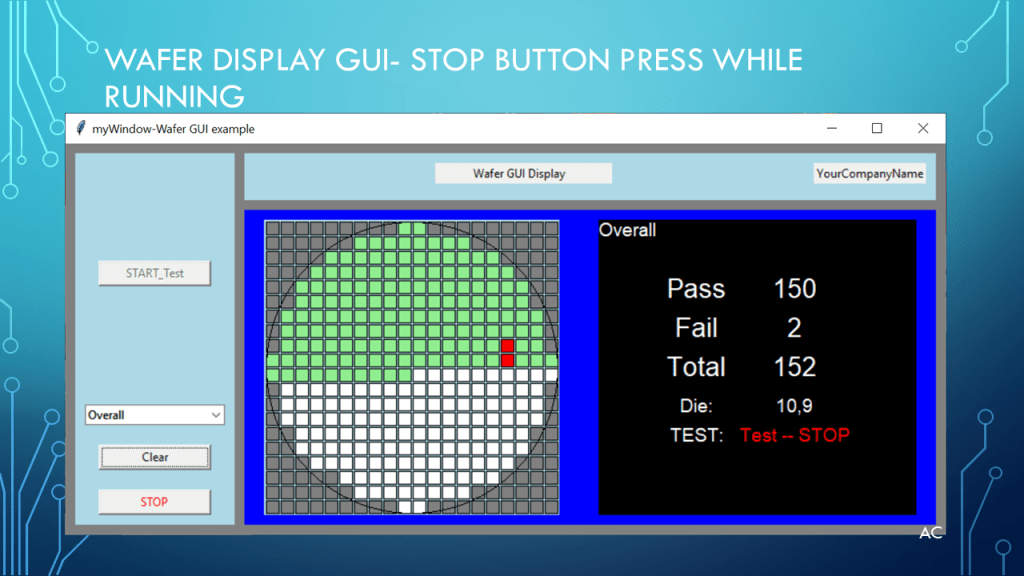
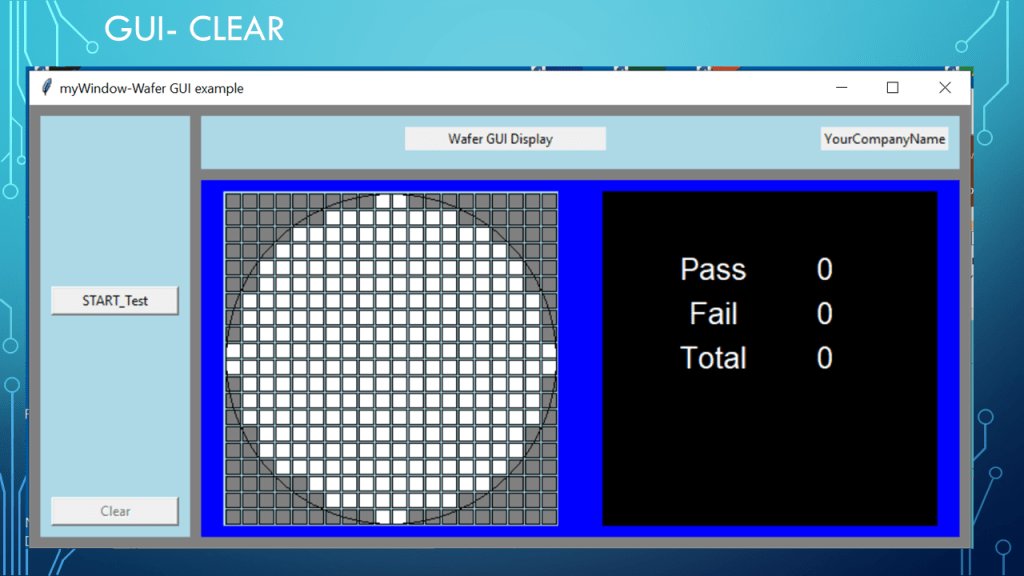
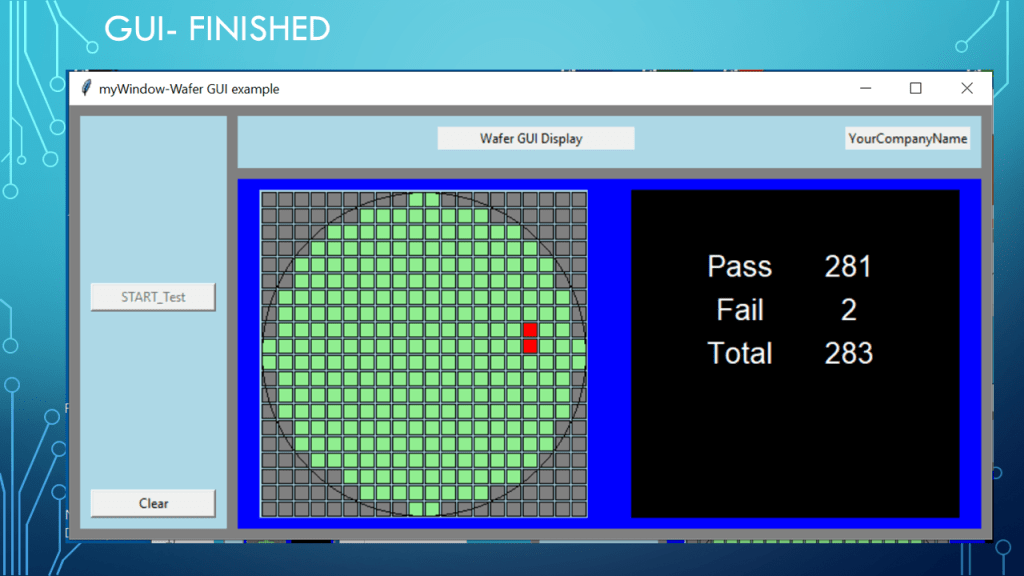
Presentation on a Wafer Die Testing GUI example with Die grid, and pass, fail, total info

python code for wafer gui example

# -*- coding: utf-8 -*-
"""
Created on Mon Apr  3 10:21:48 2023

@author: aleja
"""

from tkinter import *
#import math
import time
#import os    #for path filename join
#import threading


#GUI setup below
myWindow=Tk()
myWindow.title("myWindow-Wafer GUI example")
myWindow.minsize(660,400)
#myWindow.maxsize(660,350) #if you want to move the operator table to see rest of belt comment out


# do this or frame (last frame row number, in window will not follow window (expanding)
myWindow.grid_rowconfigure(0,weight=1)  #Important This was the reason for  on frame being stuck at bottom was row 0 but 3frames
myWindow.grid_columnconfigure(1,weight=1)
myWindow.configure(background='gray')

#two Frames
#left and right
#frame1 Left
# adjust r,c,sticky, row and column config as need
frame1=Frame(myWindow,width=120,height=300,bg='lightblue')
frame1.grid(row=0, column=0, sticky='NSWE', padx=10, pady=10, columnspan=1,rowspan=2)
frame1.rowconfigure(0,weight=1)
frame1.columnconfigure(0,weight=0) #the lastcol goes along with rigth side expanding


#frame2  Right 
# adjust r,c,sticky, row and column config as need
frame2=Frame(myWindow,width=300,height=300,bg='blue')
frame2.grid(row=1, column=1, sticky='NESW', padx=(0,10), pady=(0,10), columnspan=1) #padding ALSO takes two arguments tuple
frame2.rowconfigure(0,weight=1)
frame2.columnconfigure(1,weight=1) #the lastcol goes along with rigth side expanding


Die_Column=20
Die_Row=20
#Dies
Die_w=15 #light top right Y
Die_h=15
Die_x=0
Die_y=0
Die_xpad=2
Die_ypad=2

#Led Indictor
Wafer_Width=Die_Column*Die_w+Die_xpad
Wafer_Height=Die_Row*Die_h+Die_ypad
canv2=Canvas(frame2,width=Wafer_Width, height=Wafer_Height, bg='lightblue', bd=0, highlightthickness=0)
canv2.grid(row=0, column=0, columnspan=1,padx=20,pady=10)


canv3=Canvas(frame2,width=Wafer_Width, height=Wafer_Height, bg='black', bd=0, highlightthickness=0)
canv3.grid(row=0, column=1, columnspan=1,padx=20,pady=10)

fbinx1=100
fbiny1=50
Result_pady=20


Pass_Bin_Label=canv3.create_text(fbinx1,fbiny1+20,fill="white",text="Pass",font=('Arial',20,''))
Pass_Bin_count=canv3.create_text(fbinx1+100,fbiny1+20,fill="white",text="0",font=('Arial',20,''))

Fail_Bin_Label=canv3.create_text(fbinx1,fbiny1+60,fill="white",text="Fail",font=('Arial',20,''))
Fail_Bin_count=canv3.create_text(fbinx1+100,fbiny1+60,fill="white",text="0",font=('Arial',20,''))

Total_Bin_Label=canv3.create_text(fbinx1,fbiny1+100,fill="white",text="Total",font=('Arial',20,''))
Total_Bin_count=canv3.create_text(fbinx1+100,fbiny1+100,fill="white",text="0",font=('Arial',20,''))


frame3=Frame(myWindow,width=100,height=100,bg='lightblue')
frame3.grid(row=0, column=1, sticky='NESW', padx=(0,10), pady=10, columnspan=1) #padding ALSO takes two arguments tuple
frame3.rowconfigure(1,weight=0)
frame3.columnconfigure(1,weight=1) #the lastcol goes along with rigth side expanding


AppTitleLabel=Label(frame3, text="            Wafer GUI Display               ")
CompanyName=Label(frame3, text="YourCompanyName")
AppTitleLabel.grid(row=0, column=0, padx=0, pady=10, columnspan=2) #span 2 so it does not affect component button
CompanyName.grid(row=0, column=3, padx=10, sticky='E') #Keep


Die_Info_List=[]
Die_Canv_List=[]
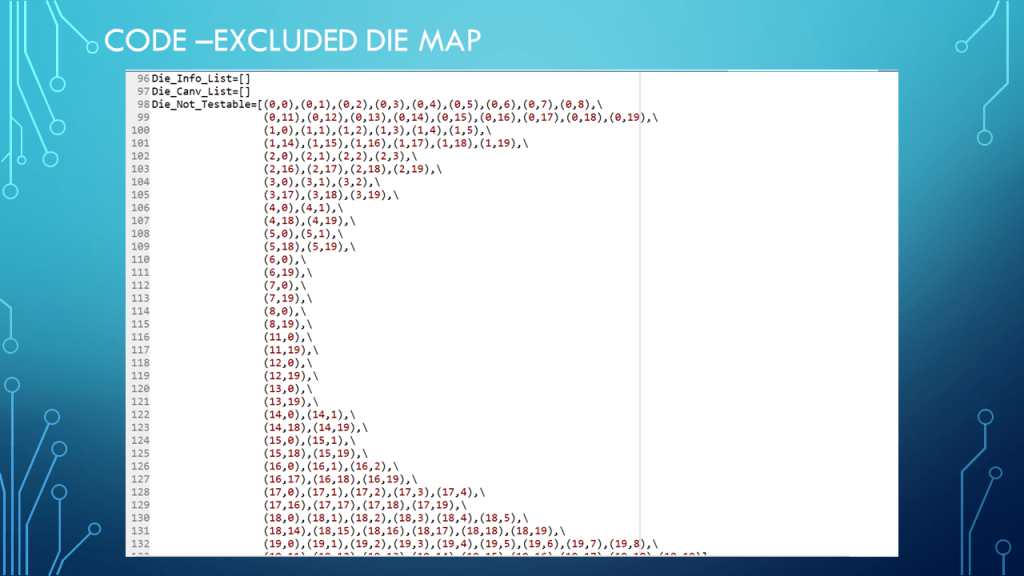
Die_Not_Testable=[(0,0),(0,1),(0,2),(0,3),(0,4),(0,5),(0,6),(0,7),(0,8),\
                  (0,11),(0,12),(0,13),(0,14),(0,15),(0,16),(0,17),(0,18),(0,19),\
                  (1,0),(1,1),(1,2),(1,3),(1,4),(1,5),\
                  (1,14),(1,15),(1,16),(1,17),(1,18),(1,19),\
                  (2,0),(2,1),(2,2),(2,3),\
                  (2,16),(2,17),(2,18),(2,19),\
                  (3,0),(3,1),(3,2),\
                  (3,17),(3,18),(3,19),\
                  (4,0),(4,1),\
                  (4,18),(4,19),\
                  (5,0),(5,1),\
                  (5,18),(5,19),\
                  (6,0),\
                  (6,19),\
                  (7,0),\
                  (7,19),\
                  (8,0),\
                  (8,19),\
                  (11,0),\
                  (11,19),\
                  (12,0),\
                  (12,19),\
                  (13,0),\
                  (13,19),\
                  (14,0),(14,1),\
                  (14,18),(14,19),\
                  (15,0),(15,1),\
                  (15,18),(15,19),\
                  (16,0),(16,1),(16,2),\
                  (16,17),(16,18),(16,19),\
                  (17,0),(17,1),(17,2),(17,3),(17,4),\
                  (17,16),(17,17),(17,18),(17,19),\
                  (18,0),(18,1),(18,2),(18,3),(18,4),(18,5),\
                  (18,14),(18,15),(18,16),(18,17),(18,18),(18,19),\
                  (19,0),(19,1),(19,2),(19,3),(19,4),(19,5),(19,6),(19,7),(19,8),\
                  (19,11),(19,12),(19,13),(19,14),(19,15),(19,16),(19,17),(19,18),(19,19)]

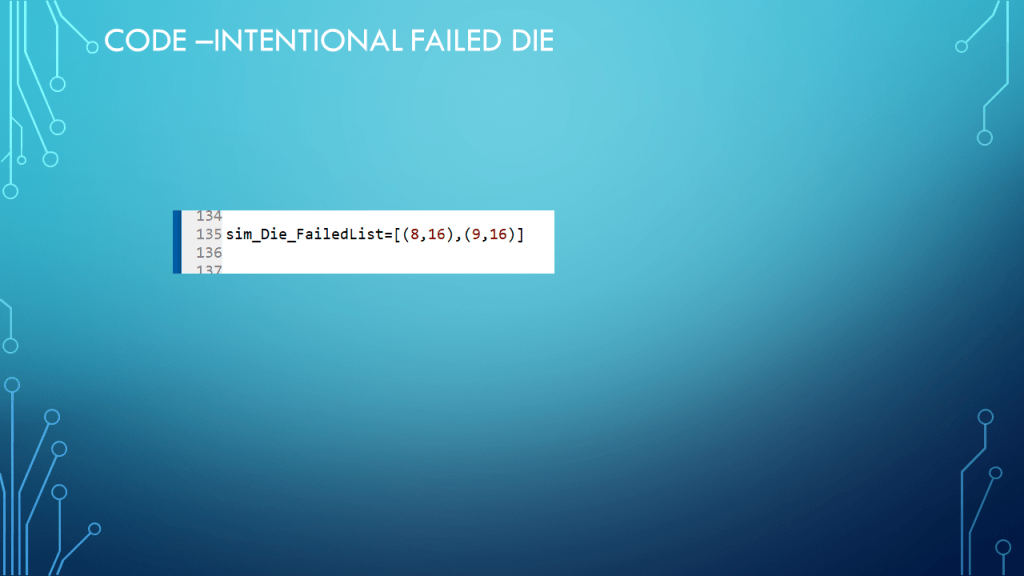
sim_Die_FailedList=[(8,16),(9,16)]


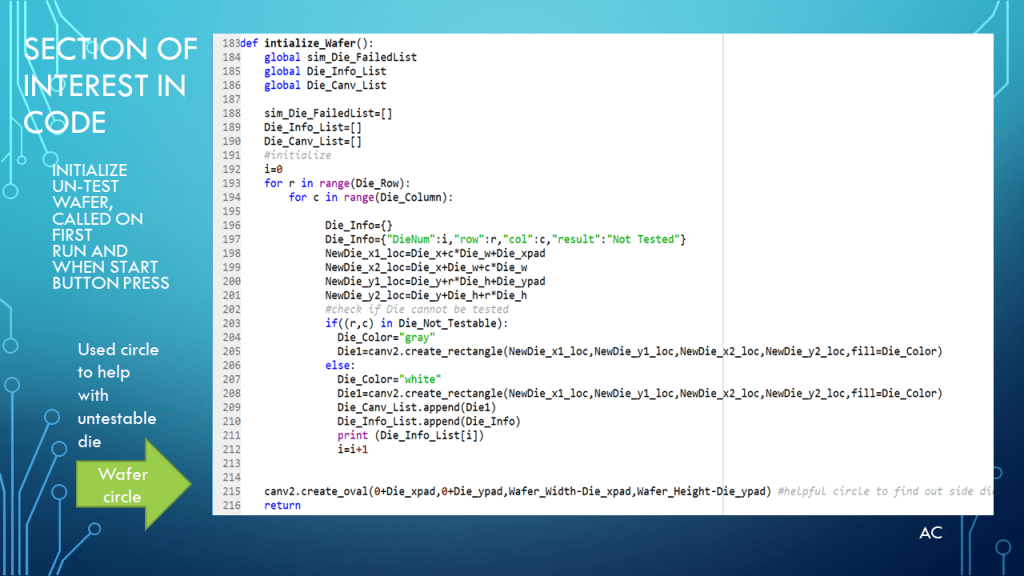
i=0
for r in range(Die_Row):
    for c in range(Die_Column):

          Die_Info={}
          Die_Info={"DieNum":i,"row":r,"col":c,"result":"Not Tested"}
          NewDie_x1_loc=Die_x+c*Die_w+Die_xpad
          NewDie_x2_loc=Die_x+Die_w+c*Die_w
          NewDie_y1_loc=Die_y+r*Die_h+Die_ypad
          NewDie_y2_loc=Die_y+Die_h+r*Die_h
          #check if Die cannot be tested
          if((r,c) in Die_Not_Testable):
            Die_Color="gray"
            Die1=canv2.create_rectangle(NewDie_x1_loc,NewDie_y1_loc,NewDie_x2_loc,NewDie_y2_loc,fill=Die_Color)
          else:
            Die_Color="white"
            Die1=canv2.create_rectangle(NewDie_x1_loc,NewDie_y1_loc,NewDie_x2_loc,NewDie_y2_loc,fill=Die_Color)
            Die_Canv_List.append(Die1)
            Die_Info_List.append(Die_Info)
            print (Die_Info_List[i])
            i=i+1


canv2.create_oval(0+Die_xpad,0+Die_ypad,Wafer_Width-Die_xpad,Wafer_Height-Die_ypad) #helpful circle to find out side dies

#==================Testing function
def Start_Wafer_Testing():
        Pass_cnt=0
        Fail_cnt=0
        Total_cnt=0
        START_Testing['state']="disabled"
        Clear_Wafer['state']="disabled"
        for Die in Die_Info_List:
            #print( Die['DieNum'])
            #test control of on die
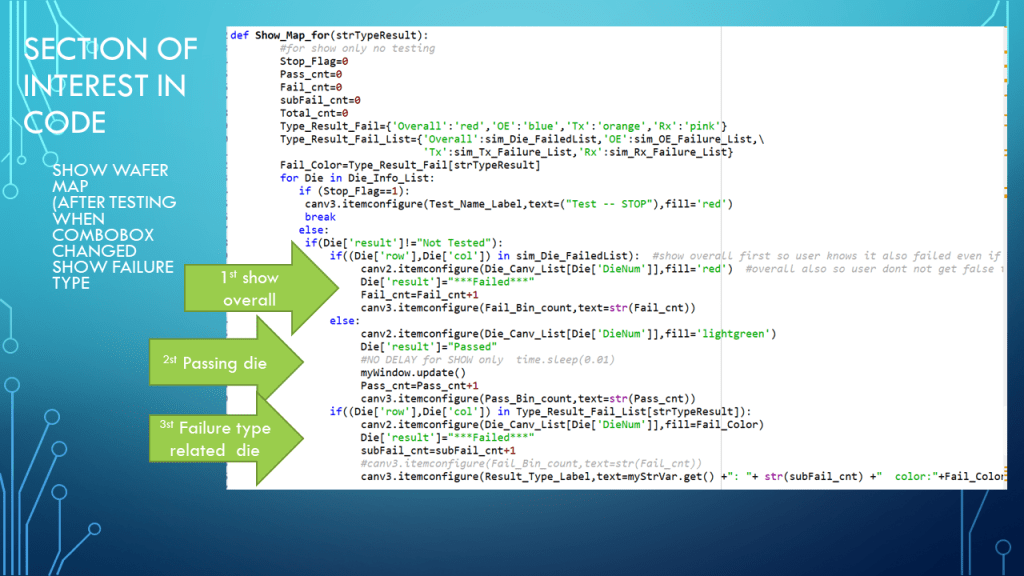
            if((Die['row'],Die['col']) in sim_Die_FailedList):
                 canv2.itemconfigure(Die_Canv_List[Die['DieNum']],fill='red')
                 Die['result']="***Failed***" 
                 Fail_cnt=Fail_cnt+1
                 canv3.itemconfigure(Fail_Bin_count,text=str(Fail_cnt))               
            else:
                 canv2.itemconfigure(Die_Canv_List[Die['DieNum']],fill='lightgreen')
                 Die['result']="Passed"  
                 time.sleep(0.01)
                 myWindow.update()
                 Pass_cnt=Pass_cnt+1
                 canv3.itemconfigure(Pass_Bin_count,text=str(Pass_cnt))
            print("DieInfo",Die)
            Total_cnt=Pass_cnt+Fail_cnt
            canv3.itemconfigure(Total_Bin_count,text=str(Total_cnt))
        Clear_Wafer['state']="normal"

        
def Clear_Wafer_Result():
        START_Testing['state']="disabled"
        Clear_Wafer['state']="disabled"
        canv3.itemconfigure(Pass_Bin_count,text=str(0))    
        canv3.itemconfigure(Fail_Bin_count,text=str(0))
        canv3.itemconfigure(Total_Bin_count,text=str(0)) 
        for Die in Die_Info_List:
            print( Die['DieNum'])
            #test control of on die
            canv2.itemconfigure(Die_Canv_List[Die['DieNum']],fill='white')
            myWindow.update()
   
        START_Testing['state']="normal"


START_Testing=Button(frame1, text='START_Test',width=15, command=lambda:Start_Wafer_Testing())
START_Testing.grid(row=0, column=0,padx=10,pady=10)  

Clear_Wafer=Button(frame1, text='Clear',width=15, command=lambda:Clear_Wafer_Result())
Clear_Wafer.grid(row=1, column=0,padx=10,pady=10)  

START_Testing['state']="normal"
Clear_Wafer['state']="disabled"

#last Line
myWindow.mainloop()

Notes

Presentation: example Wafer GUI wih Pass Fail and Total Die tested
Programming Language used: Python 3.7 in Spyder
Presentation app: Microsoft’s PowerPoint
Python and Tkinter are products of respective company
Presentation shown to spark ideas of use.
This presentation is not connected to or endorsed by any company.
Use at your own risk.
Tags: Python, Python3.7, Tkinter , Canvas ,GUI, List, Dictionary, Tuple for (row,col)

Posted in Test Sector | Tagged , , , , | Leave a comment

Python GUI – Production Line example

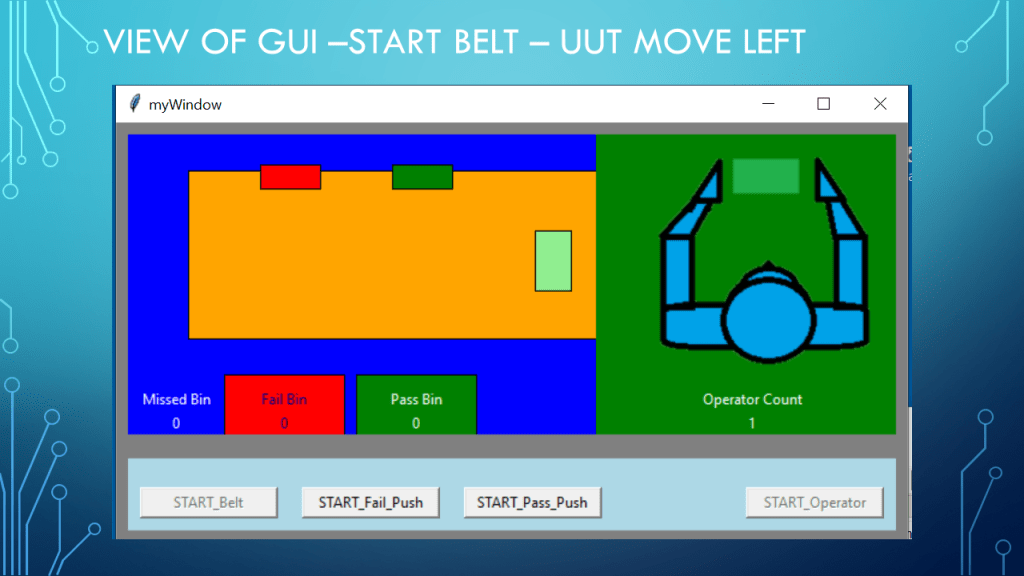
Using Python, Tkinter, canvas ,and photoimage function with some threading

My webhost not allowing some file extension so need to put image as individually (sorry)

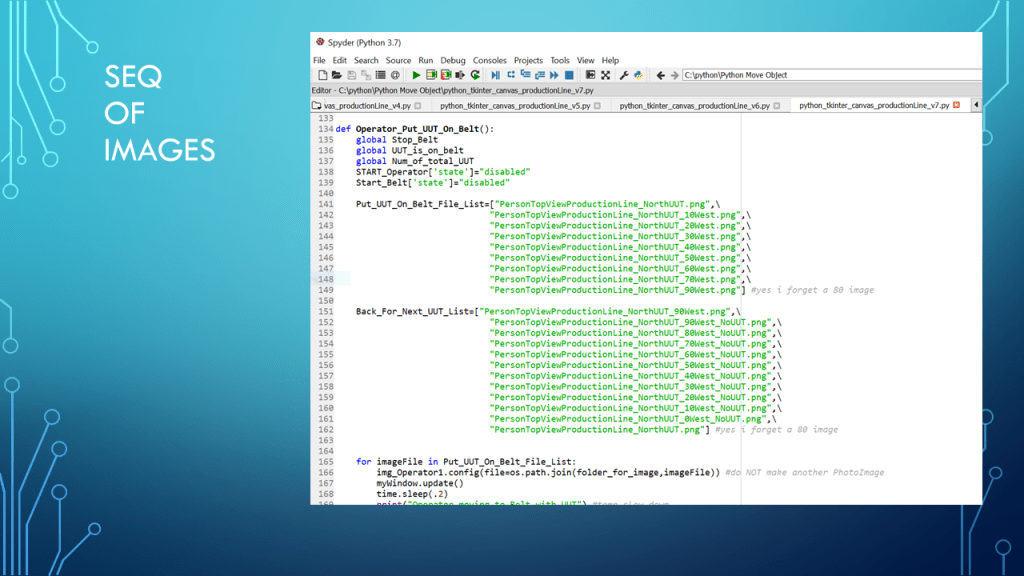
The images are for operator sequence , I tried to put them all in a zip but not allowed.

Code (will also need the image files)

# -*- coding: utf-8 -*-
"""
Created on Thu Mar 30 08:29:16 2023

@author: aleja
"""

from tkinter import *
import math
import time
import os    #for path filename join
import threading

Stop_Belt=1
UUT_is_on_belt=0
UUT_Pushed=0
Num_of_pass=0
Num_of_fail=0
Num_of_miss=0
Num_of_total_UUT=0

#GUI setup below
myWindow=Tk()
myWindow.title("myWindow")
myWindow.minsize(660,350)
myWindow.maxsize(660,350) #if you want to move the operator table to see rest of belt comment out


# do this or frame (last frame row number, in window will not follow window (expanding)
myWindow.grid_rowconfigure(1,weight=1)  #Important This was the reason for  on frame being stuck at bottom was row 0 but 3frames
myWindow.grid_columnconfigure(0,weight=1)
myWindow.configure(background='gray')

#frame1 
# adjust r,c,sticky, row and column config as need
frame1=Frame(myWindow,width=200,height=200,bg='lightblue')
frame1.grid(row=0, column=0, sticky='NEWS', padx=10, pady=10, columnspan=2)
frame1.rowconfigure(0,weight=1)
frame1.columnconfigure(0,weight=1) #the lastcol goes along with rigth side expanding


#frame1 
# adjust r,c,sticky, row and column config as need
frame2=Frame(myWindow,width=200,height=200,bg='lightblue')
frame2.grid(row=1, column=0, sticky='NEWS', padx=10, pady=10, columnspan=1)
frame2.rowconfigure(0,weight=1)
frame2.columnconfigure(3,weight=1) #the lastcol goes along with rigth side expanding


#Frame1 objects
#Conveyor belt
canv1=Canvas(frame1,width=190, height=190, bg='blue', bd=0, highlightthickness=0)
canv1.grid(row=0, column=0, columnspan=1,sticky="NEWS")
canv1.columnconfigure(0,weight=1)


#operator table
canv2=Canvas(frame1,width=250, height=250, bg='green', bd=0, highlightthickness=0)
canv2.grid(row=0, column=1, columnspan=2,sticky="NEWS")
canv2.columnconfigure(0,weight=1)

#LED1=canv1.create_oval(LTRX,LTRY,LTRX+dia,LTRY+dia,fill='orange')
location_down=20
Belt=canv1.create_rectangle(50,10+location_down,500,150+location_down,fill='orange')

#Solenoid to push UUT to pass bin
location_down_sp=15
sp_x1=220
sp_y1=10
sp_width=50
sp_height=20
Solenoid_Pass_Push=canv1.create_rectangle(sp_x1,sp_y1+location_down_sp,sp_x1+sp_width,sp_y1+sp_height+location_down_sp,fill='green')

#Solenoid to push UUT to fail bin
location_down_sf=15
sf_x1=110
sf_y1=10
sf_width=50
sf_height=20
Solenoid_Fail_Push=canv1.create_rectangle(sf_x1,sf_y1+location_down_sf,sf_x1+sp_width,sf_y1+sf_height+location_down_sf,fill='red')


#UUT is hiding under table ready for move
UUT_x1=460
UUT_y1=80
UUT_x2=490
UUT_y2=130
UUT_on_belt=canv1.create_rectangle(UUT_x1,UUT_y1,UUT_x2,UUT_y2,fill='lightgreen')
UUT_On_Belt=0

#after UUT so its top layer
#location of pass bin to collect UUT
pbinx1=sp_x1-30
pbiny1=200
pbin_width=50+50
pbin_height=70
Pass_Bin=canv1.create_rectangle(pbinx1,pbiny1,pbinx1+pbin_width,pbiny1+pbin_height,fill='green')
Pass_Bin_Label=canv1.create_text(pbinx1+50,pbiny1+20,fill="white",text="Pass Bin")
Pass_Bin_count=canv1.create_text(pbinx1+50,pbiny1+40,fill="white",text="0")
#canv1.itemconfig(Pass_Bin_count,text="1") #this is how to change text after create

#after UUT so its top layer
#location of pass bin to collect UUT
fbinx1=sf_x1-30
fbiny1=200
fbin_width=50+50
fbin_height=70
Fail_Bin=canv1.create_rectangle(fbinx1,fbiny1,fbinx1+fbin_width,fbiny1+fbin_height,fill='red')
Fail_Bin_Label=canv1.create_text(fbinx1+50,fbiny1+20,fill="darkblue",text="Fail Bin")
Fail_Bin_count=canv1.create_text(fbinx1+50,fbiny1+40,fill="darkblue",text="0")

Missed_Bin_Label=canv1.create_text(fbinx1-40,fbiny1+20,fill="white",text="Missed Bin")
Missed_Bin_count=canv1.create_text(fbinx1-40,fbiny1+40,fill="white",text="0")

#------------starting  image------------------------------

#if you get pyimageN you may need to close the ipython console an try again
folder_for_image='C:/python/Python Move Object/images_ProductionLine/' #where you put your images for this project
imagepath=os.path.join(folder_for_image,"PersonTopViewProductionLine_NorthUUT.png")
print(imagepath)
img_Operator1=PhotoImage(file=(imagepath))

#image of operator
Operator1=canv2.create_image(130,160,image=img_Operator1)
Operator_label=canv2.create_text(fbinx1+50,fbiny1+20,fill="white",text="Operator Count")
Operator_count=canv2.create_text(fbinx1+50,fbiny1+40,fill="white",text="0")

#------------------------------------------------------

def Operator_Put_UUT_On_Belt():
    global Stop_Belt
    global UUT_is_on_belt
    global Num_of_total_UUT
    START_Operator['state']="disabled"
    Start_Belt['state']="disabled"
    
    Put_UUT_On_Belt_File_List=["PersonTopViewProductionLine_NorthUUT.png",\
                              "PersonTopViewProductionLine_NorthUUT_10West.png",\
                              "PersonTopViewProductionLine_NorthUUT_20West.png",\
                              "PersonTopViewProductionLine_NorthUUT_30West.png",\
                              "PersonTopViewProductionLine_NorthUUT_40West.png",\
                              "PersonTopViewProductionLine_NorthUUT_50West.png",\
                              "PersonTopViewProductionLine_NorthUUT_60West.png",\
                              "PersonTopViewProductionLine_NorthUUT_70West.png",\
                              "PersonTopViewProductionLine_NorthUUT_90West.png"] #yes i forget a 80 image

    Back_For_Next_UUT_List=["PersonTopViewProductionLine_NorthUUT_90West.png",\
                              "PersonTopViewProductionLine_NorthUUT_90West_NoUUT.png",\
                              "PersonTopViewProductionLine_NorthUUT_80West_NoUUT.png",\
                              "PersonTopViewProductionLine_NorthUUT_70West_NoUUT.png",\
                              "PersonTopViewProductionLine_NorthUUT_60West_NoUUT.png",\
                              "PersonTopViewProductionLine_NorthUUT_50West_NoUUT.png",\
                              "PersonTopViewProductionLine_NorthUUT_40West_NoUUT.png",\
                              "PersonTopViewProductionLine_NorthUUT_30West_NoUUT.png",\
                              "PersonTopViewProductionLine_NorthUUT_20West_NoUUT.png",\
                              "PersonTopViewProductionLine_NorthUUT_10West_NoUUT.png",\
                              "PersonTopViewProductionLine_NorthUUT_0West_NoUUT.png",\
                              "PersonTopViewProductionLine_NorthUUT.png"] #yes i forget a 80 image                             

   
    for imageFile in Put_UUT_On_Belt_File_List:                          
        img_Operator1.config(file=os.path.join(folder_for_image,imageFile)) #do NOT make another PhotoImage
        myWindow.update()
        time.sleep(.2)
        print("Operator moving to Belt with UUT") #temp slow down

    print("UUT drop to conveyor belt")
    canv1.coords(UUT_on_belt,UUT_x1,UUT_y1,UUT_x2,UUT_y2)
    UUT_is_on_belt=1
    Num_of_total_UUT=Num_of_total_UUT+1
    print("Operator reported total UUT:",Num_of_total_UUT)
    canv2.itemconfig(Operator_count,text=str(Num_of_total_UUT))
        
    for imageFile in Back_For_Next_UUT_List:                          
        img_Operator1.config(file=os.path.join(folder_for_image,imageFile)) #do NOT make another PhotoImage
        myWindow.update()
        time.sleep(.2)
        print("Operator moving back for next UUT") #temp slow down
    #start with button enabled=normal
    
    START_Operator['state']="disabled"
    Start_Belt['state']="normal"
    Stop_Belt=0 #enable belt ok to move
    print("UUT_is_on_belt",UUT_is_on_belt, "UUT pushed",UUT_Pushed)
    return     
    
def Move_UUT_On_Belt():
    global Stop_Belt
    global UUT_Pushed
    global UUT_is_on_belt
    global Num_of_miss
    START_Operator['state']="disabled"
    Start_Belt['state']="disabled"
    for UUT_Location in range(UUT_x1-40):
         if(Stop_Belt==0):
             if(UUT_is_on_belt==0): break
             canv1.coords(UUT_on_belt,UUT_x1-UUT_Location,UUT_y1,UUT_x2-UUT_Location,UUT_y2)
             myWindow.update()
             print("Belt is Moving  ",UUT_Location)
             time.sleep(.01)
             
    if(UUT_is_on_belt==1): 
     canv1.coords(UUT_on_belt,UUT_x1,UUT_y1,UUT_x2,UUT_y2)
    myWindow.update()
    START_Operator['state']="normal"
    Start_Belt['state']="disabled"

    if (UUT_Location==(UUT_x1-40-1) and UUT_is_on_belt==1 and UUT_Pushed==0):
        Num_of_miss=Num_of_miss+1
        print("miss bin total: ",Num_of_miss)
        canv1.itemconfig(Missed_Bin_count,text=str(Num_of_miss))
    UUT_is_on_belt=0
    print("Belt Stop")
    print("UUT_is_on_belt",UUT_is_on_belt, "UUT pushed",UUT_Pushed)
    return

def Move_PassPush():
    UUT_coords=[]
    Start_PassPush['state']="disabled"
    global Stop_Belt
    global UUT_is_on_belt
    global location_down_sp
    global Num_of_pass
    global UUT_Pushed
    Stop_Belt=1  #stop belt on any push attempt
    for PassPushy in range(35):
         canv1.coords(Solenoid_Pass_Push,sp_x1,sp_y1+location_down_sp+PassPushy,sp_x1+sp_width,sp_y1+sp_height+location_down_sp+PassPushy)
         myWindow.update()
         print("Pass Push  ",PassPushy)
         time.sleep(0.001)
    location_down_sp=location_down_sp+40
    
    print("get UUT position")
    print(canv1.coords(UUT_on_belt))
    UUT_coords=canv1.coords(UUT_on_belt)
    # using thread so same time as push UUT_Move_to_bin(UUT_coords)
    if  (sp_x1<=UUT_coords[2] and UUT_coords[0]<=sp_x1+sp_width and UUT_is_on_belt==1):  #check uut in pass push width
       threading.Thread(target=UUT_Move_to_bin,args=(UUT_coords,)).start()#create and start same line 
       Stop_Belt=1
       UUT_Pushed=1
       Num_of_pass=Num_of_pass+1
       print("Number of Pass UUT: ", Num_of_pass)
       canv1.itemconfig(Pass_Bin_count,text=str(Num_of_pass))
       
    else:
       Stop_Belt=0
       
    for PassPushy in range(35):
         canv1.coords(Solenoid_Pass_Push,sp_x1,sp_y1+location_down_sp-PassPushy,sp_x1+sp_width,sp_y1+sp_height+location_down_sp-PassPushy)
         myWindow.update()
         print("Pass Push  ",PassPushy)
         time.sleep(0.001)     
    location_down_sp=location_down_sp-40
    canv1.coords(Solenoid_Pass_Push,sp_x1,sp_y1+location_down_sp,sp_x1+sp_width,sp_y1+sp_height+location_down_sp)
    myWindow.update()
    if(UUT_Pushed==1):
      Stop_Belt=1
    else:
      Stop_Belt=0#continue moving UUT left    
    Start_PassPush['state']="normal"
    UUT_Pushed=0
    print("UUT_is_on_belt",UUT_is_on_belt, "UUT pushed",UUT_Pushed)
    return

#next put all changes dont on passpush into failPush
def Move_FailPush():    
    UUT_coords=[]
    global Stop_Belt
    global UUT_is_on_belt
    global location_down_sf
    global Num_of_fail
    global UUT_Pushed
    Start_FailPush['state']="disabled"
    Stop_Belt=1
    for FailPushy in range(35):
         canv1.coords(Solenoid_Fail_Push,sf_x1,sf_y1+location_down_sf+FailPushy,sf_x1+sf_width,sf_y1+sf_height+location_down_sf+FailPushy)
         myWindow.update()
         print("Fail Push  ",FailPushy)
         time.sleep(0.001)
    location_down_sf=location_down_sf+40
    #Move UUT down
    print("get UUT position")
    print(canv1.coords(UUT_on_belt))
    UUT_coords=canv1.coords(UUT_on_belt)
    # using thread so same time as push UUT_Move_to_bin(UUT_coords)
    if  (sf_x1<=UUT_coords[2] and UUT_coords[0]<=sf_x1+sf_width and UUT_is_on_belt==1):  #check uut in pass push width
       threading.Thread(target=UUT_Move_to_bin,args=(UUT_coords,)).start()#create and start same line 
       Stop_Belt=1  
       UUT_Pushed=1
       Num_of_fail=Num_of_fail+1
       print("Number of Fail UUT: ", Num_of_fail)
       canv1.itemconfig(Fail_Bin_count,text=str(Num_of_fail))    
       
    else:
       Stop_Belt=0   #continue belt
    #Return Fail Push back
    for FailPushy in range(35):
         canv1.coords(Solenoid_Fail_Push,sf_x1,sf_y1+location_down_sf-FailPushy,sf_x1+sf_width,sf_y1+sf_height+location_down_sf-FailPushy)
         myWindow.update()
         print("Fail Push  ",FailPushy)
         time.sleep(0.001)
    location_down_sf=location_down_sf-40
    canv1.coords(Solenoid_Fail_Push,sf_x1,sf_y1+location_down_sf,sf_x1+sf_width,sf_y1+sf_height+location_down_sf)
    myWindow.update()
    if(UUT_Pushed==1):
      Stop_Belt=1
    else:
      Stop_Belt=0#continue moving UUT left        
    Start_FailPush['state']="normal"
    UUT_Pushed=0
    print("UUT_is_on_belt",UUT_is_on_belt, "UUT pushed",UUT_Pushed)    
    return
    

def UUT_Move_to_bin(UUT_coords):
    global UUT_is_on_belt
    UUT_is_on_belt=0
    for UUT_down_y in range(100):
        canv1.coords(UUT_on_belt,UUT_coords[0],UUT_coords[1]+UUT_down_y,UUT_coords[2],UUT_coords[3]+UUT_down_y)
        time.sleep(0.001)
        myWindow.update()
    UUT_is_on_belt=0
    print("UUT is off Belt")
    return   

Start_Belt=Button(frame2, text='START_Belt',width=15, command=lambda:Move_UUT_On_Belt())
Start_Belt.grid(row=1, column=0,padx=10,pady=10,sticky='')  

Start_FailPush=Button(frame2, text='START_Fail_Push',width=15, command=lambda:Move_FailPush())
Start_FailPush.grid(row=1, column=1,padx=10,pady=10,sticky='')   
 

Start_PassPush=Button(frame2, text='START_Pass_Push',width=15, command=lambda:Move_PassPush())
Start_PassPush.grid(row=1, column=2,padx=10,pady=10,sticky='')   

START_Operator=Button(frame2, text='START_Operator',width=15, command=lambda:Operator_Put_UUT_On_Belt())
START_Operator.grid(row=1, column=3,padx=10,pady=10,sticky='E')  


#start with button enabled=normal
START_Operator['state']="normal"
Start_Belt['state']="disabled"

#last Line
myWindow.mainloop()

download for python code incase select all text not available.

Download for operator images

Unzip the images of the operator to a folder and make sure to update the folder path in the python code.

I used spyder python ide if you forget to make the folder correct you may have to close the ipython console , fix the path and try again. Something in the PhotoImage in tkinter does not clean up correct when there is a python error. So i have to close the console part in the ide fix and rerun.

Notes

  • Presentation: example GUI Production Line with Operator, Conveyor belt and Pass Fail plunger and counts
  • Programming Language used: Python 3.7 in Spyder
  • Presentation app: Microsoft’s PowerPoint,Paint,3D Paint for transparent images
  • Python and Tkinter are product of respective company
  • Presentation shown to spark ideas of use.
  • This presentation is not connected to or endorsed by any company.
  • Use at your own risk.
  • Tags: Python, Python3.7, Tkinter , Canvas ,GUI, Sequence of Image, PhotoImage, Thread, Threading
Posted in Python, Test Sector, tkinter | Tagged , , , , , , , | Leave a comment

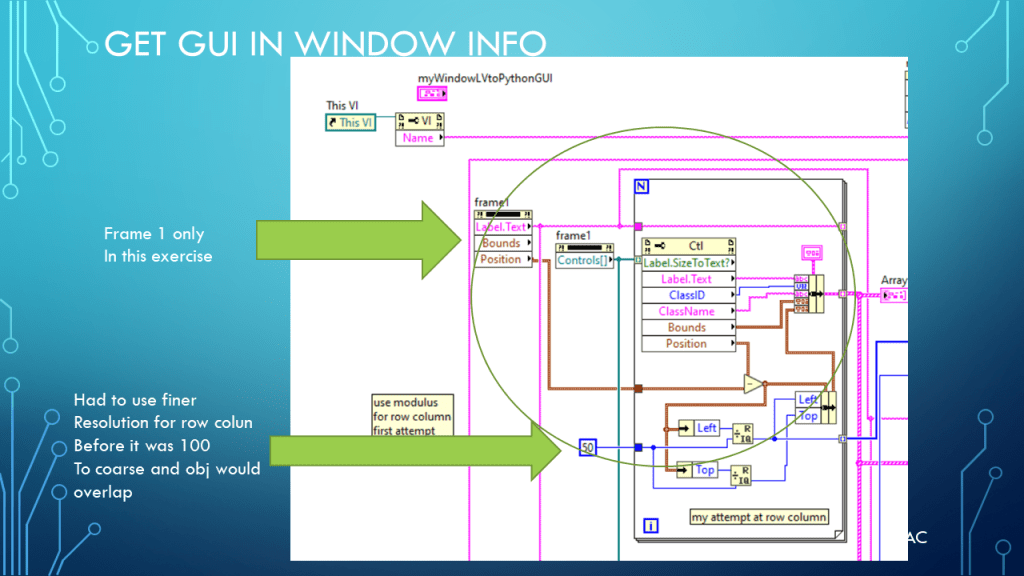
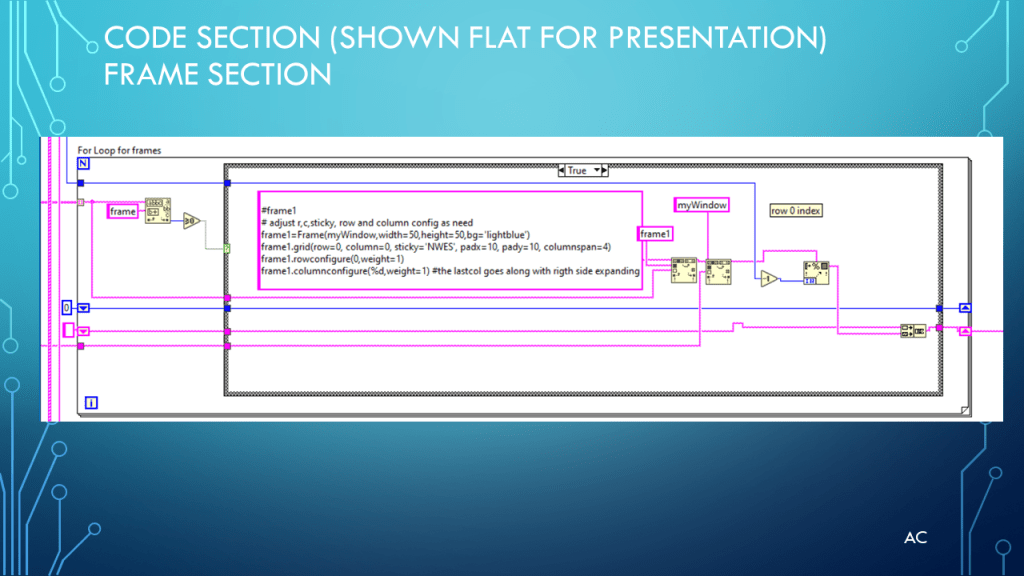
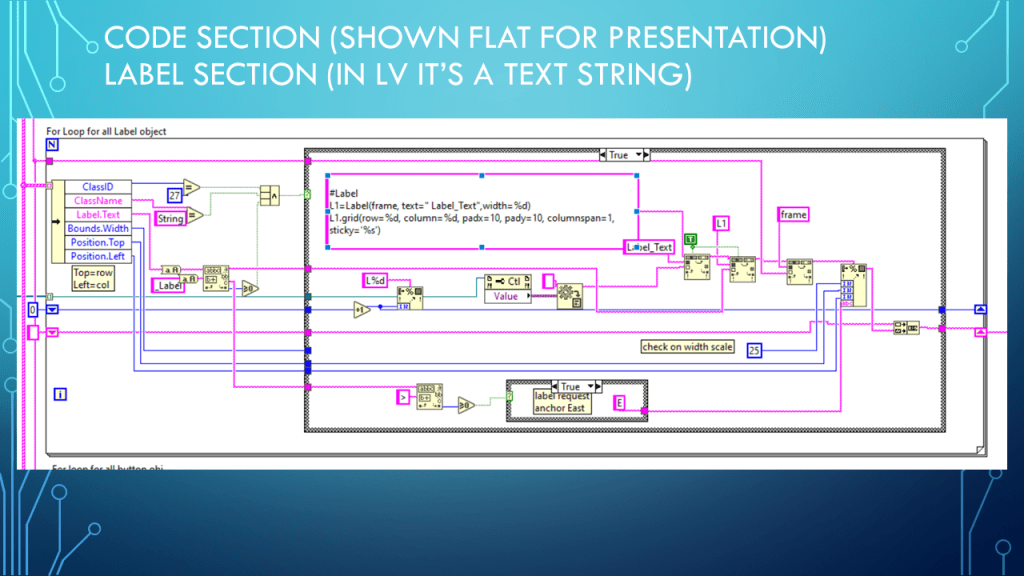
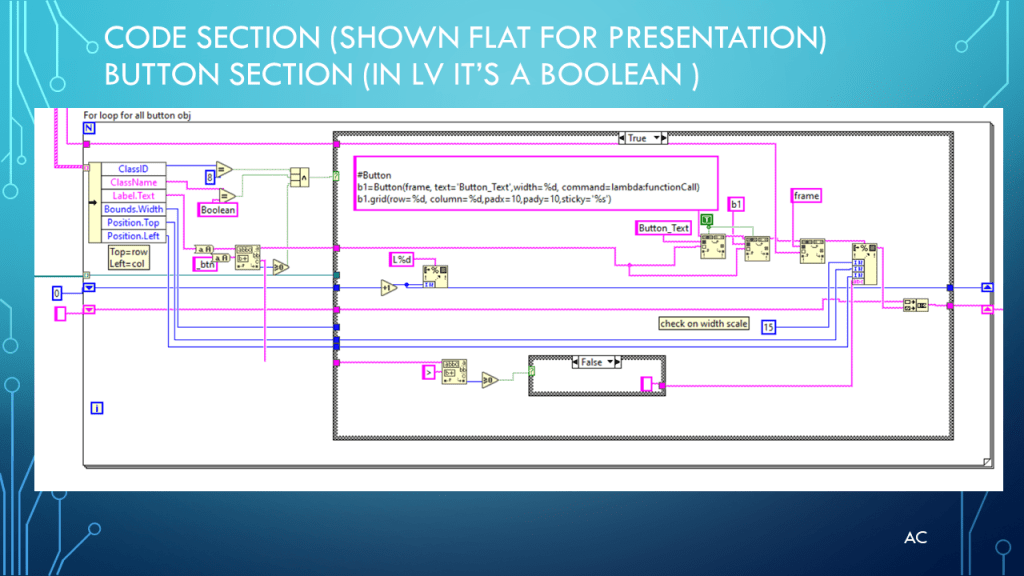
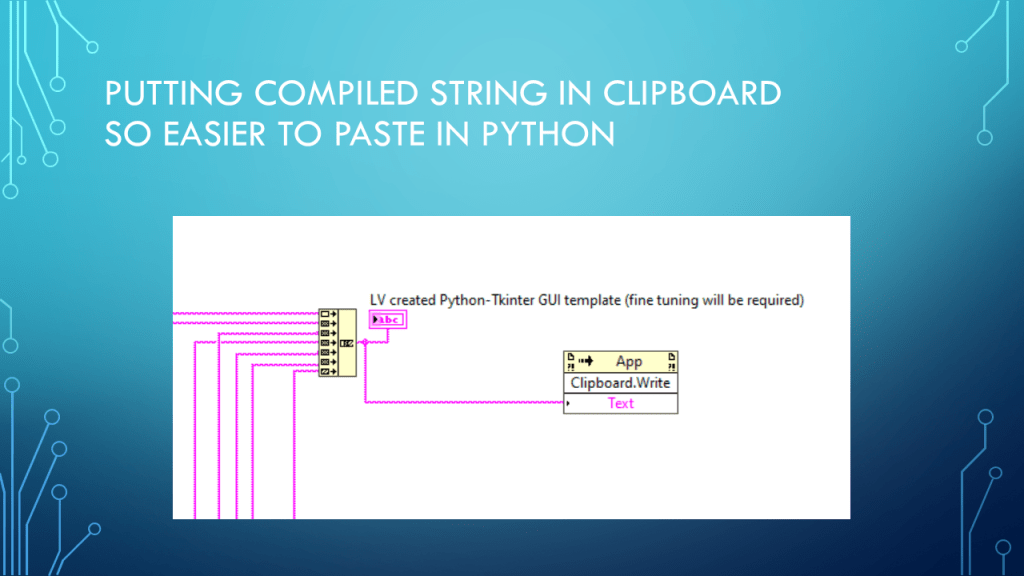
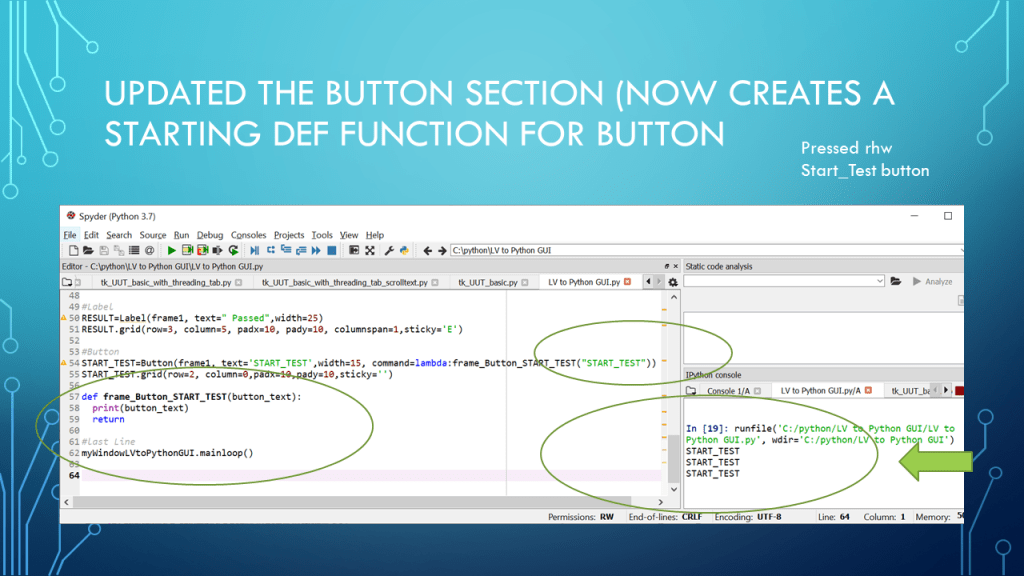
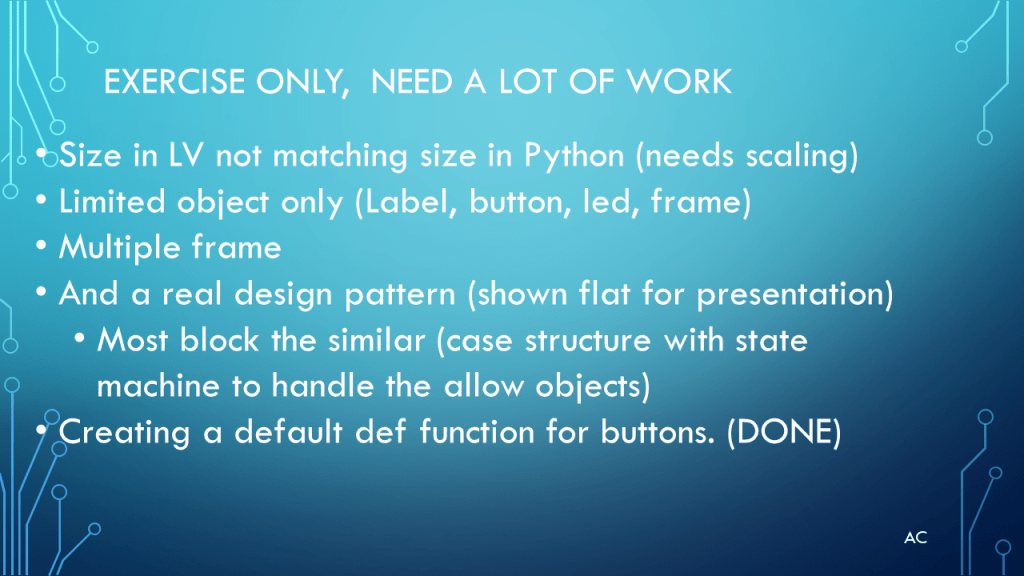
LV GUI to Python GUI template attempt

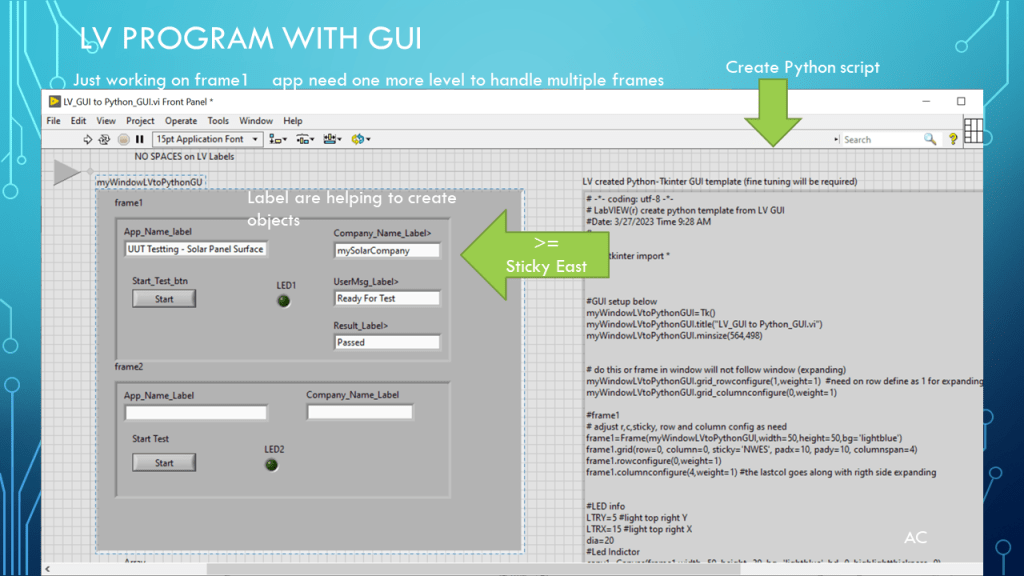
Presentation: create a Python GUI template using LV Gui to build it

Used LabVIEW(r) cluster for window and frame

# -*- coding: utf-8 -*-
# LabVIEW(r) create python template from LV GUI
#Date: 3/27/2023 Time 11:05 AM
#

from tkinter import *


#GUI setup below
myWindowLVtoPythonGUI=Tk()
myWindowLVtoPythonGUI.title("LV_GUI to Python_GUI.vi")
myWindowLVtoPythonGUI.minsize(564,462)


# do this or frame in window will not follow window (expanding)
myWindowLVtoPythonGUI.grid_rowconfigure(1,weight=1)  #need on row define as 1 for expanding row wise bottomframe
myWindowLVtoPythonGUI.grid_columnconfigure(0,weight=1)

#frame1 
# adjust r,c,sticky, row and column config as need
frame1=Frame(myWindowLVtoPythonGUI,width=50,height=50,bg='lightblue')
frame1.grid(row=0, column=0, sticky='NWES', padx=10, pady=10, columnspan=4)
frame1.rowconfigure(0,weight=1)
frame1.columnconfigure(4,weight=1) #the lastcol goes along with rigth side expanding


#LED info
LTRY=5 #light top right Y
LTRX=15 #light top right X
dia=20
#Led Indictor
canv1=Canvas(frame1,width=50, height=30, bg='lightblue', bd=0, highlightthickness=0)
canv1.grid(row=2, column=4, columnspan=1)
LED1=canv1.create_oval(LTRX,LTRY,LTRX+dia,LTRY+dia,fill='black')

#Label
APP_NAME=Label(frame1, text=" UUT Testting - Solar Panel Surface ",width=25)
APP_NAME.grid(row=0, column=0, padx=10, pady=10, columnspan=1,sticky='')

#Label
COMPANY_NAME=Label(frame1, text=" mySolarCompany",width=25)
COMPANY_NAME.grid(row=0, column=5, padx=10, pady=10, columnspan=1,sticky='E')

#Label
USERMSG=Label(frame1, text=" Ready For Test",width=25)
USERMSG.grid(row=2, column=5, padx=10, pady=10, columnspan=1,sticky='E')

#Label
RESULT=Label(frame1, text=" Passed",width=25)
RESULT.grid(row=3, column=5, padx=10, pady=10, columnspan=1,sticky='E')

#Button
START_TEST=Button(frame1, text='START_TEST',width=15, command=lambda:frame_Button_START_TEST("START_TEST"))
START_TEST.grid(row=2, column=0,padx=10,pady=10,sticky='')

def frame_Button_START_TEST(button_text):
  print(button_text)
  return

#last Line
myWindowLVtoPythonGUI.mainloop()

Notes

Presentation: An adventure to attempt LV GUI to Python GUI template
Programming Language used: Python 3.7 in Spyder and LabVIEW®2019
Python and Tkinter are from there respective companies
LabVIEW® is a NI (was National Instruments) product.
Presentation app: Microsoft’s PowerPoint
Presentation shown to spark ideas of use.
This presentation is not connected to or endorsed by any company.
Use at your own risk.
Tags: Python, Python3.7, tkinter , GUI, LabVIEW GUI to Python GUI template example, LabVIEW®,LV2019

Posted in Test Sector | Tagged , , , , | Leave a comment

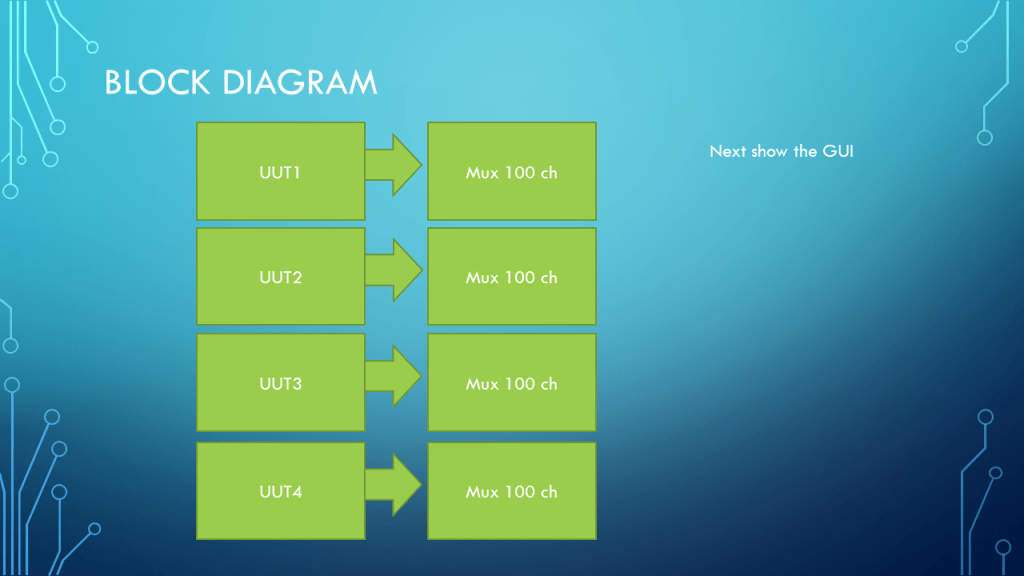
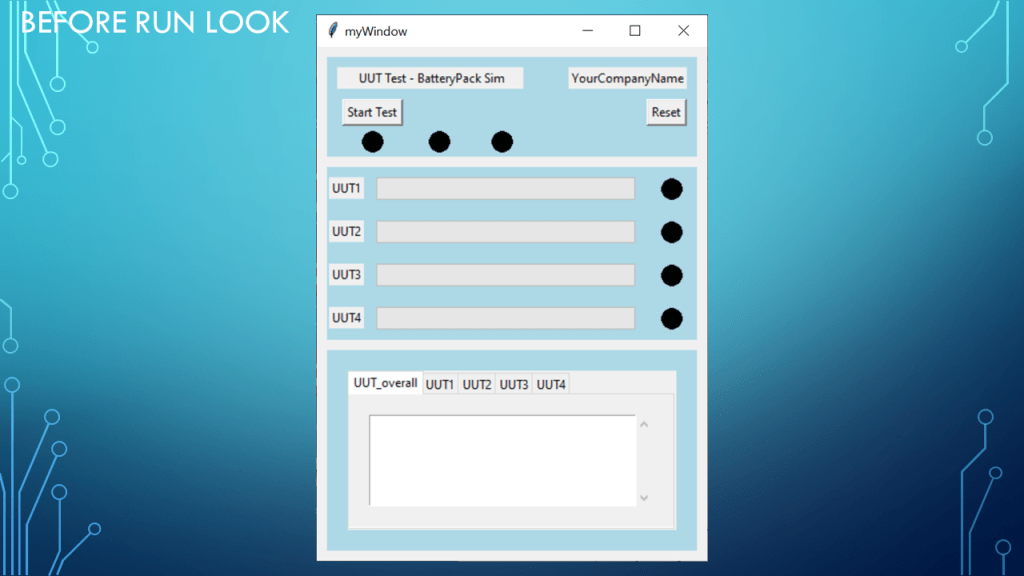
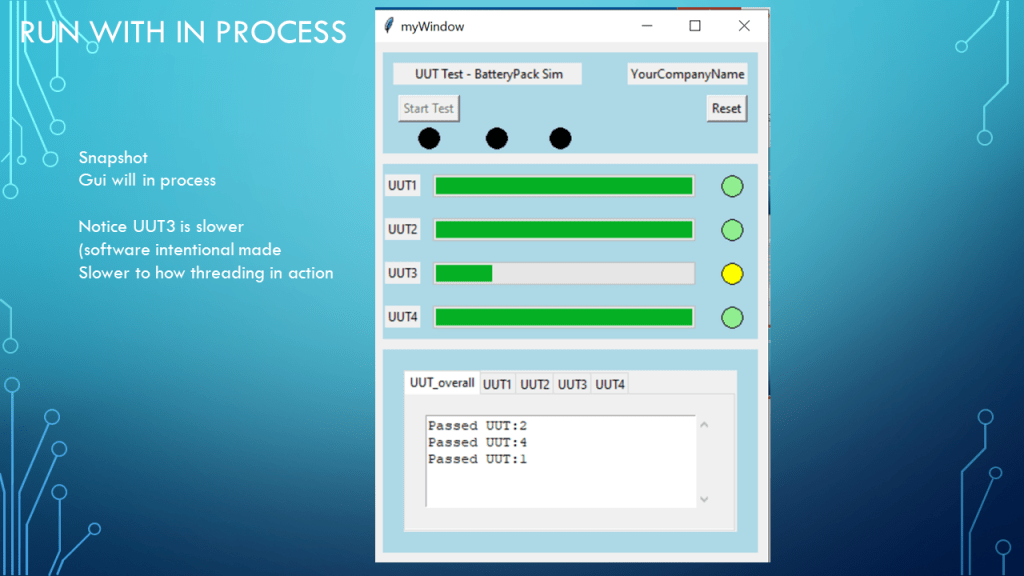
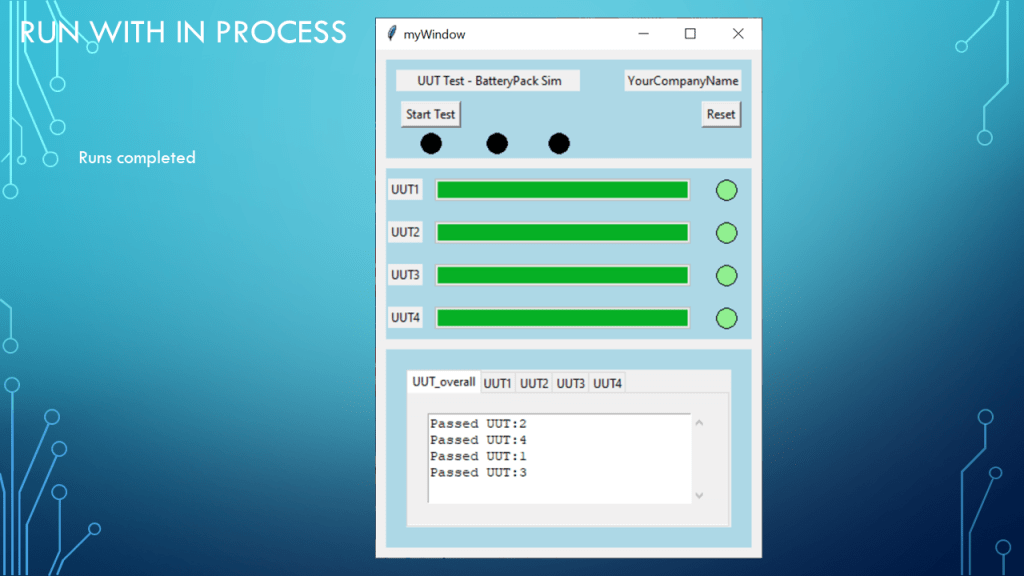
Python GUI Four UUT with Threading, progressbar, tab

Show a GUI tkinter using four UUT example with threading, includes progress bar and tabs.

Not a how to setup mux communication, focus in on GUI and threading

UUT 3 was made intentionally slow and to randomly fail to show threading in action

# -*- coding: utf-8 -*-
"""
Created on Wed Mar 22 16:11:42 2023

@author: aleja

4 UUT in threading with progressbar and tab with vertical scroll text obj
UUT 3 is made to be slow and random failure intentionally to show threading in action
"""

from tkinter import *
#for some reason from tkinter.ttk import * cause bg lightblue error
from tkinter.ttk import Progressbar,Notebook
import time
import random
import threading


Num_of_UUTs=4
Num_of_Chs=100
testinfo=""
function_still_running=0

def command1(mssg: str):
     #match mssg: #what is wrong with this oh it only in 3.10
        if mssg == "Reset":
         for uut_num in range(Num_of_UUTs):
           canv_Led_List[uut_num].itemconfig(Overall_Led_List[uut_num], fill='black')
        else:
             print("did you forget to make a case")
        
        print(mssg)
        return

def Overall_Led_Yellow(Num_of_UUTs):
    for uut_num in range(Num_of_UUTs):
       canv_Led_List[uut_num].itemconfig(Overall_Led_List[uut_num], fill='yellow')
    return
        
    
#test simulator (non process version)
def Run_UUT(uut_num):
    b1['state']="disabled"
    global function_still_running
    function_still_running=function_still_running+1
    Limits={}
    Limits={'low':3.7,"high":3.918} 
    Failed_Flag=0
    scrollv_text_list[uut_num+1].delete("1.0",END)
    
    for ch in range(Num_of_Chs):
            if (uut_num==2): #uut3
               meas_sim=random.randrange(3700,3920)/1000
               time.sleep(0.001) #slower mux to show threading in action , remember sleep is blocking type function will affect tkintr loop
            else:
               meas_sim=random.randrange(370,380)/100 
            print(uut_num+1,ch,meas_sim)
            #limit check  
            if Limits['low']<=meas_sim<=Limits['high']:
                print("pass")
                scrollv_text_list[uut_num+1].insert(INSERT,"ch: "+str(ch) +" measureV: "+ str(meas_sim) +" Passed"+ "\n")
                scrollv_text_list[uut_num+1].yview(END)
            else:
                print("fail*******")
                Failed_Flag=1
                scrollv_text_list[uut_num+1].insert(INSERT,"ch: "+str(ch) +" measureV: "+ str(meas_sim) +" ***Failed***" +"\n")
                scrollv_text_list[uut_num+1].yview(END)
            #time.sleep(0.001) # 1ms remove the command itsself is affecting the tk GUI thead speed
            pb.setvar(name=("PB_value" + str(uut_num+1)),value=ch) #surprized a bit , works becayse of PBs varialbe name even if last pb was not its matching pb
            myWindow.update()

    if Failed_Flag==0:
            canv_Led_List[uut_num].itemconfig(Overall_Led_List[uut_num], fill='lightgreen')
            scrollv_text_list[uut_num+1].insert(INSERT,"Passed UUT:"+str(uut_num+1) + "\n")
            scrollv_text_list[uut_num+1].yview(END)
            scrollv_text_list[0].insert(INSERT,"Passed UUT:"+str(uut_num+1) + "\n") #UUT overall
            scrollv_text_list[0].yview(END)
    else: 
        canv_Led_List[uut_num].itemconfig(Overall_Led_List[uut_num], fill='red')
        scrollv_text_list[uut_num+1].insert(INSERT,"***Failed*** UUT:"+str(uut_num+1) + "\n")
        scrollv_text_list[uut_num+1].yview(END)
        scrollv_text_list[0].insert(INSERT,"***Failed*** UUT:"+str(uut_num+1) + "\n") #UUT overall
        scrollv_text_list[0].yview(END)
        
    function_still_running=function_still_running-1
    if function_still_running<=0 :
      b1['state']="normal"
    return     

def Start_Testing():
    Overall_Led_Yellow(Num_of_UUTs)
    scrollv_text_list[0].delete("1.0",END) #UUT overall text clear from1 to end
    for uut_num in range(Num_of_UUTs):
     print(uut_num,Num_of_UUTs)
     threading.Thread(target=Run_UUT,args=(uut_num,)).start()   #create and start same line 
     #this is what finally work(Restart NEW Thread )(error should have said cannot start a "terminated" thread)
     # not use join anywhere it will not work with tk gui
    return

def tab_event_handler(event):
      tab_is=event.widget.select()
      tab_text=event.widget.tab(tab_is,"text")  #get the tabs label/text
      print(tab_text)
#===============================================================================        
#GUI setup below
myWindow=Tk()
myWindow.title("myWindow")
myWindow.minsize(425,500)

# do this or frame in window will not follow window (expanding)
#check your row config is you find that some frame are window bottom sticking instead of following NSEW
#i have three frame so row index 2 (its ok for that frame to auto grow following NWE , s by window)
myWindow.grid_rowconfigure(2,weight=1)  #Important This was the reason for  on frame being stuck at bottom was row 0 but 3frames
myWindow.grid_columnconfigure(0,weight=1)

frame1=Frame(myWindow,width=50,height=50,bg='lightblue')
frame1.grid(row=0, column=0, sticky='NWE', padx=10, pady=10, columnspan=4)
frame1.rowconfigure(0,weight=1)
frame1.columnconfigure(3,weight=1) #the lastcol goes along with rigth side expanding

L1=Label(frame1, text=" UUT Test - BatteryPack Sim",width=25)
L2=Label(frame1, text="YourCompanyName")
L1.grid(row=0, column=0, padx=10, pady=10, columnspan=3) #span 2 so it does not affect component button
L2.grid(row=0, column=3, padx=10, sticky='E') #Keep company label attached to east(right) side

b1=Button(frame1, text='Start Test', command=lambda:Start_Testing())
#b2=Button(frame1, text='Optical Test', command=lambda:printtext("button2"))
#b3=Button(frame1, text='RF Test', command=lambda:printtext("button3"))
b4=Button(frame1, text='Reset', command=lambda:command1("Reset"))

b1.grid(row=1, column=0,padx=(10,0))
#b2.grid(row=1, column=1)
#b3.grid(row=1, column=2)
b4.grid(row=1, column=3,padx=10,sticky='E') #keep Reset button on Right side


# frame 1 indictor,make some rownd ovals for LED indictors (use for in range next time)
canv1=Canvas(frame1,width=50, height=30, bg='lightblue', bd=0, highlightthickness=0)
canv2=Canvas(frame1,width=50, height=30, bg='lightblue', bd=0, highlightthickness=0)
canv3=Canvas(frame1,width=50, height=30, bg='lightblue', bd=0, highlightthickness=0)
canv1.grid(row=2, column=0, padx=(10,0), columnspan=1) #padding to match first button
canv2.grid(row=2, column=1, columnspan=1)
canv3.grid(row=2, column=2, columnspan=1)

#========Frame 1 indicator=========
LTRY=5 #light top right Y
LTRX=15 #light top right X
dia=20
c1=canv1.create_oval(LTRX,LTRY,LTRX+dia,LTRY+dia,fill='black')
c2=canv2.create_oval(LTRX,LTRY,LTRX+dia,LTRY+dia, fill='black')
c3=canv3.create_oval(LTRX,LTRY,LTRX+dia,LTRY+dia, fill='black')


#frame2 row1
frame2=Frame(myWindow,width=70,height=200,bg='lightblue',)
frame2.grid(row=1,column=0,sticky="NEWS" ,columnspan=1,padx=10,pady=0) #yes pady 0 because frame1,3
frame2.rowconfigure(4,weight=1) # four progressbar 4rows
frame2.columnconfigure(1,weight=1) #this was important for the progressbar to auto grow width (column 1 autogrow)

#frame3 row2
frame3=Frame(myWindow,width=380,height=100,bg='lightblue')  #pad x y not here
frame3.grid(row=2,column=0,columnspan=1,sticky="NSEW",padx=10,pady=10)
frame3.rowconfigure(0,weight=1)
frame3.columnconfigure(0,weight=1) #this was important for the progressbar to auto grow width (column 1 autogrow)


#=======================Tab Section (frame3)==============================================
#
tab_Holder=Notebook(frame3,style='Custom.TNotebook',width=300,height=100)
tab_Holder.grid(row=0,column=0,sticky='NEWS',columnspan=1,rowspan=1,padx=20,pady=20)
tab_Holder.rowconfigure(1,weight=1)
tab_Holder.columnconfigure(1,weight=1)

# more adv way use for in range and list of tabs
# leaving flat (not adv) so you can learning mode

tab1=Frame(tab_Holder)  #tab obj to notebook but not added yet
tab1.columnconfigure(0,weight=1) #lessons learn You must thell tab object that thing inside can auto grow
tab1.rowconfigure(0,weight=1)
tab2=Frame(tab_Holder)
tab2.columnconfigure(0,weight=1)
tab2.rowconfigure(0,weight=1)
tab3=Frame(tab_Holder)
tab3.rowconfigure(0,weight=1)
tab3.columnconfigure(0,weight=1)
tab3.rowconfigure(0,weight=1)
tab4=Frame(tab_Holder)
tab4.columnconfigure(0,weight=1)
tab4.rowconfigure(0,weight=1)
tab5=Frame(tab_Holder)
tab5.columnconfigure(0,weight=1)
tab5.rowconfigure(0,weight=1)
tab_list=[tab1,tab2,tab3,tab4,tab5] # for adding scroll text obj in each tab


tab_Holder.bind("<<NotebookTabChanged>>",tab_event_handler)
tab_Holder.add(tab1,text="UUT_overall")
tab_Holder.add(tab2,text="UUT1")
tab_Holder.add(tab3,text="UUT2")
tab_Holder.add(tab4,text="UUT3")
tab_Holder.add(tab5,text="UUT4")

scrollv_text_list=[]  #now your learn List and for in 
for tab in tab_list:
    txt1=Text(tab,width=30,height=10)
    txt1.grid(row=0,column=0,columnspan=2,sticky='NWES',padx=20,pady=20)
    txt1.columnconfigure(0,weight=1)
    txt1.rowconfigure(0,weight=1)     
    #attach a Scrollbar to txt1
    vscroll=Scrollbar(tab,orient=VERTICAL,command=txt1.yview)
    txt1['yscroll']=vscroll.set
    vscroll.grid(row=0,column=1,sticky='NSE',padx=20,pady=20)
    scrollv_text_list.append(txt1)

#========================================================================


#new way
UUT_L=[Label(frame2, text=("UUT"+str(i+1))) for i in range(Num_of_UUTs)]
row_num=0
for UUT_LG in UUT_L:
    UUT_LG.grid(row=row_num, column=0, padx=2, pady=10, columnspan=1)
    row_num=row_num+1
   

#need to read up on style for pb looks more involved ,fgcolor="yellow" is no go ,thats would have been to easy
pb_list=[Progressbar(frame2, maximum=Num_of_Chs-1,length=175,orient="horizontal",value=0,variable=("PB_value"+str(i+1))) for i in range(Num_of_UUTs)]
row_num=0
for pb in pb_list:
    pb.grid(row=row_num,column=1, padx=10,pady=10,sticky='WE') ##this was important for the progressbar wiget  auto grow to column
    row_num=row_num+1


# =================use indicators use for i in range for more adv way===============================
canv1=Canvas(frame2,width=50, height=30, bg='lightblue', bd=0, highlightthickness=0)
canv2=Canvas(frame2,width=50, height=30, bg='lightblue', bd=0, highlightthickness=0)
canv3=Canvas(frame2,width=50, height=30, bg='lightblue', bd=0, highlightthickness=0)
canv4=Canvas(frame2,width=50, height=30, bg='lightblue', bd=0, highlightthickness=0)

canv1.grid(row=0, column=3, columnspan=1,sticky='E') #padding to match first button
canv2.grid(row=1, column=3, columnspan=1,sticky='E')
canv3.grid(row=2, column=3, columnspan=1,sticky='E')
canv4.grid(row=3, column=3, columnspan=1,sticky='E')

canv_Led_List=[canv1,canv2,canv3,canv4]

#========indicator=========
LTRY=5 #light top right Y
LTRX=15 #light top right X
dia=20
UUT1_Overall_LED=canv1.create_oval(LTRX,LTRY,LTRX+dia,LTRY+dia, fill='black')
UUT2_Overall_LED=canv2.create_oval(LTRX,LTRY,LTRX+dia,LTRY+dia, fill='black')
UUT3_Overall_LED=canv3.create_oval(LTRX,LTRY,LTRX+dia,LTRY+dia, fill='black')
UUT4_Overall_LED=canv4.create_oval(LTRX,LTRY,LTRX+dia,LTRY+dia, fill='black')
Overall_Led_List=[UUT1_Overall_LED,UUT2_Overall_LED,UUT3_Overall_LED,UUT4_Overall_LED]
#===============================================================


#start with button enabled=normal
b1['state']="normal"
b4['state']="normal"


#start GUI
myWindow.mainloop()

Notes

  • Presentation: example GUI Four UUT in threading, simulated measurement and result
  • Programming Language used: Python 3.7 in Spyder
  • Presentation app: Microsoft’s PowerPoint
  • Presentation shown to spark ideas of use.
  • This presentation is not connected to or endorsed by any company.
  • Use at your own risk.
  • Tags: Python, Python3.7, tkinter , GUI, progressbar, tab, text , vertical scroll ,append to list, update(add to dictionary), random
Posted in Python, Test Sector, tkinter | Tagged , , , , , , , , , , | Leave a comment

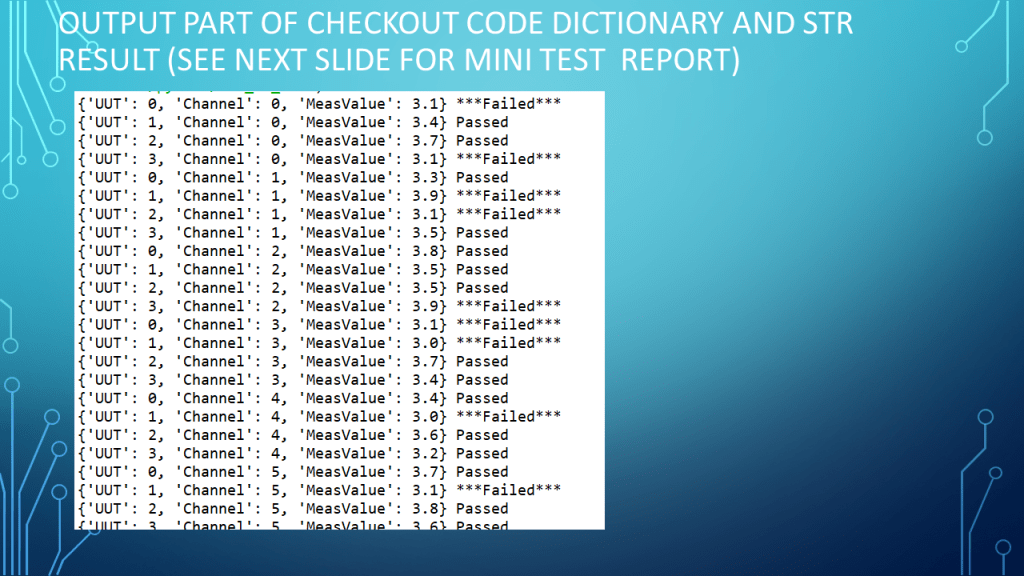
Python List or Dictionary using UUT Ch simulation example

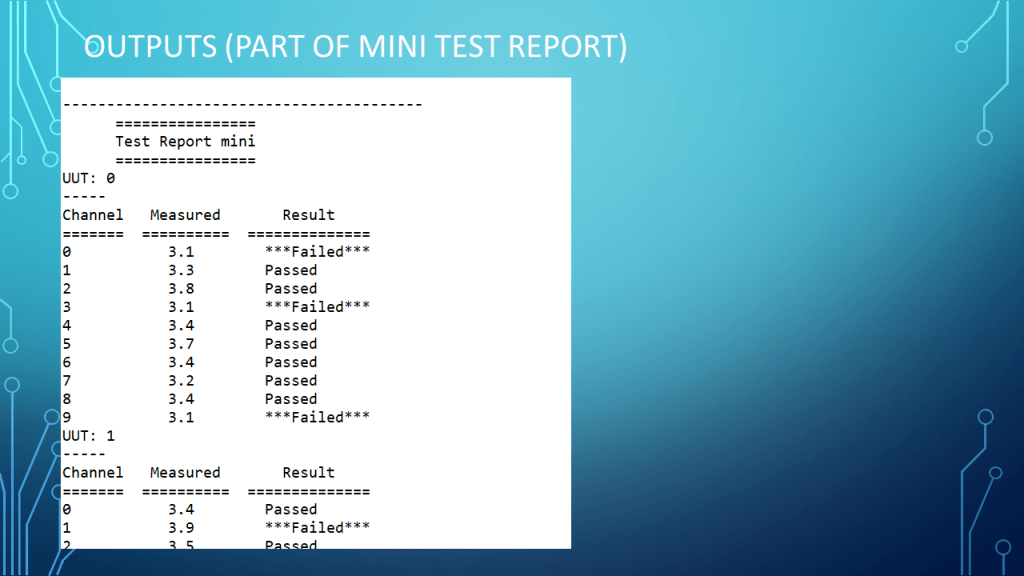
Simulated UUT, channel, Measured value and results with a mini test report

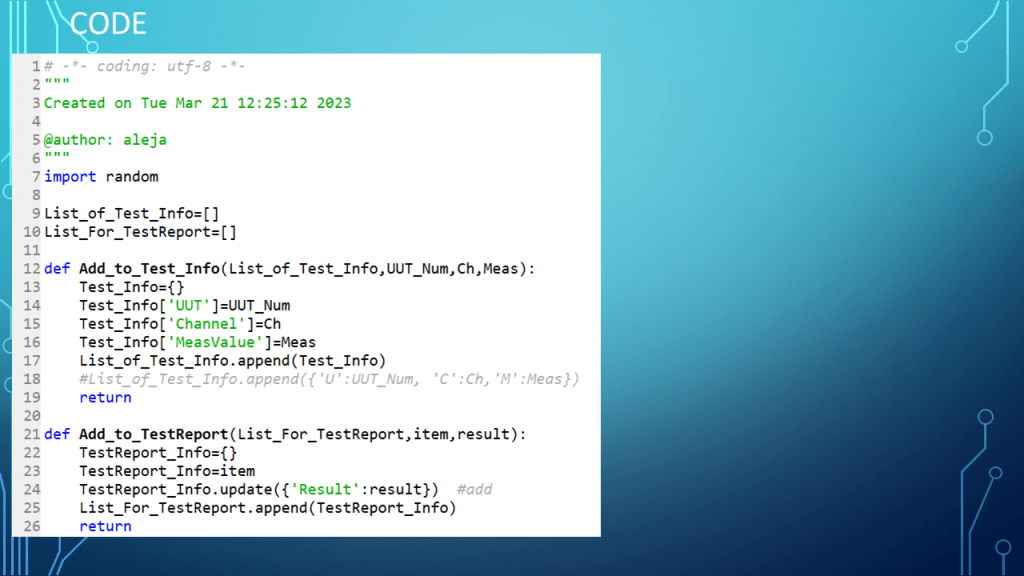
Python code example demo

# -*- coding: utf-8 -*-
"""
Created on Tue Mar 21 12:25:12 2023

@author: aleja
"""
import random

List_of_Test_Info=[]
List_For_TestReport=[]

def Add_to_Test_Info(List_of_Test_Info,UUT_Num,Ch,Meas):
    Test_Info={}
    Test_Info['UUT']=UUT_Num
    Test_Info['Channel']=Ch
    Test_Info['MeasValue']=Meas
    List_of_Test_Info.append(Test_Info)
    #List_of_Test_Info.append({'U':UUT_Num, 'C':Ch,'M':Meas})
    return

def Add_to_TestReport(List_For_TestReport,item,result):
    TestReport_Info={}
    TestReport_Info=item
    TestReport_Info.update({'Result':result})  #add
    List_For_TestReport.append(TestReport_Info)
    return
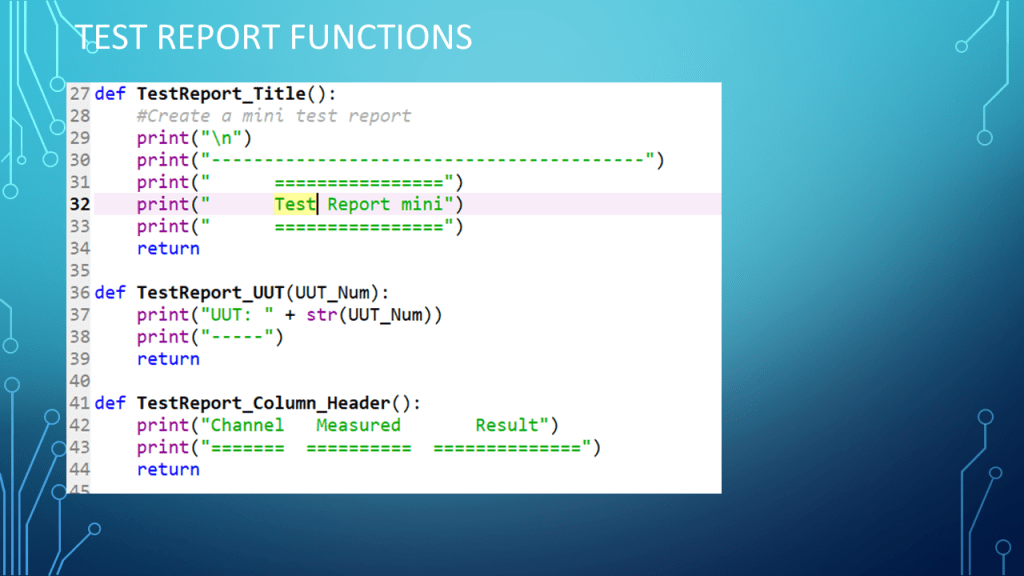
def TestReport_Title():
    #Create a mini test report
    print("\n")
    print("-----------------------------------------")
    print("      ================")
    print("      Test Report mini")
    print("      ================")
    return           

def TestReport_UUT(UUT_Num):
    print("UUT: " + str(UUT_Num))
    print("-----")
    return

def TestReport_Column_Header():
    print("Channel   Measured       Result")
    print("=======  ==========  ==============")
    return    
    
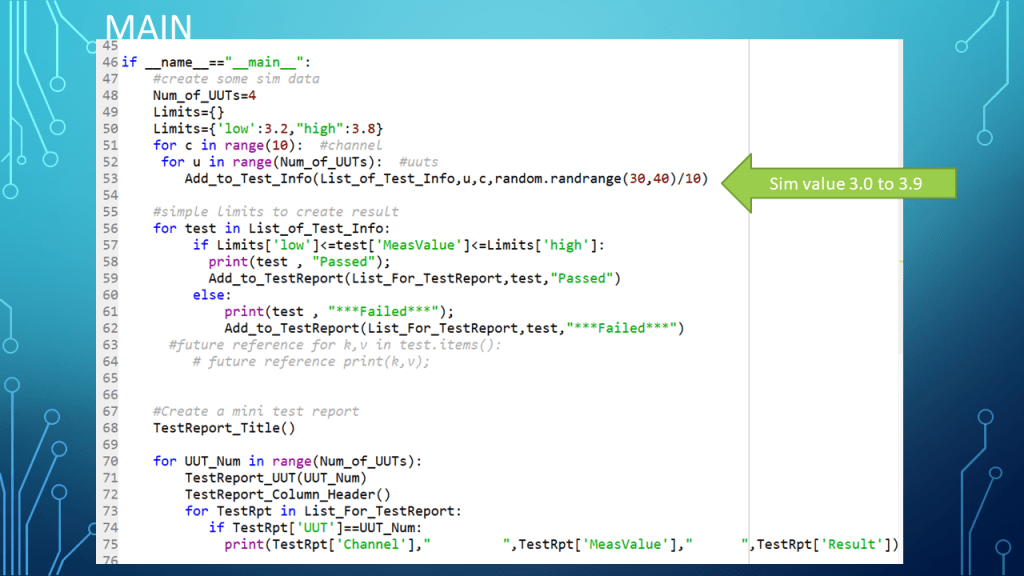
if __name__=="__main__":
    #create some sim data 
    Num_of_UUTs=4
    Limits={}
    Limits={'low':3.2,"high":3.8}
    for c in range(10):  #channel
     for u in range(Num_of_UUTs):  #uuts
        Add_to_Test_Info(List_of_Test_Info,u,c,random.randrange(30,40)/10) 

    #simple limits to create result
    for test in List_of_Test_Info:
         if Limits['low']<=test['MeasValue']<=Limits['high']:
           print(test , "Passed");
           Add_to_TestReport(List_For_TestReport,test,"Passed")
         else:
             print(test , "***Failed***");
             Add_to_TestReport(List_For_TestReport,test,"***Failed***")
      #future reference for k,v in test.items():              
         # future reference print(k,v);


    #Create a mini test report
    TestReport_Title()

    for UUT_Num in range(Num_of_UUTs):
        TestReport_UUT(UUT_Num)
        TestReport_Column_Header()
        for TestRpt in List_For_TestReport:
           if TestRpt['UUT']==UUT_Num:
             print(TestRpt['Channel'],"         ",TestRpt['MeasValue'],"      ",TestRpt['Result'])


Notes

  • Presentation: example List of Dictionary with UUT,channel, sim measurement and result
  • Programming Language used: Python 3.7 in Spyder
  • Presentation app: Microsoft’s PowerPoint
  • Presentation shown to spark ideas of use.
  • This presentation is not connected to or endorsed by any company.
  • Use at your own risk.
  • Tags: Python, Python3.7, List of Dictionary, Mini Test Report, append to list, update(add to dictionary), random
Posted in Python, Test Sector | Tagged , , , , , | Leave a comment

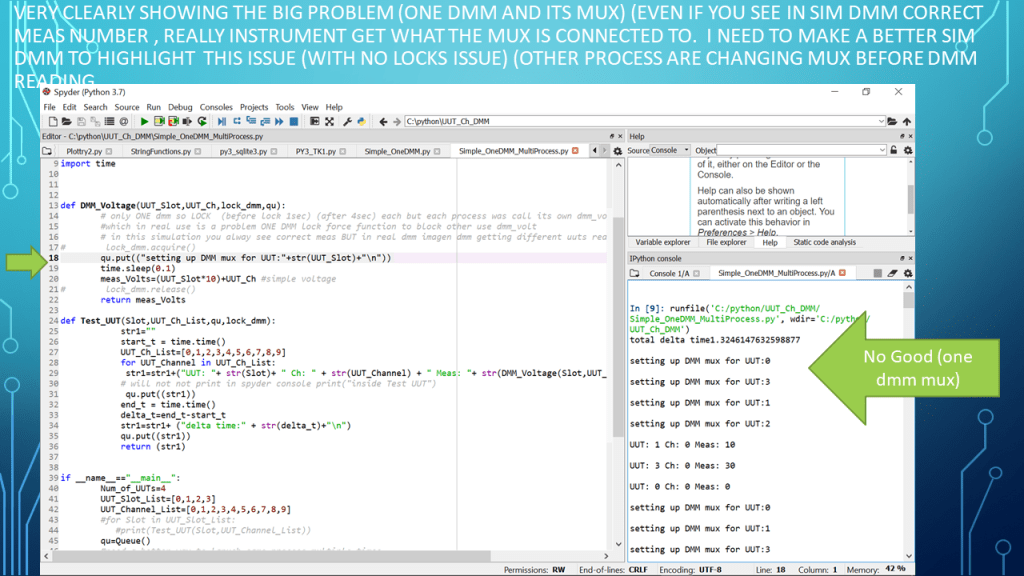
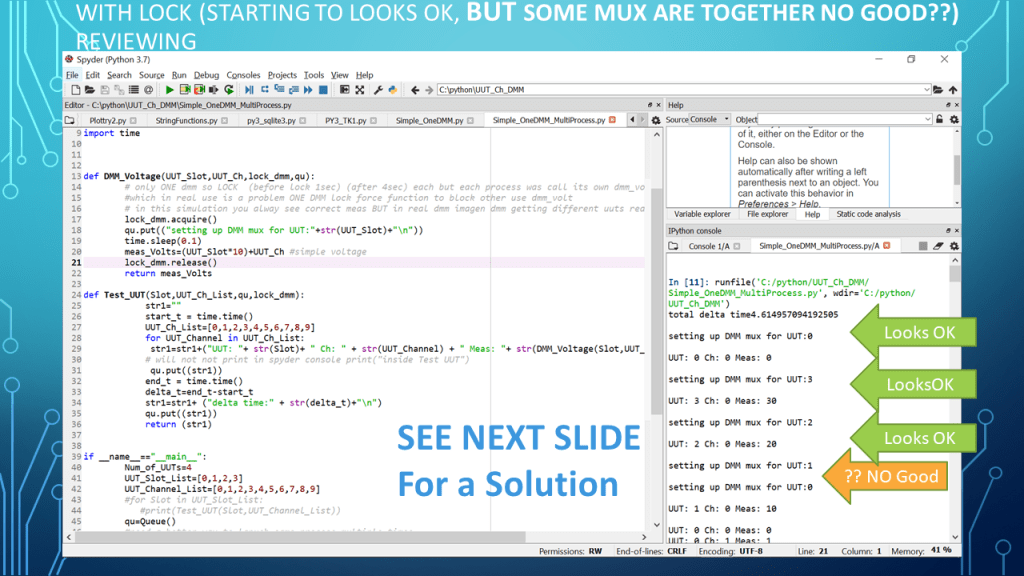
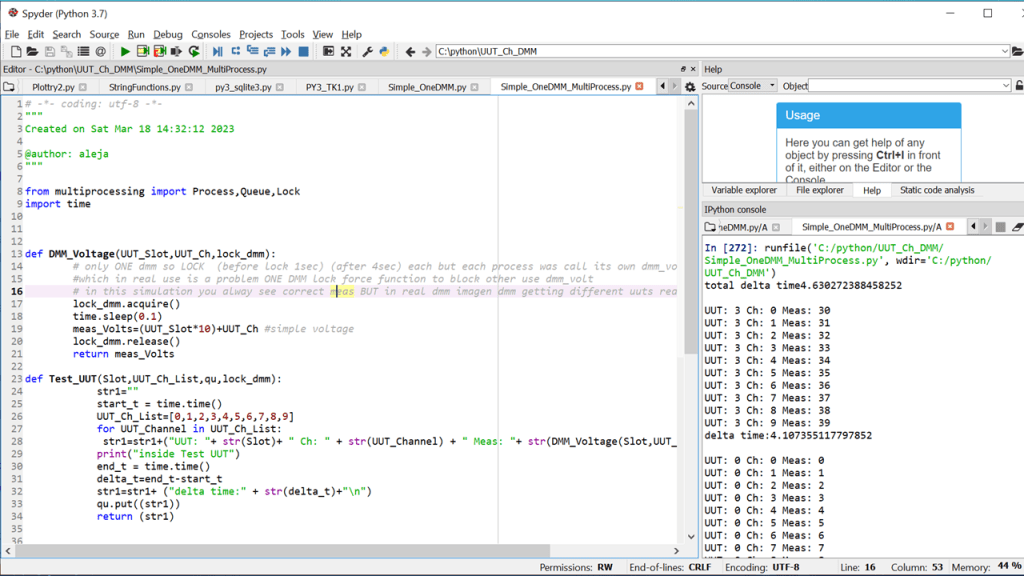
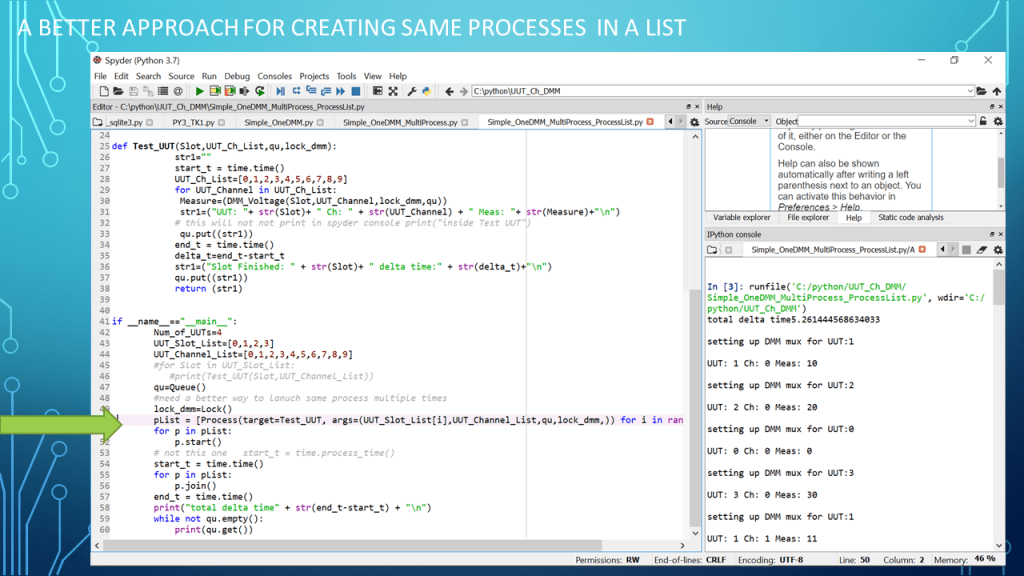
Python- Example One simulated DMM in Multiprocessing with Lock

showing why lock is need if you have multiple process (uuts to test) but only One DMM

Focus is on Multiprocessing and Lock (not on DMM communication setup)

code for Python3.7 used in Spyder

# -*- coding: utf-8 -*-
"""
Created on Sat Mar 18 14:32:12 2023

@author: aleja
"""

from multiprocessing import Process,Queue,Lock
import time


def DMM_Voltage(UUT_Slot,UUT_Ch,lock_dmm,qu):
        # only ONE dmm so LOCK  (before lock 1sec) (after 4sec) each but each process was call its own dmm_volt
        #which in real use is a problem ONE DMM lock force function to block other use dmm_volt
        # in this simulation you alway see correct meas BUT in real dmm imagen dmm getting different uuts reading
        lock_dmm.acquire()
        time.sleep(0.000001)  #for me the lock needed time to enforce will try to move into  test uut to see diff
        qu.put(("setting up DMM mux for UUT:"+str(UUT_Slot)+"\n"))
        time.sleep(0.1)
        meas_Volts=(UUT_Slot*10)+UUT_Ch #simple voltage
        lock_dmm.release()
        return meas_Volts

def Test_UUT(Slot,UUT_Ch_List,qu,lock_dmm):
            str1=""
            start_t = time.time()
            UUT_Ch_List=[0,1,2,3,4,5,6,7,8,9]
            for UUT_Channel in UUT_Ch_List: 
             Measure=(DMM_Voltage(Slot,UUT_Channel,lock_dmm,qu))
             str1=("UUT: "+ str(Slot)+ " Ch: " + str(UUT_Channel) + " Meas: "+ str(Measure)+"\n")
            # this will not not print in spyder console print("inside Test UUT")
             qu.put((str1))
            end_t = time.time()
            delta_t=end_t-start_t
            str1=("Slot Finished: " + str(Slot)+ " delta time:" + str(delta_t)+"\n")
            qu.put((str1))
            return (str1)
        
        
if __name__=="__main__":
        Num_of_UUTs=4
        UUT_Slot_List=[0,1,2,3]
        UUT_Channel_List=[0,1,2,3,4,5,6,7,8,9]
        #for Slot in UUT_Slot_List:
           #print(Test_UUT(Slot,UUT_Channel_List))
        qu=Queue()
        #need a better way to lanuch same process multiple times
        lock_dmm=Lock() 
        pList = [Process(target=Test_UUT, args=(UUT_Slot_List[i],UUT_Channel_List,qu,lock_dmm,)) for i in range(Num_of_UUTs)]
        for p in pList:
            p.start()
        # not this one   start_t = time.process_time() 
        start_t = time.time() 
        for p in pList:           
            p.join()
        end_t = time.time()
        print("total delta time" + str(end_t-start_t) + "\n")
        while not qu.empty():
            print(qu.get())

End Code

Notes

  • Presentation: example One DMM and Python Multiprocessing w Lock
  • Programming Language used: Python 3.7 in Spyder
  • Presentation app: Microsoft’s PowerPoint
  • Presentation shown to spark ideas of use.
  • This presentation is not connected to or endorsed by any company.
  • Use at your own risk.
  • Tags: Python, Python3.7, Multiprocess, Multiprocessing, Lock, Multiple UUT one DMM, Parallelism, Parallel, Run one function many times in parallel, one function in Multiprocessing needs Lock, Lock need some time to Lock, Multiple UUT Testing slot with same test, Queues
Posted in Test Sector | Tagged , , , , , , | Leave a comment

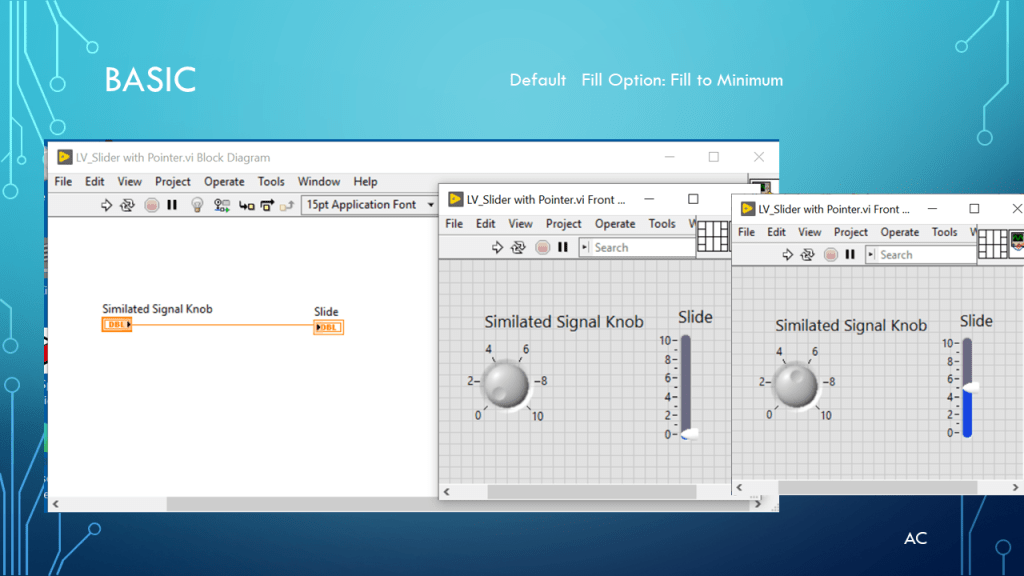
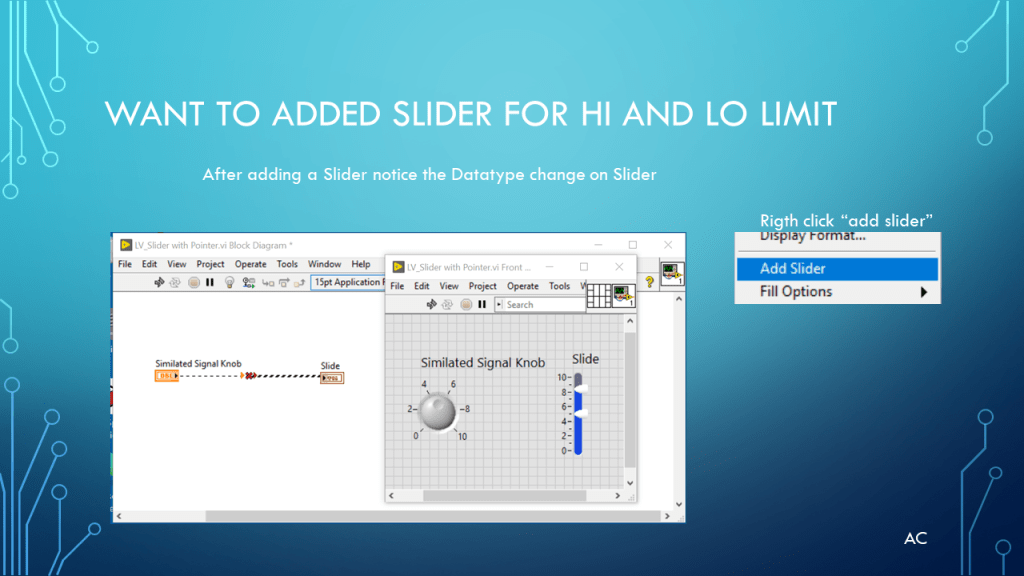
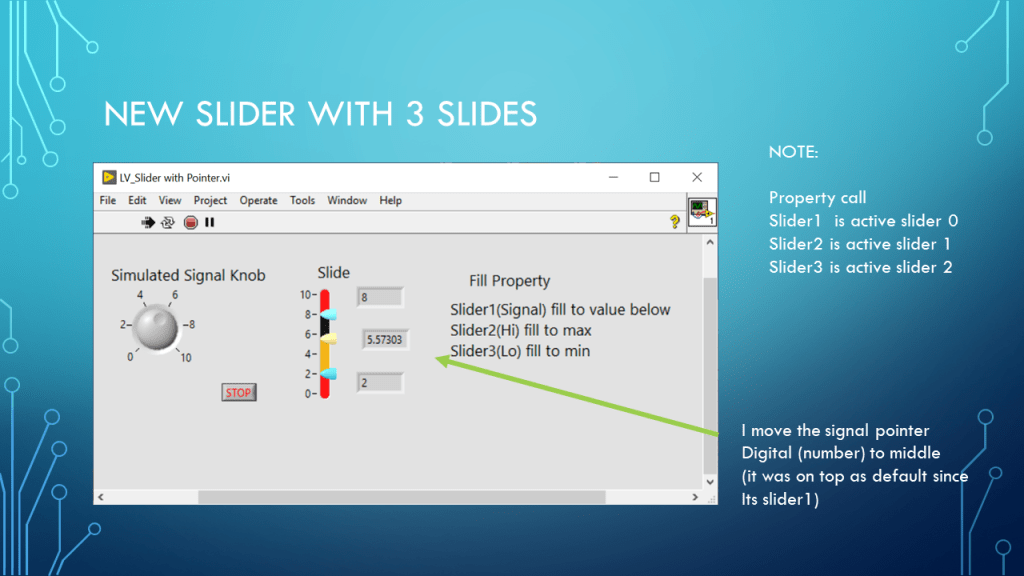
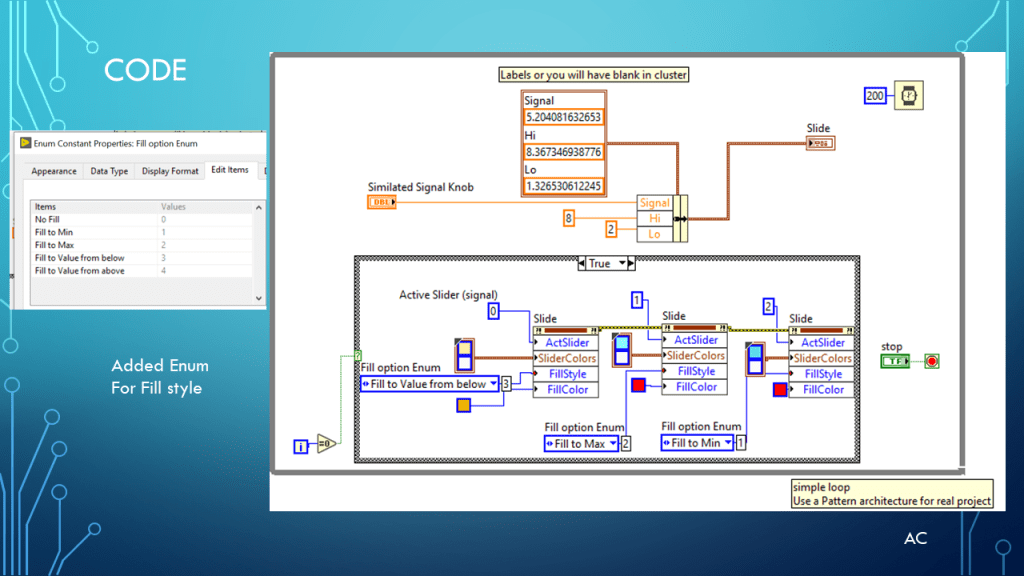
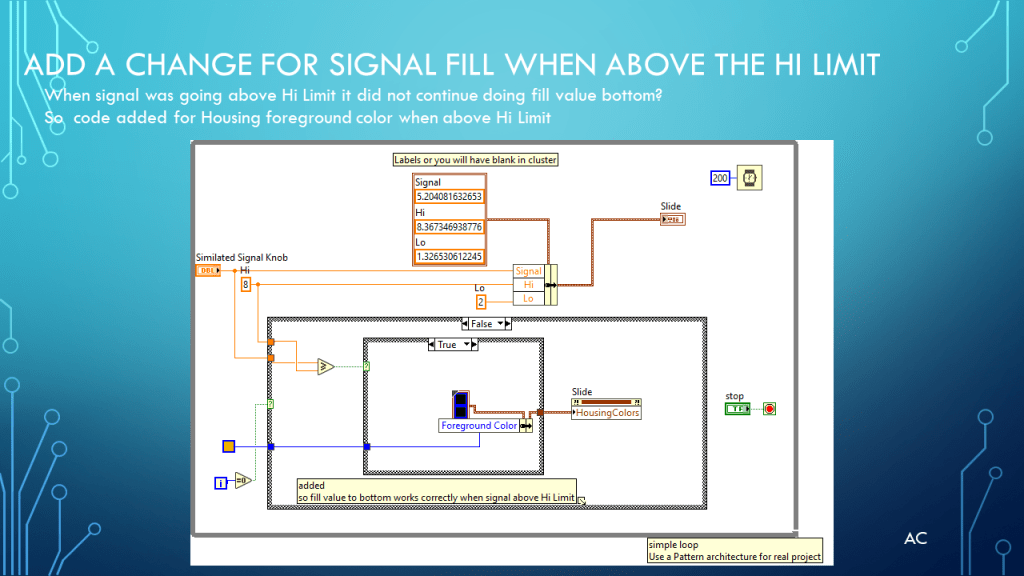
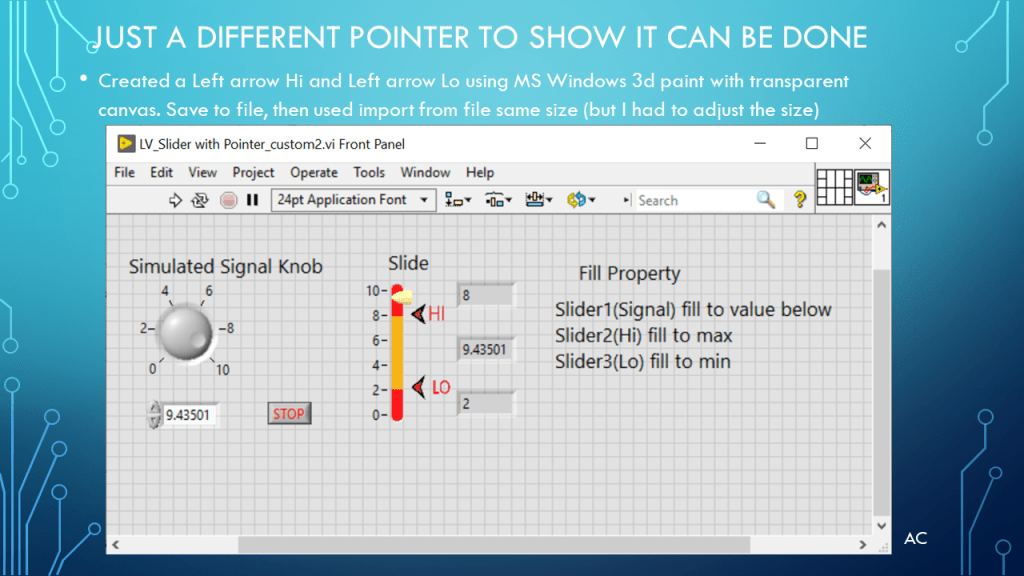
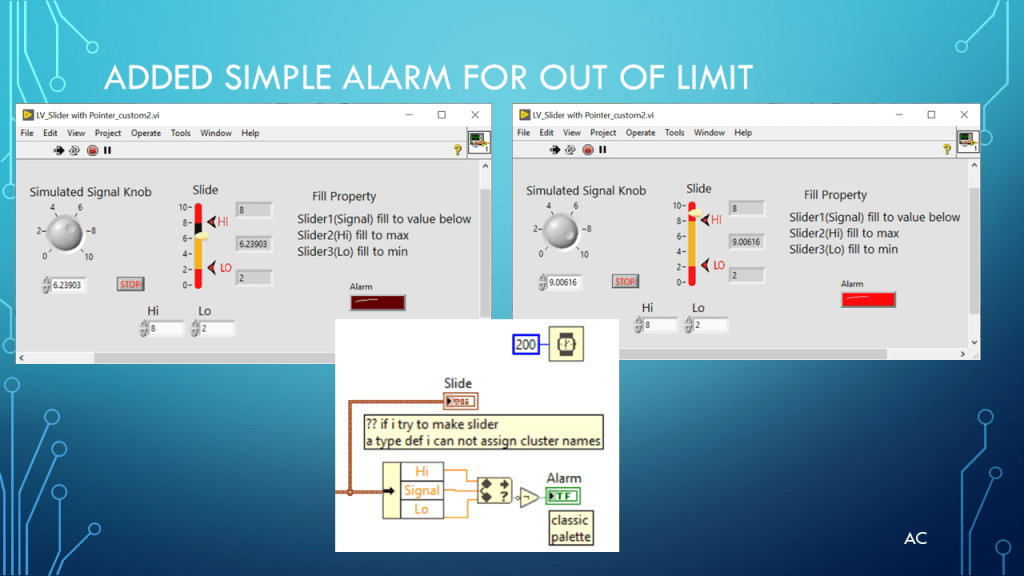
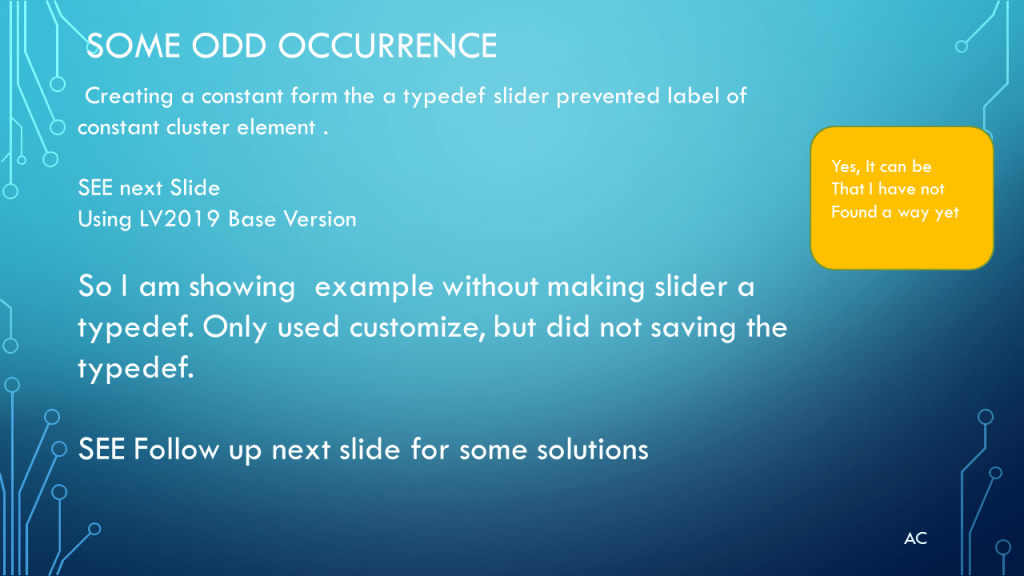
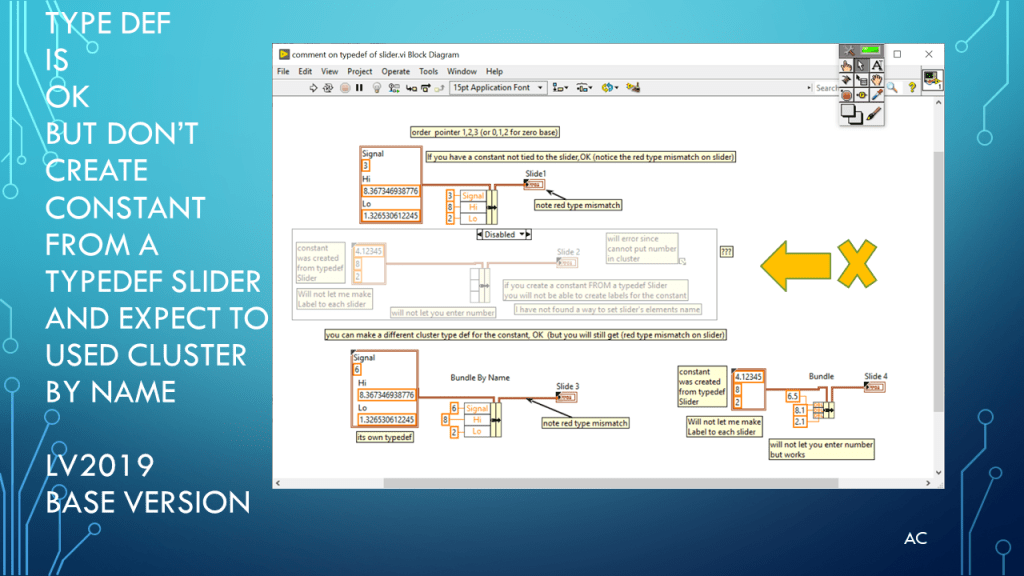
LV Slider with multiple slides and custom pointer

Presentation

Short Video (27sec)

LV code zip

Notes

Notes

  • Presentation: Slider with extra slides and custom pointer
  • Programming Language used: LabVIEW® 2019 Base version
  • LabVIEW® is a NI (formally National Instruments) products
  • Presentation app: Microsoft’s PowerPoint
  • Custom Slider pointer Hi and Lo made with app: Microsoft’s 3D Paint using transparent canvas.
  • Presentation shown to spark ideas of use.
  • This presentation is not connected to or endorsed by any company.
  • Use at your own risk.
  • Tags: LabVIEW® , LV2019,Slider, Customize Slider, Slider Properties
  • Original Content Location: https://testengineerresource.com
Posted in LabVIEW(r), Multiple Slider, Test Sector | Tagged , , , , | Leave a comment

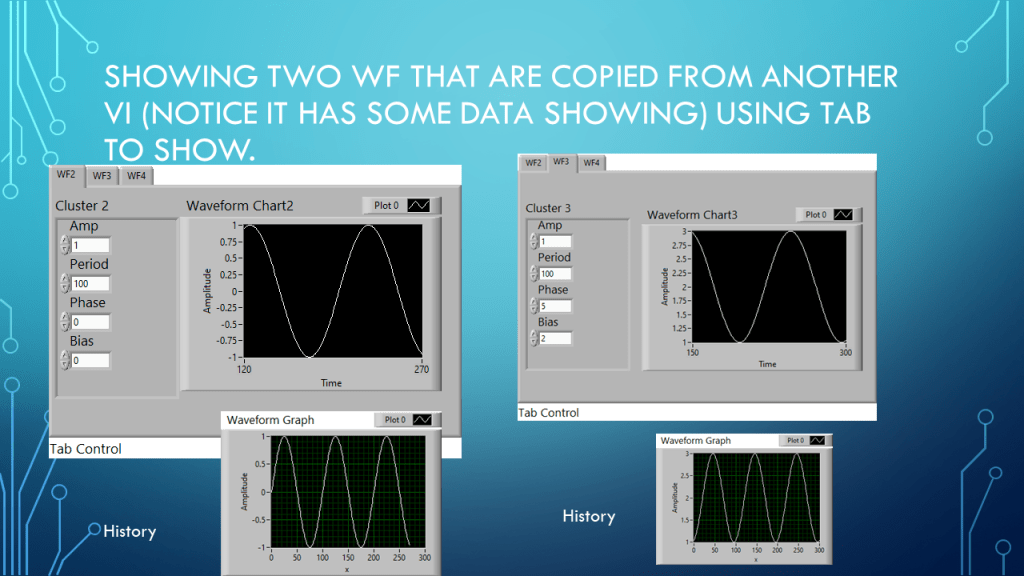
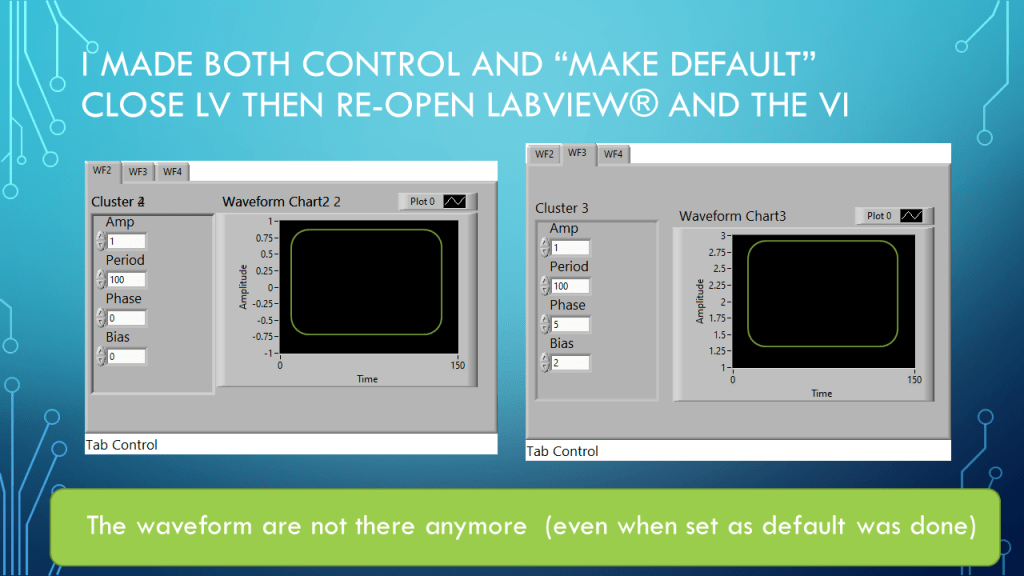
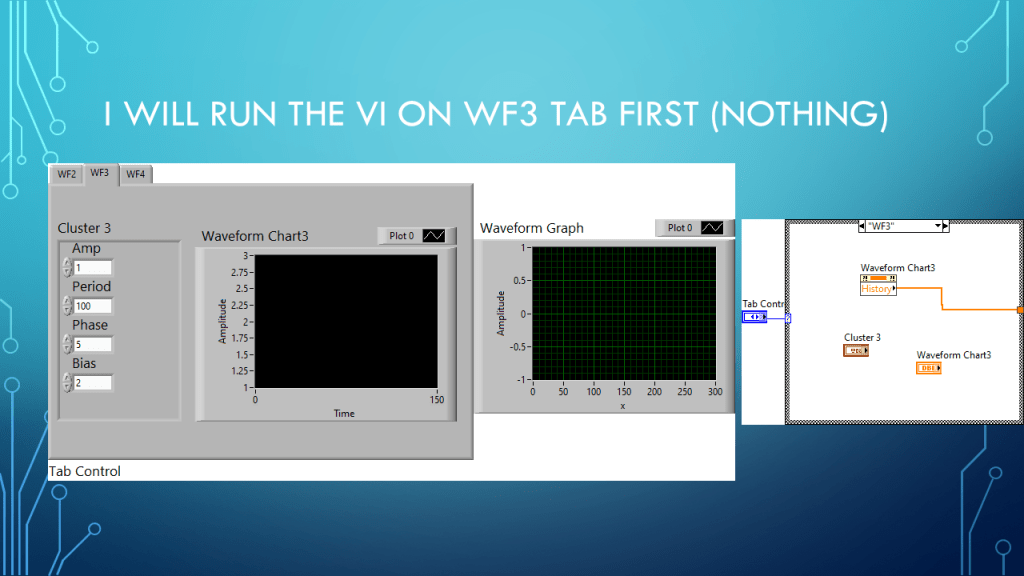
LV Waveform Chart and History Data part2

Things to be aware of when coping a Waveform Chart to another vi.

Remember: Waveform chart is a datatype Double with extra features

Notes

Presentation: How to save a Waveform chart data for future work on vi before closing it(VI)
Remember: Waveform chart is a datatype Double with extra features
Programming Language used: LabVIEW® 2019 Base version
LabVIEW® is a NI (formally National Instruments) products
Presentation app: Microsoft’s PowerPoint
Presentation shown to spark ideas of use.
This presentation is not connected to or endorsed by any company.
Use at your own risk.
Tags: LabVIEW® , Project Template, LV2019,Waveform Chart, History Data, Waveform Graph

Posted in LabVIEW(r), Test Sector, Waveform Chart | Tagged , , , , | Leave a comment

LV Waveform Chart and History Length and History Data

Notes

  • Presentation: Show some info on Waveform CHART type and history Length.
  • Programming Language used: LabVIEW® 2019 Base version
  • LabVIEW® is a NI (formally National Instruments) products
  • Presentation app: Microsoft’s PowerPoint
  • Presentation shown to spark ideas of use.
  • This presentation is not connected to or endorsed by any company.
  • Use at your own risk.
  • Tags: LabVIEW® , LV2019, Waveform Chart type, History length, Clearing Waveform Chart via History Property
Posted in Test Sector | Tagged , , , , | Leave a comment

LV Some ArrayElement Properties

Tring out some Array Element Properties with some success and some not.

Notes

  • Presentation: Example use of some ArrayElement properties with some success and some not.
  • Programming Language used: LabVIEW® 2019 Base version
  • LabVIEW® is a NI (formally National Instruments) products
  • Presentation app: Microsoft’s PowerPoint
  • Presentation shown to spark ideas of use.
  • This presentation is not connected to or endorsed by any company.
  • Use at your own risk.
  • Tags: LabVIEW® , LV2019, Events, Array Element value property, Array functions, Array of Boolean, ArrElem , Get Control Index by Name .
Posted in Test Sector | Tagged , , , , , | Leave a comment